Quick answer: To hide your email and name in a screenshot, cover them with a solid, fully opaque box before you share the image, then save it as a new flattened PNG or JPEG. Crop out anything you don’t need, and check the less obvious places too: the browser’s profile icon, tab titles, the address bar, notifications and file paths.
Most people remember to hide the email in the middle of the screen. They forget the avatar in the top corner with their full name, the browser tab titled “Inbox (3) – jane.doe@company.com”, or the notification that slid in while they captured. This guide covers where your details hide, the safest way to cover them on every device, and a quick checklist to run before you hit send.
Where your name and email hide in a screenshot
Before you edit anything, look at the full image for these common leaks:
| Where | What it can show |
|---|---|
| Browser profile icon (top right) | Your photo and, on hover, your full name and Google account |
| Tab titles | Email address, inbox count, document names |
| Address bar | Usernames, email addresses or tokens inside the URL |
| Bookmarks bar | Internal tools, client names, personal sites |
| App headers and account menus | Your name, workspace or company name |
| Notifications and chat pop-ups | Other people’s names and message previews |
| Form fields and autocomplete | Saved emails, phone numbers and addresses |
| Taskbar or menu bar | Usernames, open apps, file names |
| File paths | Your computer username, like C:\Users\janedoe |
Step 1: Remove what you can before you capture
The safest information to hide is information that never makes it into the screenshot. A few seconds of prep saves a lot of editing:
- Capture only what you need. Use an area or window capture instead of your whole screen. On Windows press Win+Shift+S; on Mac press Cmd+Shift+4.
- Turn on Do Not Disturb so notifications don’t appear mid-capture.
- Use a guest window or demo account when you’re showing a product or reporting a bug. In Chrome, click your profile icon and choose Guest.
- Hide the bookmarks bar with Ctrl+Shift+B (Cmd+Shift+B on Mac).
- Swap in fake text. For a web page, right-click your name, choose Inspect, double-click the text in the panel and type something like “Alex Example”. The change is only on your screen and disappears when you reload.
Step 2: Cover it the right way
Not all hiding methods are equal. Here’s how they compare:
| Method | Safe? | When to use it |
|---|---|---|
| Crop it out | Yes | The detail is at the edge and you don’t need that area |
| Solid, opaque box | Yes | Emails, names, account numbers, anything sensitive |
| Strong blur | Usually | Faces and backgrounds, where context still matters |
| Light blur or pixelation | No | Avoid for text. Short text can sometimes be guessed back |
| Highlighter or semi-transparent shape | No | Never. The text shows through |
For text like an email address, a solid box is the right choice. Blurring short text is risky because the shape of letters can still be matched, which we explain in how to blur or hide sensitive information.
How to cover your details on each device
Windows (Snipping Tool)
Snipping Tool doesn’t have a blur or box tool, but you can still cover text safely:
- Take the screenshot with Win+Shift+S and click the notification to open it.
- Choose the Pen, set the colour to black and the thickness to the maximum.
- Scribble over the text until none of it shows. Zoom in to check.
- Save it with Ctrl+S.
Avoid the highlighter tool. It’s transparent. For a cleaner look, open the image in Paint and draw a filled rectangle instead.
Mac (Preview)
- Open the screenshot in Preview.
- Click the Markup icon (the pen tip), then Shapes and choose the rectangle.
- Drag it over the text, then set both the border and the Fill Color to black.
- Go to File > Export and save as PNG or JPEG.
Exporting matters. It flattens the image so the box can’t be moved later in another app.
iPhone and Android
Tap the screenshot preview right after you take it to open Markup. Choose a shape, make it a filled rectangle, and place it over the text. On Android, the editor varies by phone; if it only has a pen, use a thick, fully opaque stroke. Save it as a copy and share that copy.
In your browser
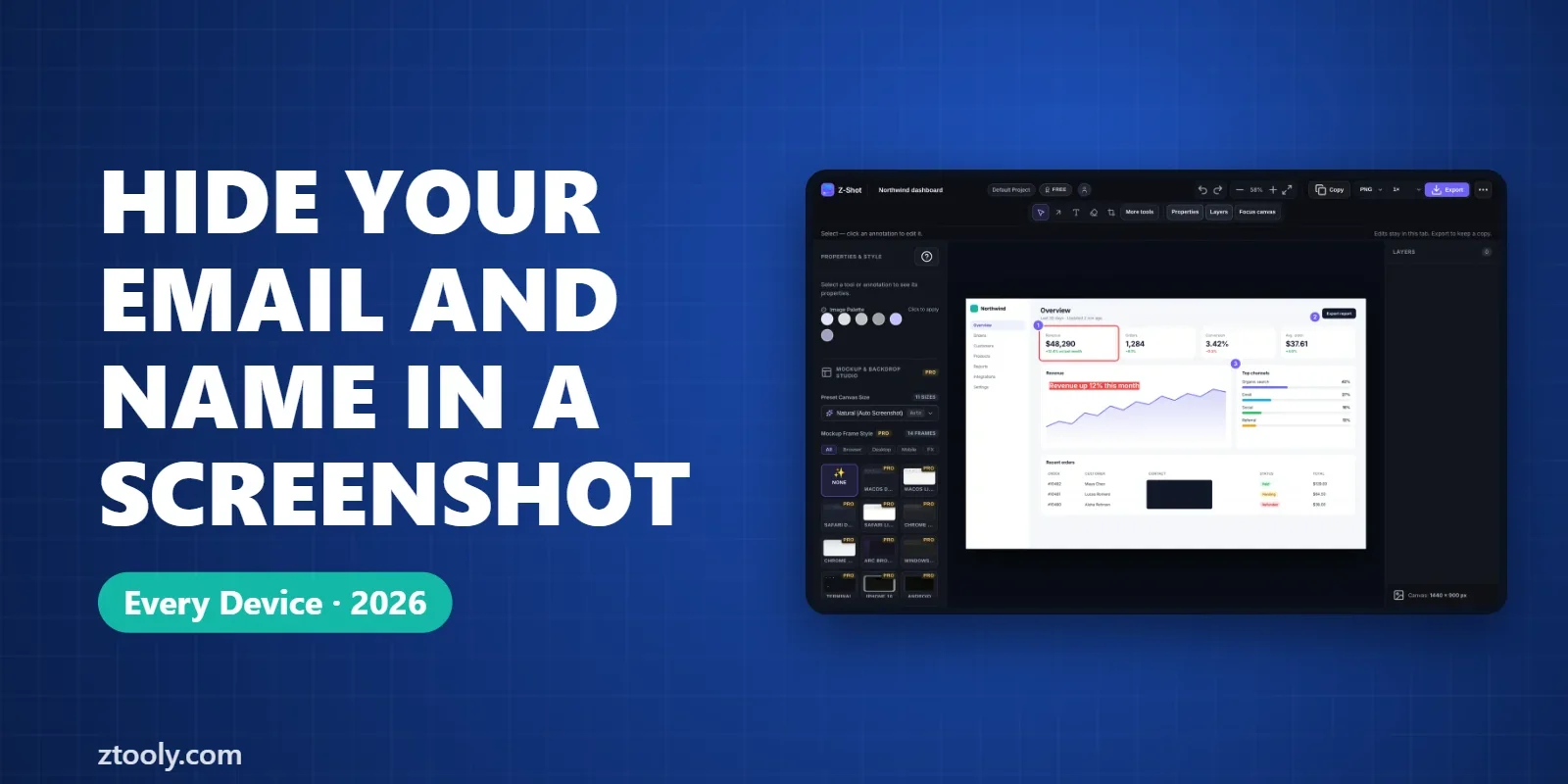
If you take screenshots of web pages often, a screenshot extension with redaction built in saves a step. Z-Shot, which we make, has a solid redaction box and a blur tool in its free editor, and a Pro feature that detects emails, phone numbers and API keys automatically. Images are processed in your browser and not uploaded.
Step 3: Check before you share
Run through this list every time. It takes under a minute.
- Zoom the final image to 200% and look for any letters showing at the edges of your boxes.
- Check all four corners for profile icons, names and usernames.
- Read the tab titles and the address bar.
- Look for reflected or repeated information, like your name in both the header and an email signature.
- Make sure you’re sharing the edited copy, not the original. Many phones keep both.
- Don’t share an editable file, like a PSD or a Keynote slide, where someone could move the box.
Common mistakes that leak your details
- Covering the name but not the email in the line below it.
- Using a coloured highlighter, which tints the text but leaves it readable.
- Pasting a screenshot into a document and drawing a box on top. Anyone can click the box and drag it away. Edit the image itself.
- Sharing a cropped image from some apps that keep the original data. Export or save as a new image to be safe.
- Forgetting metadata. Photos from phones can include location. Screenshots usually don’t, but check before posting photos publicly.
FAQ
What’s the safest way to hide an email in a screenshot?
Cover it with a solid, fully opaque box and save the image as a new PNG or JPEG. Cropping it out entirely is even safer when you don’t need that part of the image.
Is blurring my name enough?
For faces and backgrounds a strong blur is usually fine. For short text like a name or email, use a solid box, because light blur and pixelation can sometimes be reversed or guessed.
Can someone remove a black box from a screenshot?
Not if the box was drawn on the image and the file was saved or exported as a new flattened image. They can if you drew it on top of the image inside a document or slide, so always edit the image itself.
How do I hide my name in Chrome before taking a screenshot?
Use a Guest window, hide the bookmarks bar with Ctrl+Shift+B, and crop out the profile icon. For a web page, you can also right-click your name, choose Inspect and change the text temporarily.
Does Windows Snipping Tool have a blur tool?
No. Use the pen at maximum thickness in solid black, or open the image in Paint and draw a filled rectangle. Don’t use the highlighter, which is transparent.
Try it free: Z-Shot captures full pages, records your screen, and blurs or redacts sensitive data right in Chrome. Free plan, no account needed, and nothing is uploaded.