Quick answer: Every major browser can capture a whole webpage without an extension. In Chrome, open DevTools (Ctrl+Shift+I), press Ctrl+Shift+P, type screenshot and choose Capture full size screenshot. In Firefox and Edge, press Ctrl+Shift+S and pick the full-page option. On iPhone, take a screenshot in Safari and choose Full Page.
You don’t need to install anything to screenshot an entire webpage. The tools are already built into Chrome, Edge, Firefox, Safari and your phone. They are just hidden in places most people never look. Below are the exact steps for each browser, what each method is good and bad at, and what to do when the result comes out blank or cut off.
Which built-in method should you use?
| Browser or device | Method | Output | Best for |
|---|---|---|---|
| Chrome (Windows, Mac, Linux) | DevTools command | PNG | Exact, pixel-perfect captures |
| Microsoft Edge | Web Capture (Ctrl+Shift+S) | PNG, with a pen | Quick captures with a scribble |
| Firefox | Screenshot tool (Ctrl+Shift+S) | PNG | The easiest one-click option |
| Safari (Mac) | Export as PDF or Web Inspector | PDF or PNG | Mac users without Chrome |
| Any browser | Print to PDF | Text-heavy pages you want to search | |
| iPhone or iPad | Screenshot, then Full Page | Saving articles on the go | |
| Android | Scroll capture or Chrome Long Screenshot | Image | Long chats and pages |
Chrome: use the hidden DevTools command
Chrome doesn’t have a visible full-page screenshot button, but its developer tools do. You don’t need to know any code.
- Open the page you want to capture and let it finish loading.
- Press Ctrl+Shift+I on Windows or Linux, or Cmd+Option+I on Mac. A panel opens beside or below the page.
- Press Ctrl+Shift+P (Cmd+Shift+P on Mac) to open the command menu.
- Type screenshot.
- Choose Capture full size screenshot.
Chrome saves a PNG to your Downloads folder, named after the site. The same menu has three other useful commands: Capture screenshot for the visible area, Capture area screenshot to drag a box, and Capture node screenshot to grab a single element you selected in the Elements panel.
Tip: want the mobile version of a page? Click the phone-and-tablet icon in DevTools (or press Ctrl+Shift+M), pick a device like iPhone 14 Pro, then run the same command. You get a full-length mobile screenshot without touching a phone.
Microsoft Edge: Web Capture
- Press Ctrl+Shift+S, or open the menu (three dots) and choose Screenshot.
- Click Capture full page.
- Use the Draw tool if you want to circle something, then click Save or Copy.
Edge’s tool is the friendliest built-in option because it shows a preview and a simple pen. It saves PNG files.
Firefox: the built-in screenshot tool
- Press Ctrl+Shift+S (Cmd+Shift+S on Mac), or right-click an empty part of the page and choose Take Screenshot.
- Click Save full page in the top-right corner.
- Choose Download or Copy.
Firefox also lets you hover over a section, like an article body, and click to capture just that block. It’s the closest thing to a built-in “element screenshot”.
Safari on Mac: two options
Export as PDF (easiest)
Open the page, then go to File > Export as PDF. Safari saves the whole page as one long PDF. It keeps links and text, but the layout can shift slightly from what you see on screen.
Web Inspector (exact image)
- Turn on developer features: Safari > Settings > Advanced, then tick Show features for web developers.
- Right-click the page and choose Inspect Element.
- In the Elements tab, right-click the
<html>line at the top and choose Capture Screenshot.
Safari saves a PNG of the full page.
Any browser: print to PDF
Press Ctrl+P (Cmd+P on Mac) and set the destination to Save as PDF. This works everywhere and keeps text searchable, which is useful for receipts, articles and documentation. The downside: print layouts often hide menus, change fonts and split the page across A4 or Letter sheets. If you need it to look exactly like the screen, use one of the image methods above.
iPhone and iPad
- Open the page in Safari.
- Take a screenshot as usual (Side button + Volume Up on Face ID models).
- Tap the thumbnail that appears in the corner.
- Tap Full Page at the top.
- Tap Done and choose Save PDF to Files.
The full-page option is saved as a PDF, not a photo. It works in Safari and some other apps, but not every app supports it.
Android
Most Android phones have a scrolling screenshot. Take a normal screenshot, then tap Capture more or Scroll capture in the preview that appears (the label varies by brand). Chrome for Android also has a Long Screenshot option in its Share menu on many versions, which lets you drag the top and bottom edges to choose how much to capture.
When built-in tools fall short
Built-in methods are free and reliable, but they have limits you will run into on real sites:
- Blank sections. Pages that load images as you scroll may show grey boxes. Scroll to the bottom once before capturing.
- Repeated headers. Sticky menus and cookie banners can cover content. Close them first.
- Inner scrolling areas. Web apps like Gmail, Slack or dashboards scroll inside a box, so the browser only captures the visible part. DevTools’ “Capture node screenshot” on that box sometimes helps.
- No editing. None of these tools can blur an email address or add numbered steps.
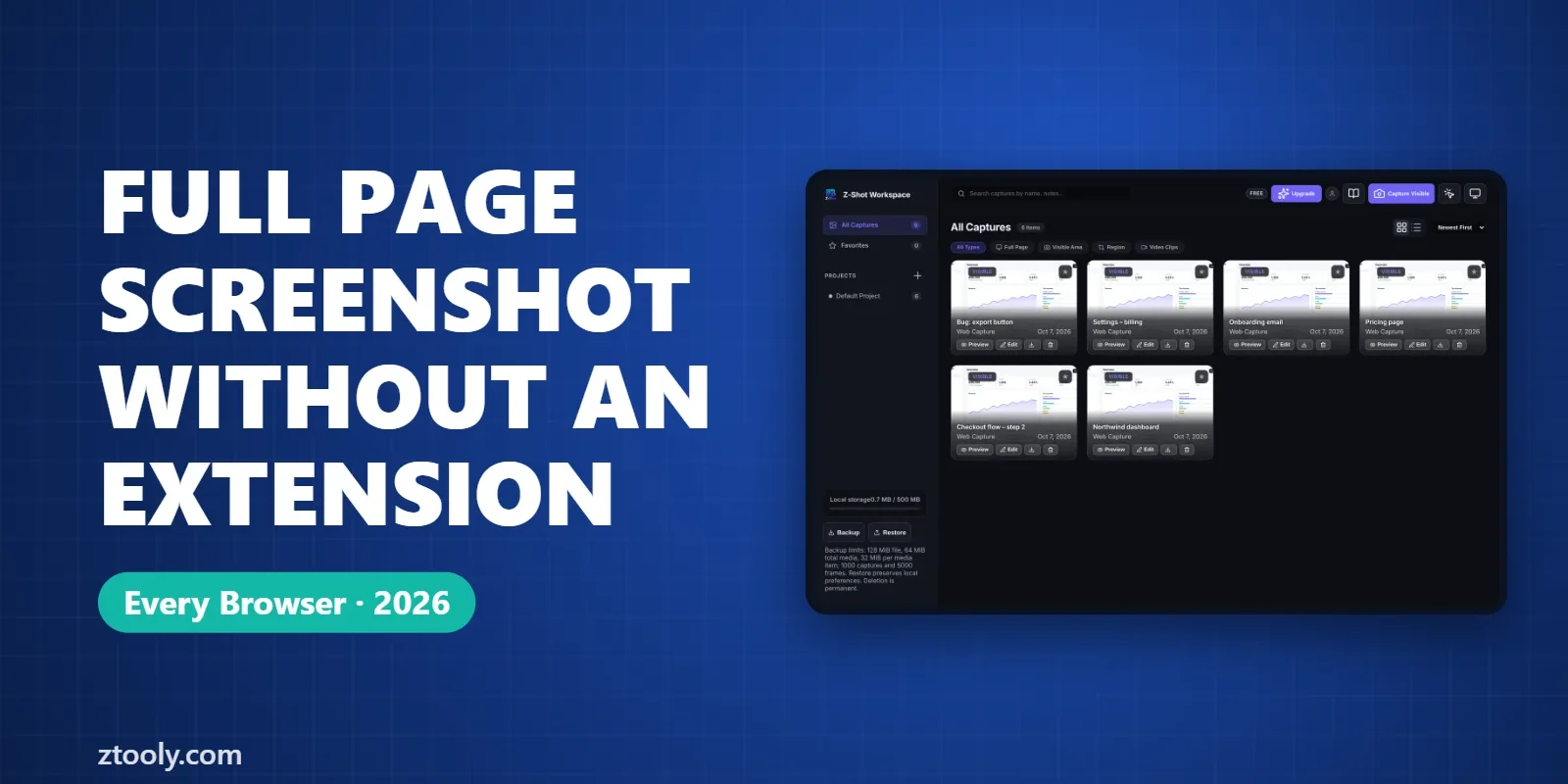
If you capture pages often, an extension saves time. Z-Shot, which we build, captures full pages with Alt+Shift+F and opens them in an editor where you can blur, redact and annotate before sharing. Everything stays in your browser. For a broader comparison of extensions, see the best screenshot extensions for Chrome.
Which format should you save in?
- PNG for screenshots with text and interfaces. It stays sharp.
- JPEG or WebP for photo-heavy pages where file size matters.
- PDF when someone needs to search or select the text, or for legal and record-keeping use.
FAQ
Does Chrome have a built-in full-page screenshot?
Yes, inside DevTools. Press Ctrl+Shift+I, then Ctrl+Shift+P, type screenshot and choose Capture full size screenshot. Chrome saves a PNG to your Downloads folder.
How do I screenshot a whole webpage on Windows without software?
Use your browser. In Edge or Firefox press Ctrl+Shift+S and choose the full-page option. In Chrome use the DevTools command. Windows’ Snipping Tool cannot capture a scrolling page by itself.
Why is part of my full-page screenshot blank?
The page loads images only when you scroll to them. Scroll to the bottom and back to the top before you capture, and close pop-ups first.
Can I take a full-page screenshot on iPhone?
Yes, in Safari. Take a screenshot, tap the thumbnail, choose Full Page at the top and save it as a PDF to Files.
Is print to PDF the same as a full-page screenshot?
Not quite. Print to PDF uses the site’s print layout, which can hide menus and split the page across sheets. A screenshot keeps the page exactly as it looks on screen.
Try it free: Z-Shot captures full pages, records your screen, and blurs or redacts sensitive data right in Chrome. Free plan, no account needed, and nothing is uploaded.