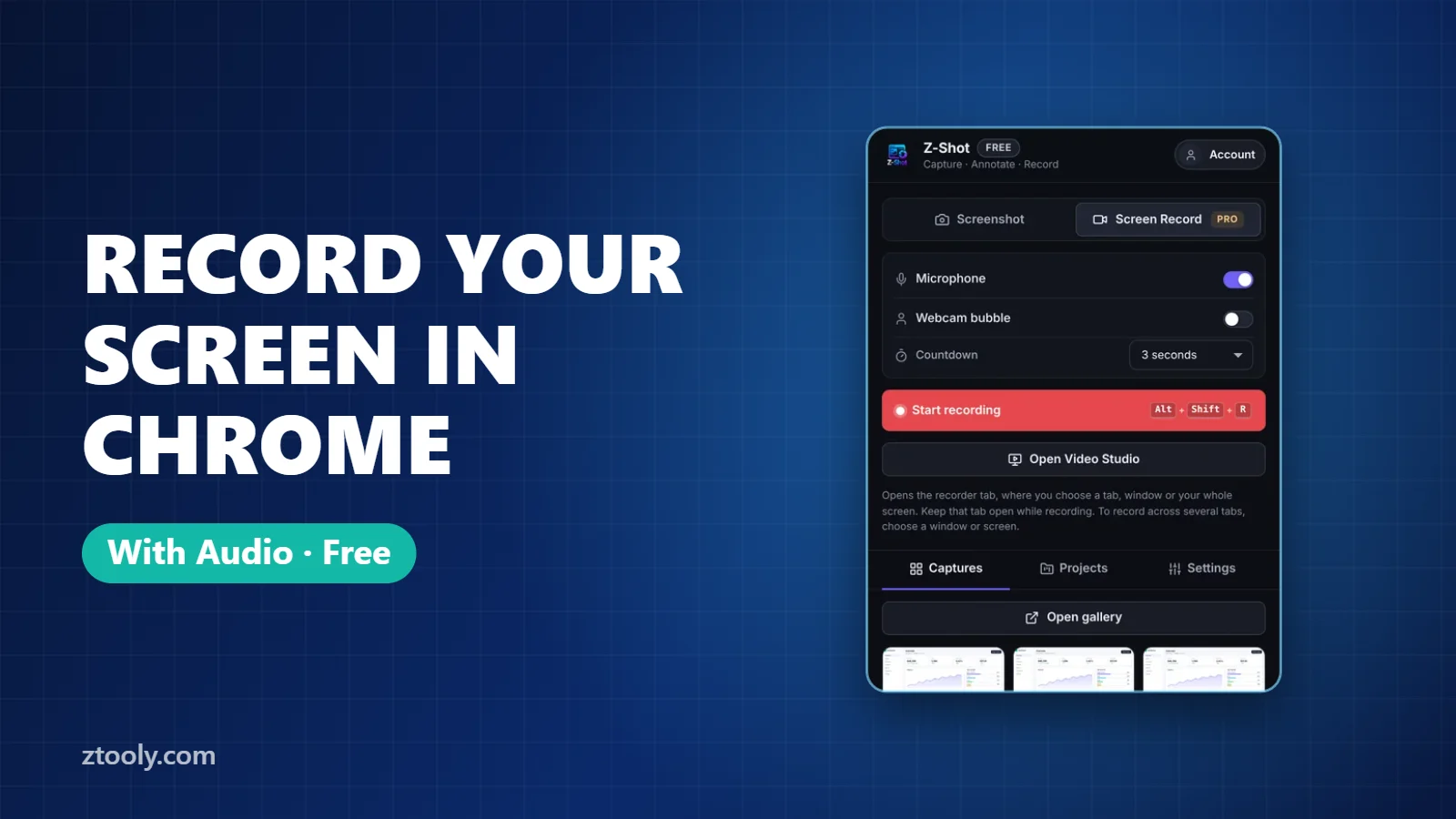
Quick answer: To record your screen in Chrome with audio for free, install a screen recorder extension such as Z-Shot, click Record (or press Alt+Shift+R), choose a tab, window or your whole screen, turn on your microphone, and click Stop when you are done. The recording opens in an editor where you can trim it and export MP4, WebM or GIF.
Recording your screen is the fastest way to explain something: a bug, a product demo, a quick tutorial for a teammate. Chrome does not have a built-in “record” button, but you have several free options, from extensions to tools built into Windows, macOS and ChromeOS.
This guide shows the quickest method first, then every free alternative, plus tips for clear audio and small file sizes.
Method 1: Record with a Chrome extension (fastest)
A screen recorder extension lives in your toolbar, so you can start recording without opening another app. Here is how it works with Z-Shot:
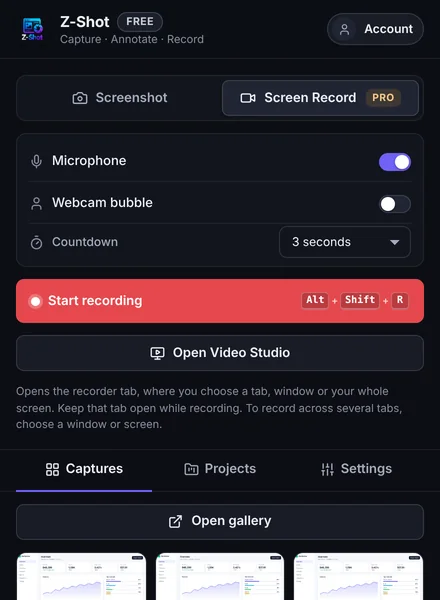
- Install the extension from the Chrome Web Store and pin it to your toolbar.
- Start recording. Click the Z-Shot icon and choose Record, or press Alt+Shift+R.
- Pick what to record: a single tab, an app window, or your entire screen.
- Turn on your microphone to narrate. Add the optional webcam bubble if you want your face in the corner.
- Record. Use the small on-screen control to pause and resume.
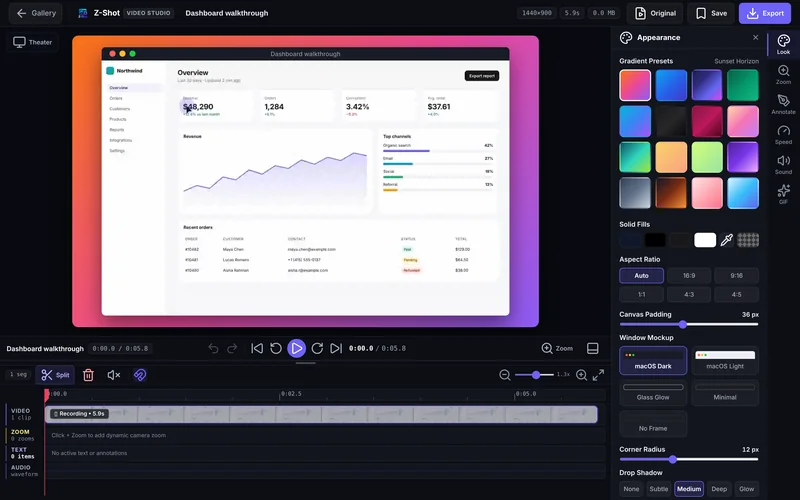
- Stop and edit. The recording opens in Video Studio, where you can cut mistakes, add zooms and text, then export.
Recordings are saved in your browser, not uploaded to a server, which matters if you are recording dashboards, client work or anything private.
Tab, window or entire screen: which should you choose?
| Option | Best for | Watch out for |
|---|---|---|
| Chrome tab | Web app demos, bug reports, website walkthroughs | Only that tab is visible, so switching tabs won’t show |
| Window | Showing one desktop app | Pop-ups from other apps are hidden |
| Entire screen | Workflows across several apps | Notifications and other windows will be visible |
For most web tasks, recording a single tab gives the cleanest result because nothing outside the page can appear by accident.
Method 2: Windows 11 Snipping Tool
Windows 11’s Snipping Tool can record the screen. Open it, switch to the video mode, select an area and click Start. Recent versions can include microphone and system audio. It works well for quick clips, but editing is limited, so you may need a separate editor to trim or add text.
Method 3: Xbox Game Bar (Windows)
Press Win+Alt+R to record the active app, including Chrome. Turn on the microphone in the Game Bar’s capture widget (Win+G). It records one app at a time and can’t record the desktop or File Explorer, so it is better for games than for tutorials.
Method 4: macOS Screenshot toolbar
Press Cmd+Shift+5, choose “Record Entire Screen” or “Record Selected Portion”, then open Options to pick your microphone. Click Record, and stop from the menu bar. The file is saved as a MOV, which you may want to convert to MP4 before sharing.
Method 5: ChromeOS screen capture
On a Chromebook, open Quick Settings, choose Screen capture, switch to video, and turn on the microphone from the settings icon. Recordings are saved to your Downloads folder.
Which method should you use?
| Method | Free | Mic audio | Webcam | Built-in editing |
|---|---|---|---|---|
| Z-Shot extension | Yes | Yes | Yes | Yes (Video Studio) |
| Snipping Tool (Win 11) | Yes | Yes | No | Minimal |
| Xbox Game Bar | Yes | Yes | No | Trim only |
| macOS Cmd+Shift+5 | Yes | Yes | No | Trim only |
| ChromeOS capture | Yes | Yes | No | No |
Tips for clear audio
- Use any headset mic instead of your laptop’s built-in microphone. It picks up far less keyboard and fan noise.
- Do a 5-second test and play it back before recording the real thing.
- Close noisy apps and turn on Do Not Disturb so notification sounds don’t land in your recording.
- Speak a little slower than normal. Viewers follow the cursor and your voice at the same time.
Tips for smaller, sharper videos
- Record a tab instead of the whole screen to keep the frame focused.
- Zoom the page (Ctrl or Cmd and +) so small text stays readable after compression.
- Cut dead time. Trimming pauses at the start and end often halves the file.
- Export MP4 for sharing almost anywhere, WebM for the web, and GIF only for very short clips.
Keep private data out of recordings
Recordings capture everything on screen. Before you hit Record, close unrelated tabs, hide bookmarks with sensitive names, and sign out of accounts you don’t need. For still images, our guide on blurring sensitive information in screenshots covers what to hide.
Frequently Asked Questions
Can Chrome record my screen without an extension?
Chrome itself has no record button. Without an extension, use your operating system: Snipping Tool or Xbox Game Bar on Windows, Cmd+Shift+5 on Mac, or Screen capture on ChromeOS.
How do I record my screen with audio for free?
Use a free screen recorder extension like Z-Shot, or the built-in recorder on your computer. Turn on the microphone before you start, and do a short test recording to check the sound.
Can I record my screen and webcam at the same time in Chrome?
Yes. Z-Shot can add a webcam bubble on top of your screen recording, so viewers see your face in the corner while you explain.
Where are my screen recordings saved?
With Z-Shot, recordings are saved in your browser’s local storage and appear in the gallery, where you can edit or export them. System recorders usually save to your Videos, Movies or Downloads folder.
What format should I export a screen recording in?
MP4 plays almost everywhere and is the safest choice for sharing. WebM is smaller and works well on the web. GIF is best for short, silent clips.
Try it free: Z-Shot captures full pages, records your screen, and blurs or redacts sensitive data right in Chrome. Free plan, no account needed, and nothing is uploaded.