
Top 5 Best Screenshot Extensions for PC in 2026
Best Screenshot Extension for PC in 2026 – Top 5 Chrome Screenshot Tools
Looking for the best screenshot extension for PC in 2026? Whether you’re a student, content creator, freelancer, developer, gamer, or office user — having a reliable screenshot extension can save time and improve productivity. ⚡
To create this list, we tested multiple Chrome screenshot extensions on Windows 11 using Chrome Version 148. We compared screenshot quality, capture speed, browser performance, export options, editing tools, RAM usage, and usability to find the best screenshot tools for different workflows.
We tested these extensions on:
- Long scrolling webpages
- Admin dashboards
- Dark mode websites
- Blog pages
- Ecommerce websites
After real-world testing, these are the Top 5 Best Screenshot Extensions for Chrome & PC you should try in 2026.
🥇 1. GoFullPage – Best Full Page Screenshot Extension
GoFullPage is one of the most reliable screenshot extensions for capturing full webpages with a single click. During testing, it handled 20+ long webpages smoothly without missing sections or reducing screenshot quality.
Compared to heavier screenshot tools, GoFullPage used fewer browser resources and felt noticeably faster on Chrome.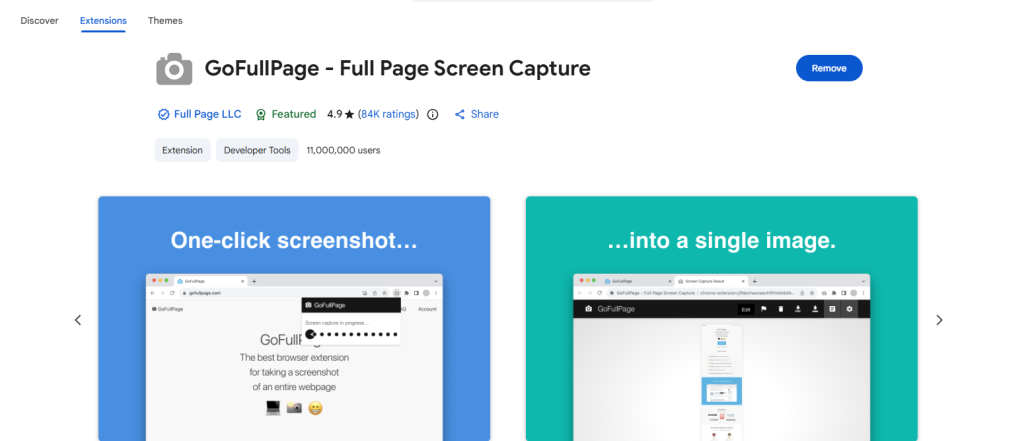
⭐ Features:
- Full webpage scrolling screenshots
- Export as PNG, JPG, or PDF
- One-click screenshot capture
- Fast and lightweight performance
- No watermark on exports
👍 Pros:
- Very fast full-page capture
- No watermark
- Simple and clean interface
- Low Chrome RAM usage
👎 Cons:
- No built-in screen recording
- Limited editing tools
✅ Best Extension For:
Website screenshots, blogs, portfolios, dashboards, and research work.
🥈 2. Awesome Screenshot – Best Screenshot & Screen Recorder
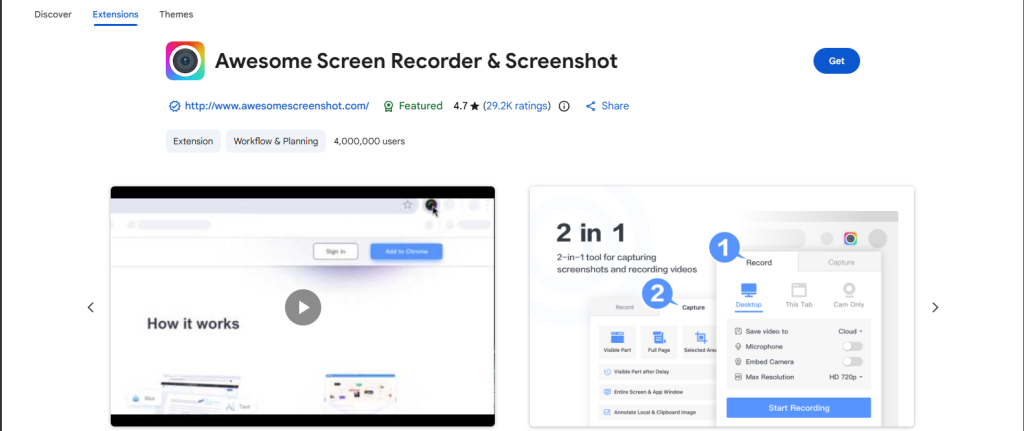
Awesome Screenshot combines screenshot capture and screen recording in one extension. During testing, its annotation and sharing tools worked especially well for tutorials, online meetings, and remote collaboration.
The extension offered the best recording features among all the tools we tested, although it consumed slightly more RAM during long recording sessions.
⭐ Features:
- Screenshot + screen recording
- Annotation and markup tools
- Blur sensitive information
- Instant sharing support
- Cloud storage integration
👍 Pros:
- Built-in screen recorder
- Powerful annotation tools
- Good collaboration workflow
- Supports full-page capture
👎 Cons:
- Higher RAM usage during recording
- Some advanced features require premium plan
✅ Best Extension For:
Content creators, YouTubers, teachers, students, and remote teams.
🌐 Awesome Screenshot Official Website
🥉 3. Z-Shot – Best Lightweight Screenshot Extension
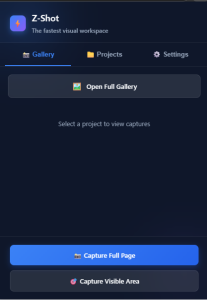
Z-Shot is a lightweight screenshot extension designed for fast captures and simple workflows. During testing, the extension felt smooth and responsive for quick screenshots without slowing down Chrome performance.
Unlike heavier screenshot tools, Z-Shot focuses on speed, simplicity, and lightweight browser usage.
Note: Z-Shot is developed by our team and included based on our own testing experience.
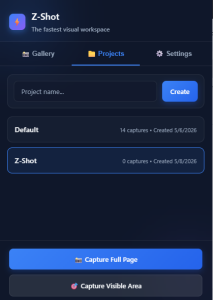
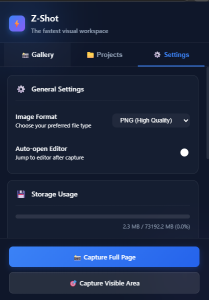
⭐ Features:
- Quick screenshot capture
- Lightweight browser performance
- Simple modern interface
- Fast workflow
- Gallery Access
- Easy-to-use controls
👍 Pros:
- Very lightweight extension
- Fast screenshot workflow
- Modern UI design
- Beginner-friendly
👎 Cons:
- No Recoding (Coming Soon)
- Feature set is still growing
✅ Best Extension For:
Students, casual users, quick screenshots, and daily productivity.
🏅 4. FireShot – Best Professional Screenshot Tool
FireShot is designed for users who need advanced webpage capture and exporting features. In our testing, it performed very well on long webpages and offered flexible export options for professional documentation.
It is especially useful for developers, designers, and researchers who frequently save webpages as PDFs.
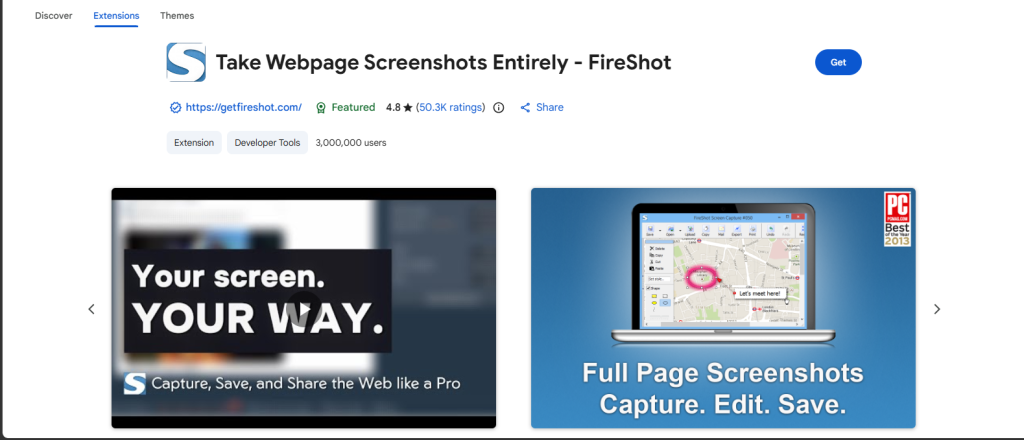
⭐ Features:
- Capture full webpages
- Edit screenshots instantly
- Save as PDF, PNG, or JPG
- Offline support
- Advanced editing tools
👍 Pros:
- Professional export options
- Reliable PDF support
- Works offline
- Advanced editing workflow
👎 Cons:
- Interface feels outdated
- Learning curve for beginners
✅ Best Extension For:
Developers, professionals, researchers, and designers.
🎖 5. Lightshot – Best Simple Screenshot Tool
Lightshot remains one of the easiest screenshot tools for quick captures. During testing, it felt noticeably faster for small-area screenshots compared to heavier screenshot extensions.
Its minimal interface and quick sharing system make it a strong option for students and office users.
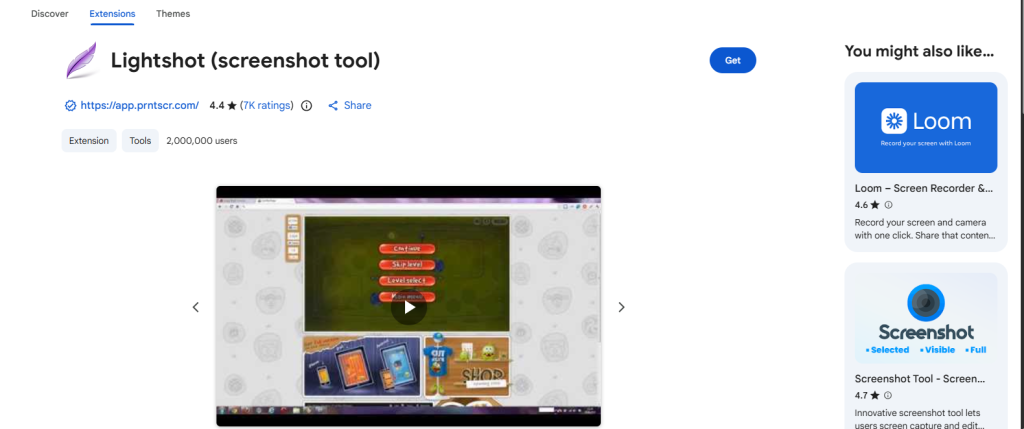
⭐ Features:
- Select any area quickly
- Instant editing tools
- Fast screenshot sharing
- Minimal interface
- Easy upload system
👍 Pros:
- Very simple workflow
- Fast screenshot capture
- Lightweight browser usage
- Easy for beginners
👎 Cons:
- No advanced recording tools
- Limited full-page screenshot support
✅ Best Extension For:
Quick screenshots, office work, students, and daily browsing.
📊 Quick Comparison Table
| Tool | Full Page | Recording | Free Plan | Browser Performance | Best For |
|---|---|---|---|---|---|
| GoFullPage | ✅ | ❌ | ✅ | Excellent | Full webpages |
| Awesome Screenshot | ✅ | ✅ | ✅ | Good | Content creators |
| Z-Shot | ✅ | ❌ | ✅ | Excellent | Lightweight captures |
| FireShot | ✅ | ❌ | Limited | Good | Professionals |
| Lightshot | Partial | ❌ | ✅ | Excellent | Quick screenshots |
✅ Which Screenshot Extension is Best?
- Best Full Page Capture → GoFullPage
- Best Recording Features → Awesome Screenshot
- Best Lightweight Tool → Z-Shot
- Best Professional Tool → FireShot
- Best Simple Screenshot Tool → Lightshot
❓ Frequently Asked Questions
Which is the best screenshot extension for PC?
Z-Shot is one of the best screenshot extensions for PC users who need reliable full-page webpage captures.
Is Z-Shot free?
Yes. Z-Shot offers free full-page screenshot capture with PNG and PDF export support.
Which screenshot extension is best for students?
Z-Shot and Lightshot are both lightweight and beginner-friendly screenshot tools for students.
Are Chrome screenshot extensions safe?
Most trusted screenshot extensions are safe when installed from official sources like the Chrome Web Store.
Can screenshot extensions record video?
Yes. Awesome Screenshot includes built-in screen recording and annotation tools.
🧪 How We Tested These Screenshot Extensions
- Windows 11 PC
- Google Chrome Version 148
- Long webpages
- Dashboard interfaces
- Dark mode websites
- Blog pages and ecommerce stores
We evaluated:
- Capture speed
- Screenshot quality
- Ease of use
- Export options
- Chrome RAM usage
- Browser performance impact
👨💻 About the Author
Written by Mahfuz Ahmed, a productivity tools reviewer and web tools developer focused on Chrome extensions, browser tools, and workflow optimization utilities.
At ZTooly, we regularly test browser extensions, AI tools, and productivity software to provide practical, experience-based recommendations for users.
🤝 Why Trust ZTooly?
- We tested these extensions on Chrome and Edge browsers
- Compared speed, usability, export quality, and features
- Included only actively maintained tools
- No paid placements or sponsored rankings
- Recommendations are based on real testing experience
📌 Final Thoughts
A good screenshot extension can improve your workflow, save time, and make sharing information easier. During our testing, GoFullPage delivered the best overall full-page screenshot experience, while Awesome Screenshot offered the strongest recording and collaboration features.
If you prefer a lightweight and modern screenshot tool, Z-Shot is a strong choice for quick captures and daily productivity.
All the tools listed above performed reliably during testing and are trusted by millions of users worldwide.