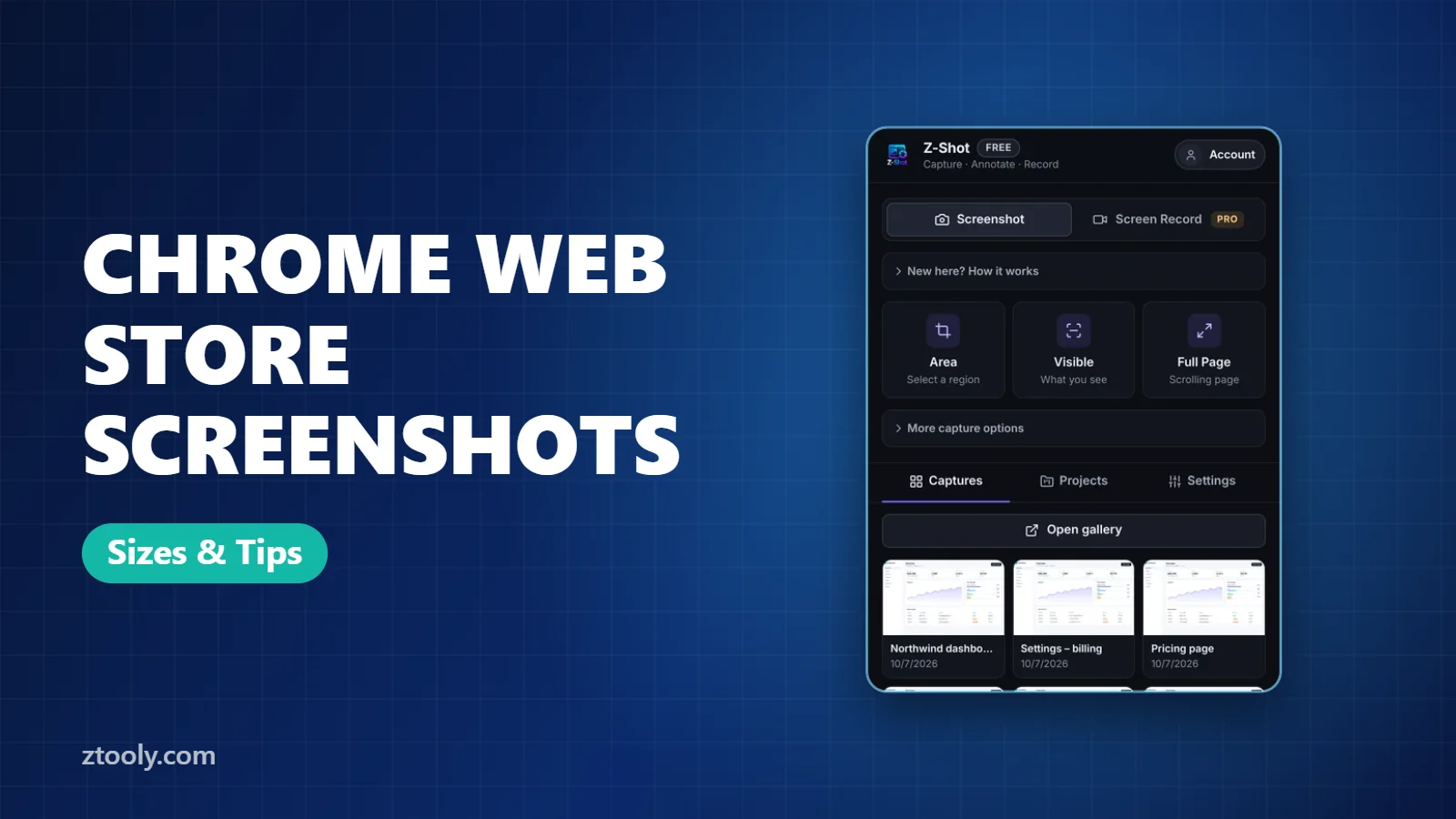
Quick answer: Chrome Web Store screenshots should be 1280×800 or 640×400 pixels, and you can upload up to five. Make the first one show your extension’s main benefit, use real UI rather than mockups of features you don’t have, add a short caption to each, and keep the style consistent. Check Google’s current image guidelines before publishing, since requirements can change.
Your screenshots are the first thing people judge on your Chrome Web Store listing, often before reading a word of the description. Good ones raise installs; blurry, cluttered ones make even a great extension look abandoned. This guide covers sizes, what to show, and how to produce them quickly.
Chrome Web Store image sizes
| Asset | Size | Notes |
|---|---|---|
| Screenshots | 1280×800 or 640×400 | Up to 5; at least 1 required |
| Small promo tile | 440×280 | Shown in lists and search |
| Marquee promo tile | 1400×560 | Used if you’re featured |
| Store icon | 128×128 | Simple, readable at small sizes |
Use 1280×800 when you can. It looks sharper on high-resolution screens. These are the commonly documented sizes; confirm them on Google’s Chrome Web Store image guidelines before you upload.
What each screenshot should do
- Main benefit. The core result your extension delivers, with a 4–6 word caption.
- How it works. The extension in action on a real page.
- Key feature #2.
- Key feature #3.
- Trust or settings. Privacy controls, options page, or a supported-sites view.
Many people only see the first two, so put your strongest images first.
How to create them step by step
1. Set up a clean browser
- Use a fresh Chrome profile with no personal bookmarks or other extensions visible.
- Pick demo pages with neutral content, or build a sample page.
- Use fake but realistic data: maya.chen@example.com, not a real customer.
2. Capture at the right size
Resize the browser window close to 1280×800, or capture a larger area and fit it into a 1280×800 canvas. Capture at 2× for crisp text, then scale down. Use element capture for popups and panels so edges are exact.
3. Add context with a frame and backdrop
A popup floating on a plain white background is hard to understand. Place it on a soft gradient, inside a browser frame, with the page it’s working on behind it. Z-Shot Pro’s mockups and backdrops do this in a few clicks, including browser and device frames; see also how to make website mockups from screenshots.
4. Add short captions
- One line, 4–6 words, describing the benefit: “Capture any page in one click”.
- Large, high-contrast text at the top or side.
- Same font, size and position on every image.
5. Highlight, don’t clutter
One arrow or spotlight per screenshot, at most. Read our annotation best practices for more.
6. Export and check
Export PNG for sharp UI, check the exact pixel size, and view each image at small size to make sure captions are still readable.
Common mistakes
- Wrong dimensions, which get rejected or scaled badly.
- Real personal data visible in the demo.
- Showing features you don’t have yet. This erodes trust and can break store policies.
- Five screenshots of the same screen. Show different features.
- Outdated UI after a redesign. Update screenshots with every major release.
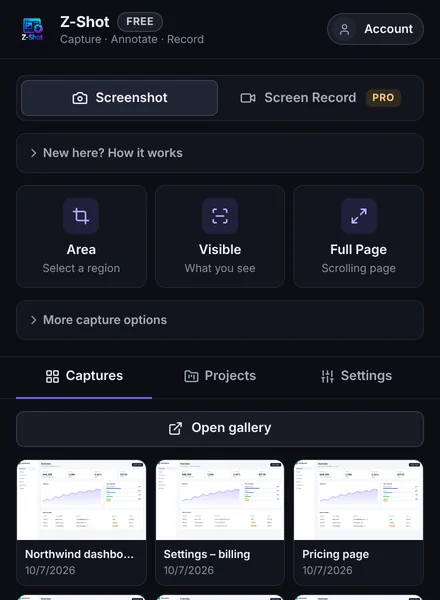
Bonus: reuse the same assets everywhere
The same set works for your landing page, Product Hunt launch, social posts and docs. Export 1:1 and 9:16 versions from the same capture for social media, and keep the originals in a project so updating them later is quick.
Frequently Asked Questions
What size are Chrome Web Store screenshots?
Chrome Web Store screenshots are 1280×800 or 640×400 pixels, and you can upload up to five. Confirm the current sizes in Google’s image guidelines before uploading.
How many screenshots can I add to a Chrome extension listing?
Up to five. Put the most important benefit first, since many visitors only see the first one or two.
Should Chrome Web Store screenshots have text?
Yes, a short caption of 4–6 words helps visitors understand each image quickly. Keep the style consistent across all screenshots.
Can I use mockups in Chrome Web Store screenshots?
Yes, framing your real UI in a browser frame or on a backdrop is common. Just don’t show features your extension doesn’t actually have.
How do I make Chrome Web Store screenshots look professional?
Use a clean browser profile, realistic sample data, consistent captions, a backdrop or browser frame, and export sharp PNGs at the exact size.
Try it free: Z-Shot captures full pages, records your screen, and blurs or redacts sensitive data right in Chrome. Free plan, no account needed, and nothing is uploaded.