Quick answer: To screenshot a specific element in Chrome, open DevTools (F12), right-click the element in the Elements panel and choose “Capture node screenshot”. Or use an extension like Z-Shot: start element capture, hover over the card, chart or button you want, and click. You get a clean image of just that element with no manual cropping.
Cropping a screenshot by hand is slow and never quite straight. When you only need one part of a page, such as a pricing card, a chart, a form, a tweet embed or an error message, element capture gives you a pixel-perfect image of exactly that element, even if part of it is below the fold.
Method 1: Element capture with an extension (fastest)
- Open the page and start element capture in Z-Shot.
- Hover over the page. Z-Shot highlights the element under your cursor.
- Move until the highlight wraps exactly what you want, such as the whole card rather than just its title.
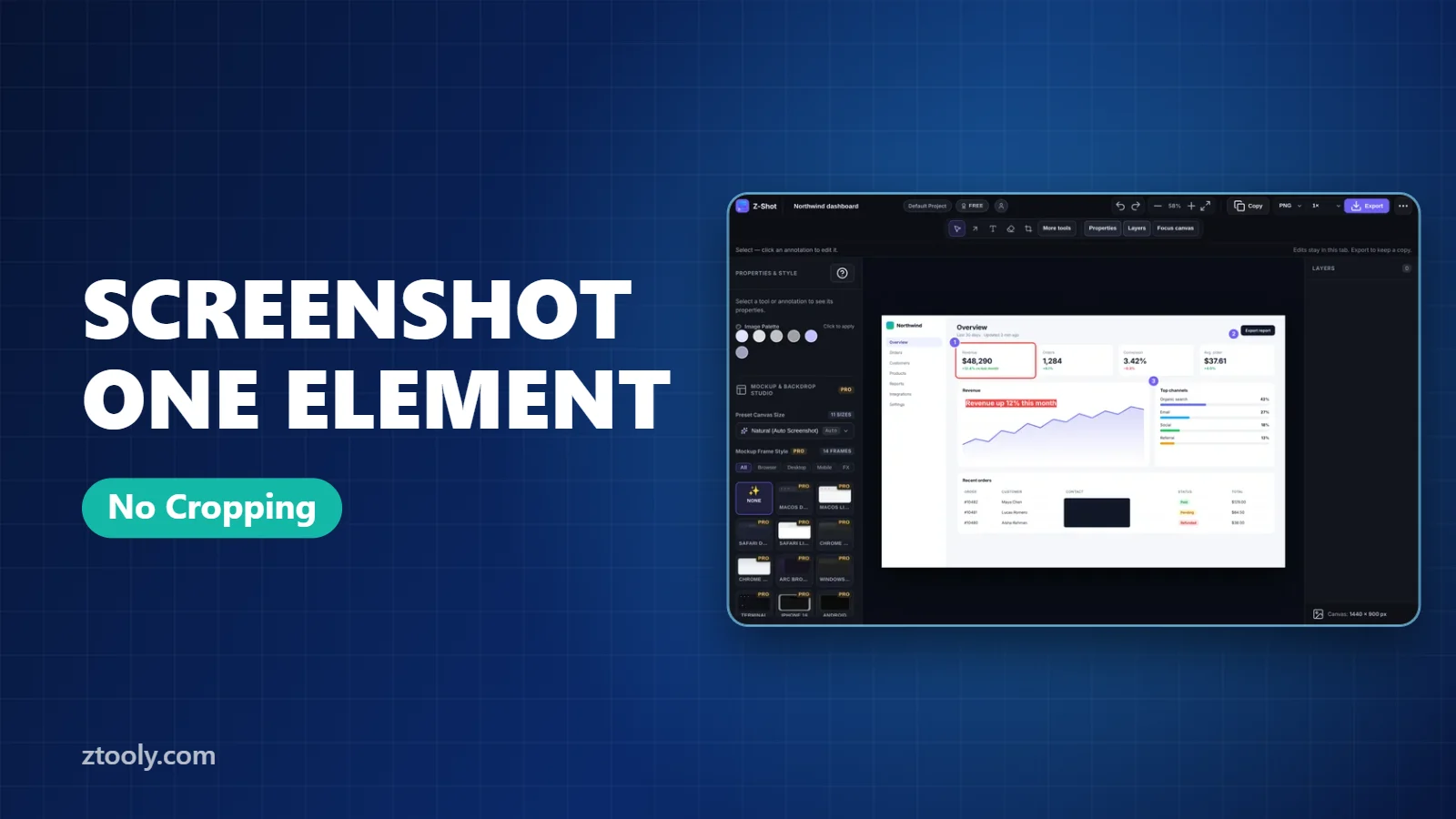
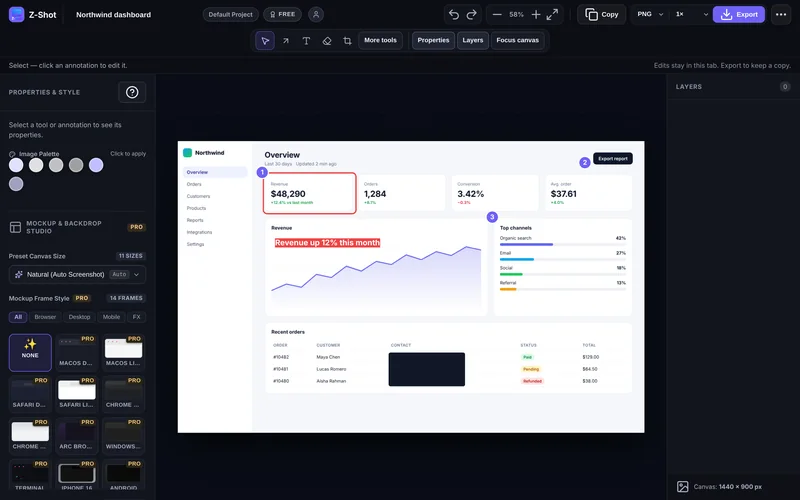
- Click to capture. Copy it, save it, or open it in the editor to add arrows, numbered steps or blur.
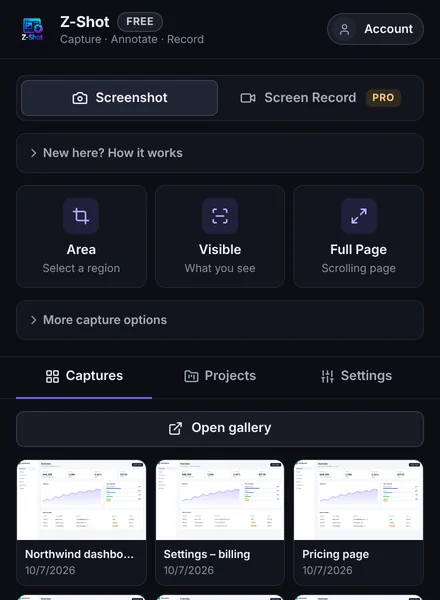
This is the easiest option for designers, marketers and support teams who capture components every day, because it needs no developer tools.
Method 2: Chrome DevTools “Capture node screenshot” (built in)
- Right-click the element on the page and choose Inspect.
- In the Elements panel, select the right node. Hover over nodes to see which area each one covers, and move up to a parent if you need more.
- Right-click the node and choose Capture node screenshot.
- Chrome downloads a PNG of that element.
You can also press Ctrl+Shift+P (Cmd+Shift+P on Mac) with the node selected and type “node screenshot”. It works without installing anything, but there’s no editor, and choosing the right node in a deeply nested page can take a few tries.
Method 3: Area capture and crop
Win+Shift+S on Windows or Cmd+Shift+4 on Mac lets you drag around the element. It’s fine for a quick share, but edges are rarely exact, and you can’t capture anything that doesn’t fit on your screen.
Comparison
| Method | Exact edges | Parts off-screen | Editor | Needs DevTools |
|---|---|---|---|---|
| Extension element capture | Yes | Yes | Yes | No |
| DevTools node screenshot | Yes | Yes | No | Yes |
| Area capture | Approximate | No | Basic | No |
Tips for clean element screenshots
- Capture hover states with a delay. Tooltips and drop-downs vanish when you click. Z-Shot’s 3 or 5 second countdown lets you open them first.
- Zoom the page before capturing (Ctrl or Cmd and +) for a sharper, larger image, or export at 2× or 3×.
- Check the background. Elements with transparent backgrounds can look odd on their own. Pick the parent container if the card’s background comes from it.
- Hide distractions. Close cookie banners and chat widgets that overlap the element.
- Blur personal data. Cards and tables often show names or emails. See how to blur sensitive information.
When element screenshots are most useful
- Design feedback: share exactly one component, then mark it up.
- Documentation: show a single setting or button without the clutter of the whole page.
- Social posts: capture a chart, quote or review cleanly.
- Bug reports: show the broken component, then add the full page for context. Our full-page screenshot guide covers the second part.
Frequently Asked Questions
How do I screenshot just one element on a web page?
Use DevTools: right-click the element, choose Inspect, then right-click the node and choose “Capture node screenshot”. Or use a screenshot extension with element capture, hover the element and click.
Can I screenshot an element that is bigger than my screen?
Yes. Both DevTools’ node screenshot and Z-Shot’s element capture grab the whole element, including parts you would have to scroll to see.
Why does my element screenshot have a transparent or wrong background?
The background may come from a parent container. Select the parent element instead, or add a backdrop in your editor.
How do I capture a tooltip or drop-down menu?
Use a capture delay. Start a 3 or 5 second countdown, open the menu or hover the tooltip, and wait for the capture.
Is there a keyboard shortcut for element screenshots in Chrome?
Not by default. In DevTools, select the node and use the command menu (Ctrl+Shift+P or Cmd+Shift+P) to run “Capture node screenshot”.
Try it free: Z-Shot captures full pages, records your screen, and blurs or redacts sensitive data right in Chrome. Free plan, no account needed, and nothing is uploaded.