Quick answer: To take a screenshot in Chrome, use your computer’s shortcut (Win+Shift+S on Windows, Cmd+Shift+4 on Mac, Ctrl+Shift+Show windows on Chromebook), Chrome DevTools’ built-in screenshot commands, or a screenshot extension such as Z-Shot, which adds one-click area, visible, full-page and element capture plus an editor.
Chrome doesn’t have a big “screenshot” button, but there are at least six ways to capture what’s in your browser. Which one is best depends on what you need: a quick snip of part of the page, the whole scrolling page, or a single element like a chart or a card.
Quick reference: screenshot shortcuts for Chrome
| What you want | Windows | Mac | Chromebook |
|---|---|---|---|
| Select an area | Win+Shift+S | Cmd+Shift+4 | Ctrl+Shift+Show windows |
| Whole screen | PrtSc | Cmd+Shift+3 | Ctrl+Show windows |
| One window | Alt+PrtSc | Cmd+Shift+4, then Space | Screen capture menu |
| Full scrolling page | Chrome DevTools or an extension (see below) | ||
Method 1: Use a screenshot extension (most flexible)
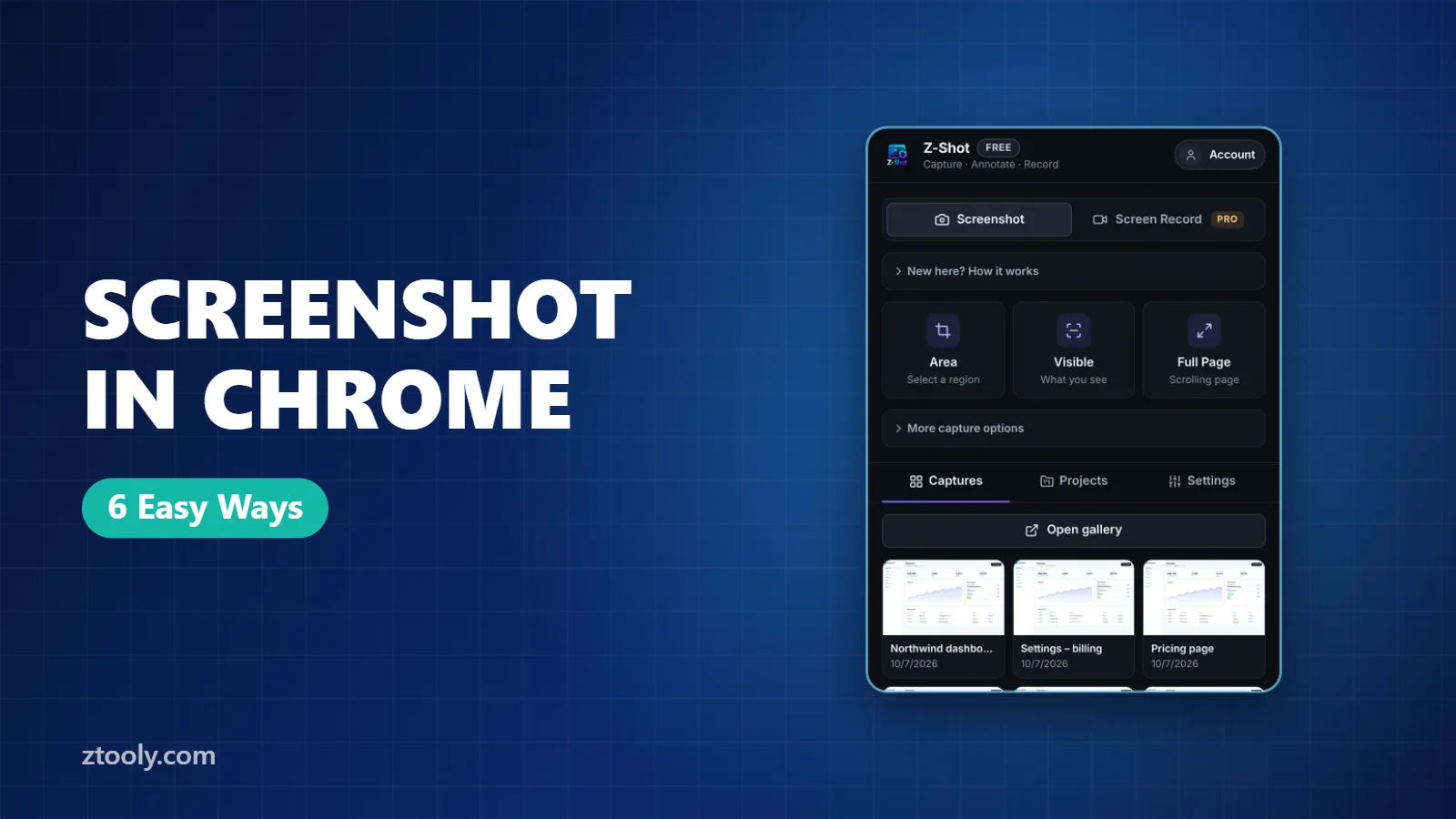
An extension captures the page itself rather than your screen, so it can grab content you’d have to scroll to see. With Z-Shot:
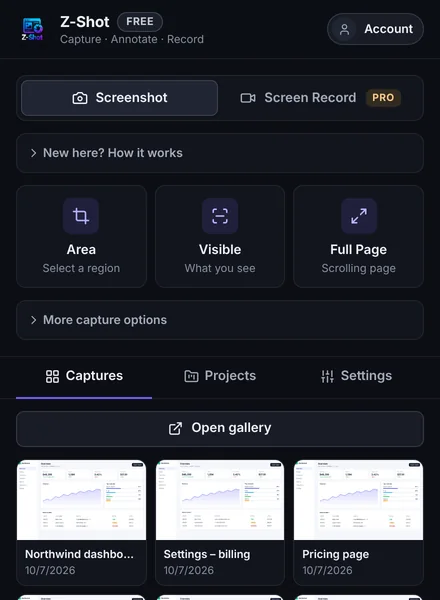
- Alt+Shift+A captures an area you drag.
- Alt+Shift+V captures the visible part of the page.
- Alt+Shift+F captures the full page. Z-Shot scrolls and stitches it for you.
- Element capture lets you hover a card, button or chart and click to capture just that.
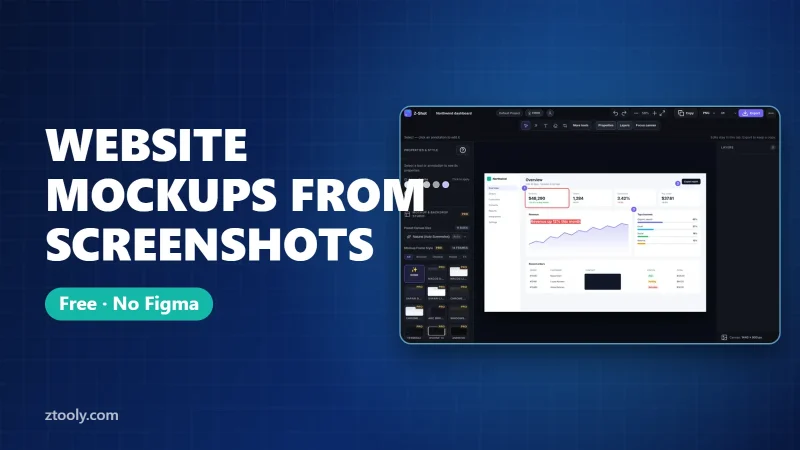
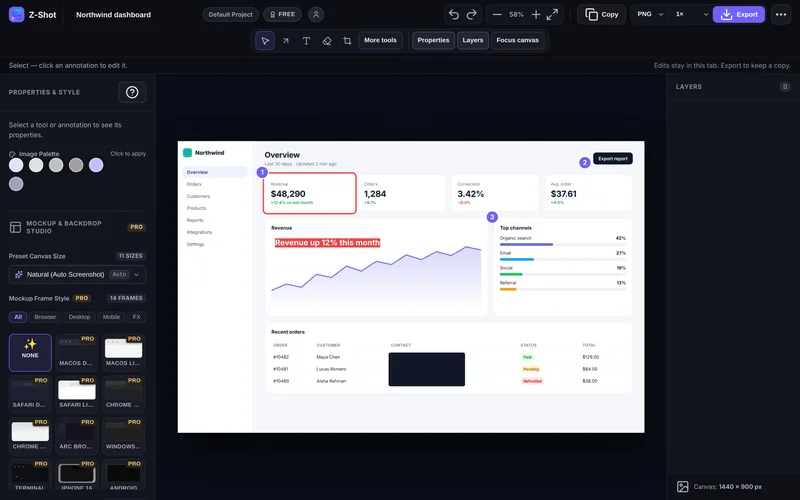
After capturing you can copy, save, or open the image in the editor to add arrows, text, numbered steps, blur or solid redaction. You can also add a 3 or 5 second countdown to catch drop-down menus and hover states that disappear when you click.
Method 2: Windows shortcuts
Win+Shift+S opens the Snipping Tool overlay. Choose rectangle, freeform, window or full screen, and the capture goes to your clipboard. Click the notification to edit and save it. PrtSc alone copies the whole screen (or opens Snipping Tool on newer Windows 11 builds).
Method 3: Mac shortcuts
Cmd+Shift+4 turns the cursor into crosshairs to drag an area. Press Space after it to capture a single window, such as Chrome, with a clean shadow. Cmd+Shift+3 captures the whole screen and Cmd+Shift+5 opens a toolbar with all options. Screenshots save to your Desktop by default.
Method 4: Chromebook shortcuts
Ctrl+Show windows (the key with rectangles) captures the full screen, and Ctrl+Shift+Show windows lets you choose an area or window. You can also open Quick Settings and choose Screen capture.
Method 5: Chrome DevTools (no extension, includes full page)
Chrome has hidden screenshot commands in its developer tools:
- Press F12 (or Cmd+Option+I on Mac) to open DevTools.
- Press Ctrl+Shift+P (Cmd+Shift+P on Mac) to open the command menu.
- Type screenshot and choose one of four commands:
- Capture full size screenshot for the entire scrolling page
- Capture screenshot for the visible area
- Capture area screenshot to drag a region
- Capture node screenshot for a selected element in the Elements panel
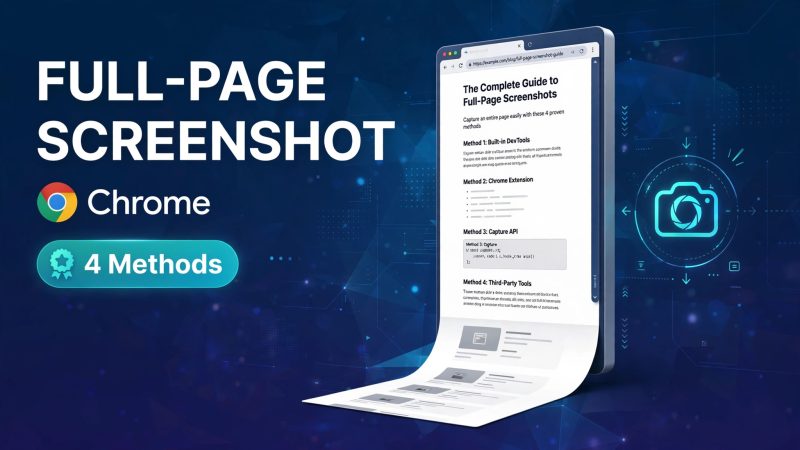
Chrome downloads a PNG. It’s free and built in, but there’s no editor, and pages with sticky headers or lazy-loaded images sometimes come out wrong. Our full-page screenshot guide covers how to fix that.
Method 6: Print to PDF
Press Ctrl+P (Cmd+P on Mac) and choose Save as PDF. You get the whole page as a document with selectable text. The layout often changes for printing, so it’s better for archiving articles than for showing how a page looks.
Which method should you use?
| You need… | Best method |
|---|---|
| A quick snip to paste into chat | Your OS shortcut |
| The whole scrolling page | Extension or DevTools |
| One element, like a chart | Extension element capture or DevTools node screenshot |
| Arrows, text, blur or step numbers | An extension with an editor |
| Selectable text for archiving | Print to PDF |
Don’t upload screenshots you haven’t checked
Browser screenshots often include things you didn’t mean to share: your bookmarks bar, other tabs, emails, account names. Many free screenshot tools also upload images to their servers to make share links. If your capture has anything private in it, use a tool that keeps files on your device and blur sensitive details before sharing. More in is your screenshot tool uploading your images?
Frequently Asked Questions
How do I take a screenshot in Chrome?
Use Win+Shift+S on Windows, Cmd+Shift+4 on Mac or Ctrl+Shift+Show windows on a Chromebook to capture part of the screen. For the whole page or a single element, use Chrome DevTools’ screenshot commands or a screenshot extension.
Does Chrome have a built-in screenshot tool?
Yes, but it is hidden in DevTools. Press F12, then Ctrl+Shift+P (Cmd+Shift+P on Mac), type “screenshot” and choose a capture command.
How do I screenshot a whole page in Chrome?
Use DevTools’ “Capture full size screenshot” command or a full-page screenshot extension, which scrolls and stitches the page into one image.
Where do Chrome screenshots go?
OS shortcuts save to the clipboard or your Pictures/Desktop folder. DevTools screenshots go to Downloads. Extensions like Z-Shot also keep captures in a gallery inside the extension.
How do I screenshot a drop-down menu in Chrome?
Use a capture delay. Z-Shot has a 3 or 5 second countdown so you can open the menu before the capture happens.
Try it free: Z-Shot captures full pages, records your screen, and blurs or redacts sensitive data right in Chrome. Free plan, no account needed, and nothing is uploaded.