Quick answer: The best GoFullPage alternative depends on what you need beyond a full-page PNG. For a free, no-install option, use Chrome’s built-in DevTools capture or Edge’s Web Capture. For an extension with editing and PDF export, try FireShot. If you also want blur, redaction and screen recording without uploads, try Z-Shot. For Windows desktop apps, ShareX adds scrolling capture.
GoFullPage does one thing very well: it captures a whole page with one click. When it was removed from the Chrome Web Store between August and September 2026, millions of people went looking for something else. Even now that it’s back, plenty of users want a second tool for sites where it struggles, or features it doesn’t offer. Here are the alternatives worth considering, with honest trade-offs.
GoFullPage alternatives compared
| Tool | Type | Full page | Editor | Blur or redact | Recording | Uploads by default |
|---|---|---|---|---|---|---|
| Chrome DevTools | Built in | Yes | No | No | No | No |
| Edge Web Capture | Built in | Yes | Pen only | No | No | No |
| FireShot | Extension | Yes | Pro | Pro (blur) | No | No |
| Awesome Screenshot | Extension | Yes | Yes | Yes | Yes | Account-based sharing |
| Nimbus | Extension | Yes | Yes | Yes | Yes | Account-based sharing |
| Z-Shot | Extension | Yes | Yes | Yes (free) | Yes | No |
| ShareX | Windows app | Scrolling capture | Yes | Yes | Yes | Optional |
Feature details are based on each tool’s public pages at the time of writing. Plans change, so check the current listing before you rely on a specific feature.
1. Chrome DevTools: the free option already on your computer
Best for: occasional full-page screenshots with zero installs.
Press Ctrl+Shift+I, then Ctrl+Shift+P, type screenshot and choose Capture full size screenshot. Chrome saves a PNG of the entire page. It’s precise and private, and it handles very long pages well.
Downsides: no editor, no PDF, and it’s three steps instead of one click. It also doesn’t scroll inner panels in web apps. Full steps are in how to screenshot an entire webpage without an extension.
2. Microsoft Edge Web Capture
Best for: people who already use Edge or don’t mind switching browsers for a capture.
Press Ctrl+Shift+S and choose Capture full page. You get a preview, a pen to mark it up, and Save or Copy buttons. It’s the friendliest built-in tool on Windows.
Downsides: Edge only, no blur, and basic export options.
3. FireShot
Best for: saving pages as PDF with clickable links, or capturing many tabs at once.
FireShot is one of the oldest page-capture extensions. According to its website, the Pro version saves to PDF with searchable text and working links, as well as PNG and JPEG, and adds an editor with crop, blur, highlight and annotations. It can also capture all open tabs or a list of URLs in one batch.
Downsides: the most useful features are in the paid Pro version, and the interface feels older than newer tools.
4. Awesome Screenshot
Best for: teams who want screenshots and screen recordings with shareable links.
Awesome Screenshot captures full pages, has a full annotation editor, and records your screen. It’s built around an account, so you can share a link to a capture instead of sending a file.
Downsides: link sharing means your captures are stored on the company’s servers. That’s convenient, but not ideal for screenshots of internal tools or customer data. We compare it in detail in Z-Shot vs Awesome Screenshot.
5. Nimbus Screenshot & Screen Video Recorder
Best for: people who already use Nimbus Note.
Nimbus captures full pages and selected areas, adds annotations, and records video. Captures can be saved locally or sent to Nimbus’s own cloud and notes app.
Downsides: several features push you toward a Nimbus account, and the editor is busier than it needs to be for quick shots.
6. Z-Shot
Best for: people who share screenshots of work and need to hide sensitive details first.
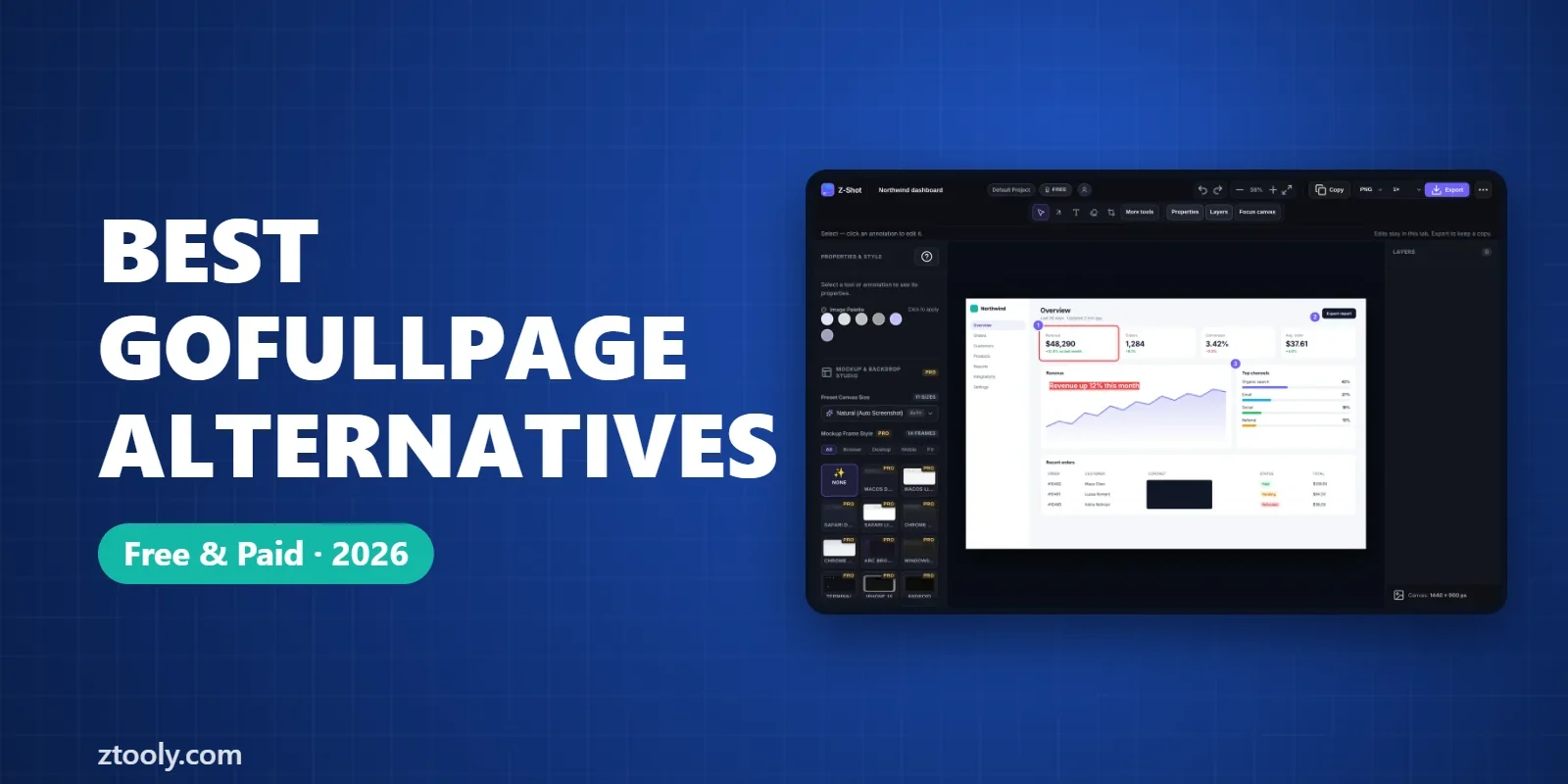
Z-Shot is our extension, so read this section with that in mind. It captures full pages (Alt+Shift+F), selected areas, the visible screen or a single element you hover over. Captures open in an editor with arrows, numbered steps, blur and solid redaction on the free plan. It also records your screen with a built-in video editor. Captures and recordings are stored in your browser rather than uploaded.
Downsides: Chromium browsers only (no Firefox or Safari). Some extras, such as automatic detection of emails and API keys, mockups and OCR, are in the Pro plan. If all you want is a one-click full-page PNG, GoFullPage itself is simpler.
7. ShareX (Windows desktop)
Best for: Windows power users who capture apps, not just web pages.
ShareX is a free, open-source Windows app with a scrolling capture mode that works in many desktop programs, plus an editor, screen recording and dozens of upload destinations.
Downsides: Windows only, a steep learning curve, and scrolling capture is less reliable on modern web apps than a browser-based tool.
How to choose
- You just want GoFullPage back: it returned to the Chrome Web Store on September 14, 2026. Check our GoFullPage not working fixes.
- You never want to install anything: Chrome DevTools or Edge Web Capture.
- You need PDFs with working links: FireShot.
- You share captures of internal or customer data: pick a tool that keeps files local and can redact, like Z-Shot or ShareX.
- Your team wants share links: Awesome Screenshot or Nimbus, if storing captures in their cloud is acceptable.
What to check before installing any screenshot extension
A screenshot extension can see every page you capture, so it’s worth a minute of checking:
- Publisher and history. Look for an established developer and a long review history, not a new listing with a famous name.
- Where captures go. Read whether images are stored locally or uploaded. Our guide Is your screenshot tool uploading your images? explains what to look for.
- Recent updates. An extension that hasn’t been updated in years may break on newer versions of Chrome.
FAQ
What is the best free alternative to GoFullPage?
Chrome’s built-in DevTools capture is free and needs no install: press Ctrl+Shift+I, then Ctrl+Shift+P, type screenshot and choose Capture full size screenshot. For a free extension with an editor and blur, Z-Shot is an option.
Is GoFullPage back on the Chrome Web Store?
Yes. It was removed on August 11, 2026 over a copyright complaint and returned on September 14, 2026, according to the developer’s blog.
Which GoFullPage alternative can save a page as PDF?
FireShot Pro saves pages as PDF with searchable text and clickable links. Any browser can also print a page to PDF with Ctrl+P.
Which alternatives don’t upload my screenshots?
Chrome DevTools, Edge Web Capture, FireShot and Z-Shot save captures on your device. Tools built around share links, like Awesome Screenshot and Nimbus, store captures in their cloud when you share them.
Can I take a scrolling screenshot of a desktop app?
Browser tools only capture web pages. On Windows, ShareX has a scrolling capture mode for many desktop apps.
Try it free: Z-Shot captures full pages, records your screen, and blurs or redacts sensitive data right in Chrome. Free plan, no account needed, and nothing is uploaded.