Quick answer: To copy text from a screenshot, use an OCR (text recognition) tool. On Windows 11, open the screenshot in Snipping Tool and use Text actions; on Mac, Live Text lets you select text in any image; in Chrome, Google Lens can read text from images. For private screenshots, use an on-device tool such as Z-Shot’s OCR, which reads text in 17 languages without uploading the image.
Someone sends you a screenshot of an error message, a table or an address, and you need the text. Retyping it is slow and error-prone. OCR (optical character recognition) reads the text from the image so you can copy and paste it.
The important question is where the reading happens. Some tools send your image to a server; others do it on your device. That matters when the screenshot contains passwords, customer data or internal documents.
Method 1: Windows 11 Snipping Tool (free, built in)
- Take a screenshot with Win+Shift+S and click the notification, or open an image in Snipping Tool.
- Click Text actions in the toolbar.
- Select the text you need and copy it, or click Copy all text.
Microsoft PowerToys also has Text Extractor (Win+Shift+T by default): drag over any part of the screen and the text goes straight to your clipboard.
Method 2: Mac Live Text (free, built in)
Open the screenshot in Preview or Photos, hover over the text and select it like a normal document, then press Cmd+C. Live Text runs on your Mac and supports several languages.
Method 3: Google Lens in Chrome
Right-click an image on a web page and choose Search with Google Lens, then switch to the Text tab to select and copy. It’s quick and accurate, but the image is sent to Google, so avoid it for anything private.
Method 4: On-device OCR in a screenshot tool
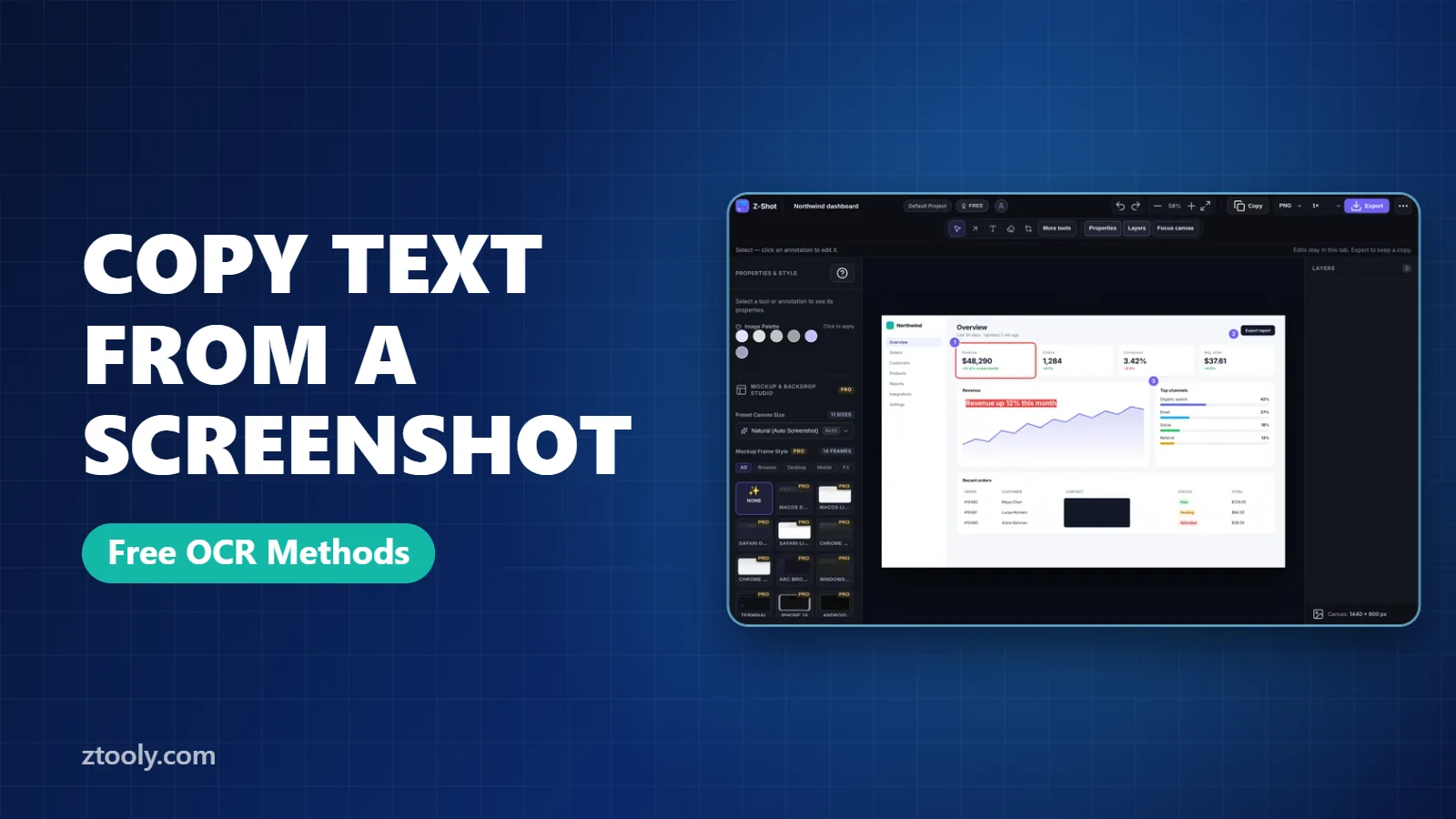
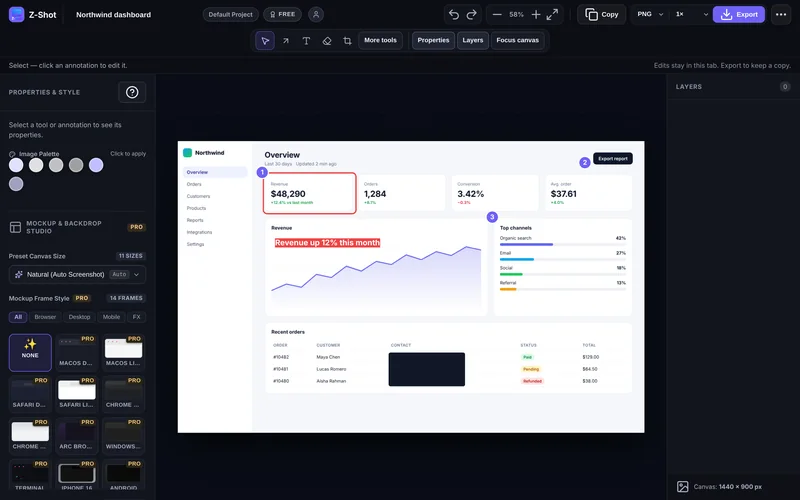
Z-Shot Pro includes text recognition that runs entirely in your browser. Capture or open any image, run OCR, and copy the text. It reads screenshots, photos and even handwriting in 17 languages, and the image never leaves your device. The same engine powers auto-redaction, which finds emails, phone numbers, card numbers and API keys so you can hide them before sharing.
Comparison
| Tool | Cost | Runs on your device | Works on |
|---|---|---|---|
| Snipping Tool Text actions | Free | Yes | Windows 11 |
| PowerToys Text Extractor | Free | Yes | Windows |
| Live Text | Free | Yes | Mac |
| Google Lens | Free | No, uploads to Google | Chrome, any OS |
| Z-Shot OCR | Pro | Yes | Chrome, Edge, Brave and other Chromium browsers |
Tips for accurate text recognition
- Capture at higher resolution. Zoom the page or export at 2× before running OCR. Tiny text causes most errors.
- Crop to the text. Icons, logos and busy backgrounds confuse OCR.
- Check numbers and symbols. O and 0, l and 1, and punctuation are the usual mistakes.
- Keep formatting simple. OCR copies text, not table structure. Paste tables into a spreadsheet and tidy them.
Common uses
- Copying error messages from a teammate’s screenshot into a search or a ticket
- Pulling addresses, order numbers or tracking IDs from images
- Getting quotes out of slides or video frames
- Making notes from photographed whiteboards
Be careful with sensitive screenshots
If a screenshot contains credentials, customer details or internal documents, don’t paste it into a random online OCR site: the upload itself is the risk. Use one of the on-device options above. Read more about which screenshot tools upload your images.
Frequently Asked Questions
How do I copy text from a screenshot?
Use an OCR tool: Text actions in the Windows 11 Snipping Tool, Live Text on Mac, Google Lens in Chrome, or an on-device OCR feature in a screenshot tool such as Z-Shot.
Can I copy text from an image for free?
Yes. Windows 11 Snipping Tool, PowerToys Text Extractor, Mac Live Text and Google Lens are all free.
Is it safe to use online OCR tools?
For public images, yes. For screenshots with private or work data, use an on-device tool so the image is never uploaded.
Can OCR read handwriting?
Some tools can. Z-Shot’s OCR reads handwriting and photos as well as screenshots, but accuracy depends on how neat and clear the writing is.
Why does OCR get some characters wrong?
Small or blurry text, unusual fonts and busy backgrounds cause errors. Capture at a higher resolution and crop tightly around the text.
Try it free: Z-Shot captures full pages, records your screen, and blurs or redacts sensitive data right in Chrome. Free plan, no account needed, and nothing is uploaded.