Quick answer: To share screenshots securely at work, redact sensitive details before the image leaves your computer, send it through your company’s approved tools (Slack, Teams, Jira, your email) rather than public image hosts, prefer access-controlled links over public ones, and delete screenshots you no longer need. Treat a screenshot of customer data as customer data.
Screenshots are the fastest way to explain a bug, ask a question or show progress. They’re also an easy way to move sensitive data into places it was never meant to be: a public image link, a personal phone, a vendor’s support ticket, a chat channel with 400 members. This guide covers the habits that keep work screenshots useful without creating a security problem.
Why screenshots are a security blind spot
- They bypass controls. Data that’s protected inside an app (permissions, audit logs, masking) is unprotected once it’s an image.
- They’re hard to search. Data-loss prevention tools scan text well and images poorly, so a screenshot of a customer list can slip through.
- They spread. A screenshot posted in one channel gets forwarded, downloaded and pasted into tickets.
- They last. Chat history, email and ticket systems keep images for years.
Five rules to share screenshots securely
1. Capture less
Select only the window or area that matters instead of the whole screen. Close unrelated tabs, mute notifications and use a test or demo account when showing a product.
2. Redact before sharing
Cover names, emails, phone numbers, account IDs, API keys, tokens, internal URLs and customer details with solid boxes. Don’t rely on light blur for short text. See how to black out text properly.
3. Use approved channels
Share inside tools your company manages: Slack, Teams, Google Workspace, Microsoft 365, Jira, GitHub. Avoid personal messaging apps and public image hosts, where you can’t control access or delete copies reliably.
4. Control who can open it
Post to the smallest channel or ticket that needs it. If you share a link, use one restricted to your organisation or specific people, and set an expiry when the tool allows it.
5. Clean up
Delete screenshots from your Desktop and Downloads once they’ve done their job, especially ones containing customer or financial data. Many companies have retention policies that apply to images too.
Sharing options compared
| Channel | Access control | Can you delete it? | Good for |
|---|---|---|---|
| Company chat (Slack, Teams) | Channel or DM members | Yes, usually | Quick questions, small groups |
| Issue tracker (Jira, GitHub, Linear) | Project permissions | Yes | Bug reports |
| Company cloud drive | Per-link and per-person | Yes | Larger files, external partners |
| Recipients only, but forwardable | No, once sent | External contacts | |
| Public image hosts | Anyone with the link | Sometimes | Public content only |
| Personal apps (WhatsApp, personal email) | Outside company control | Not reliably | Avoid for work data |
Watch where your screenshot tool sends images
Some screenshot tools upload every capture to their own cloud so they can give you a link. That’s convenient, but it means a third party now stores your company’s data, which may conflict with your security policy or customer contracts. Check your tool’s settings, and prefer local saving for anything sensitive. Our explainer Is your screenshot tool uploading your images? shows how to tell.
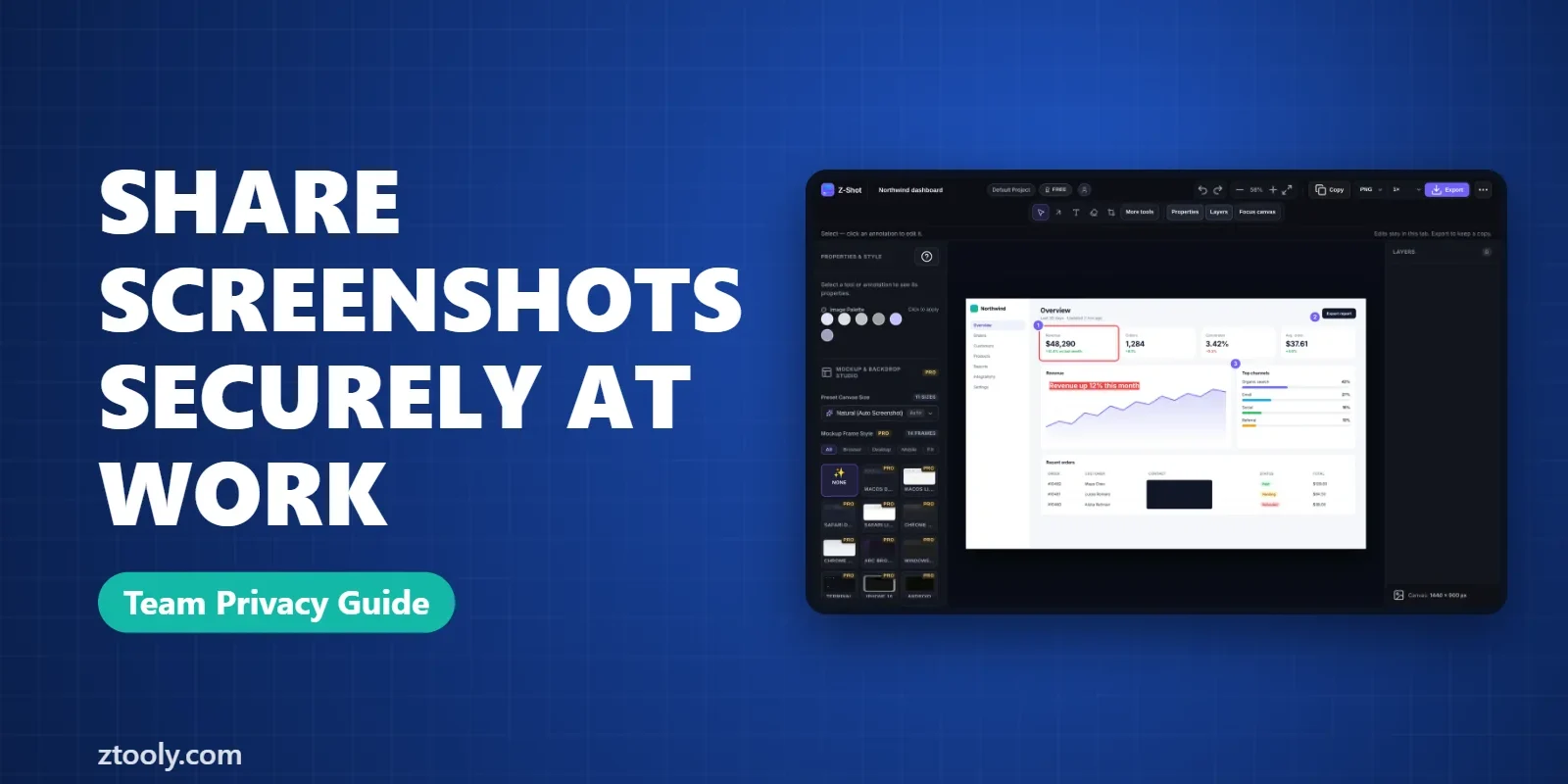
Z-Shot, the Chrome extension we make, keeps captures in your browser by default and only uploads to destinations you configure yourself, such as your company’s own storage bucket. Its Pro plan can also detect emails, card numbers and API keys before you share.
Special cases
- Screenshots for vendors and support teams: they don’t need your customers’ details. Redact everything except what explains the problem.
- Screenshots containing credentials: if a password, token or key appears in a shared screenshot, assume it’s compromised and rotate it.
- Personal data under privacy law: in many places, a screenshot showing a person’s details counts as personal data. Handle it like the original records.
- Screen recordings: the same rules apply, with more risk, because a video shows everything you scrolled past.
A quick team checklist
- Capture only what’s needed
- Redact personal and secret data with solid boxes
- Share in an approved, access-controlled tool
- Prefer restricted links with an expiry
- Rotate any credential that appeared in a screenshot
- Delete local copies when finished
Make these habits routine and your team will share screenshots securely without slowing down.
FAQ
How do I share a screenshot securely at work?
Redact sensitive details first, share through your company’s approved tools rather than public image hosts, restrict who can open it, and delete local copies when you’re done.
Is it safe to share screenshots on Slack or Teams?
Generally yes for internal work, because access is controlled by your organisation. Still post to the smallest channel that needs it and redact customer or secret data.
What should I do if a password appeared in a shared screenshot?
Assume it’s compromised and change or rotate it immediately, then delete the screenshot where possible.
Do screenshots count as personal data?
If they show information about identifiable people, they usually do under privacy laws like GDPR, so handle them like the original records.
Are cloud screenshot tools safe for work?
They can be, but they store your captures on a third party’s servers. Check your company policy and prefer local saving for sensitive screenshots.
Try it free: Z-Shot captures full pages, records your screen, and blurs or redacts sensitive data right in Chrome. Free plan, no account needed, and nothing is uploaded.