Quick answer: Remote and support teams share hundreds of screenshots a week, often full of customer data. A safe policy is simple: capture only what is needed, redact names, emails, IDs and secrets before sharing, use a screenshot tool that keeps images on the device instead of auto-uploading them, and share files directly in your ticketing or chat tool rather than through public links.
Good screenshot privacy comes down to a few habits the whole team follows.
Screenshots are how remote teams communicate: a bug in Slack, a customer issue in Zendesk, a quick “is this right?” in a DM. Each one can carry customer emails, order details, internal URLs or API keys. Most teams never decide how screenshots should be handled until something leaks. This guide gives you a practical policy and the tools to follow it.
Where screenshot leaks actually happen
- Cloud screenshot tools that upload every capture and create share links by default.
- Support tickets where a customer’s full account page is pasted to an external vendor.
- Chat channels with guests, contractors or hundreds of members.
- “Hidden” data that was only covered with an emoji or a light highlighter.
- Background details: other tabs, bookmarks, notifications and email previews.
Cloud vs local-first screenshot tools
| Cloud-first tools | Local-first tools | |
|---|---|---|
| Where captures go | Uploaded to the vendor’s servers | Stay on the device |
| Sharing | Instant link | File, or a destination you control |
| Risk | Links forwarded, cached or guessed | Only what you choose to send |
| Compliance review | Vendor becomes a data processor | Simpler: no third party holds images |
| Best for | Public content, marketing | Customer data, internal tools |
Neither is wrong, but your team should choose on purpose. Read more in is your screenshot tool uploading your images?
A simple screenshot policy for your team
- Capture less. Area or element capture, not full screen, unless context is needed.
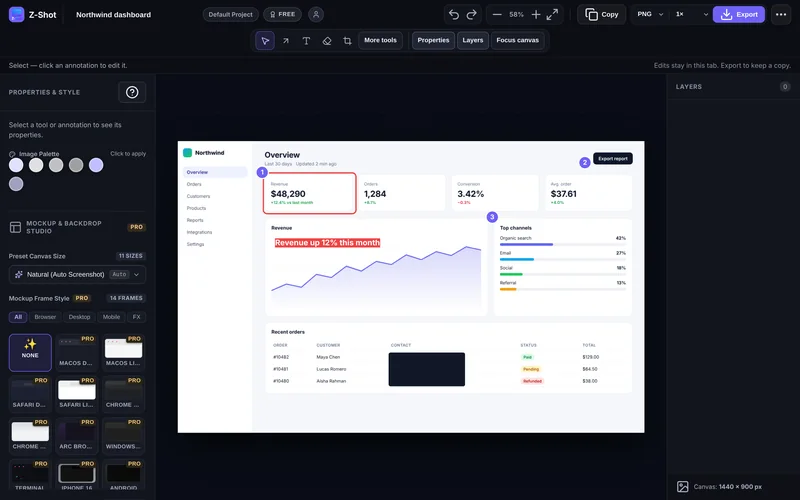
- Redact before sharing. Names, emails, phone numbers, addresses, account and order IDs, tokens and keys. Solid boxes for secrets, blur for the rest.
- No public links for customer data. Attach files directly in the ticket or chat.
- Check the background. Close unrelated tabs, hide bookmarks, turn on Do Not Disturb.
- Use approved tools only. Pick one screenshot tool for the team and say where captures may be stored.
- Delete when done. Don’t keep folders of old customer screenshots.
For customer support teams
- Ask customers to send screenshots through the ticket, not by email to personal addresses.
- When forwarding a screenshot to engineering or a vendor, redact anything not needed to reproduce the issue.
- Reply with annotated screenshots or short GIFs to show customers where to click. See how to make a step-by-step guide.
- Use a consistent bug report format when escalating.
For remote and distributed teams
- Agree on which channels may contain customer data.
- Prefer short recordings saved locally over hosted videos for internal demos of sensitive tools.
- Include screenshot handling in onboarding, with a one-page checklist.
- Rotate any password or key that appears unredacted in a shared screenshot. Treat it as exposed.
Tools that make the policy easy to follow
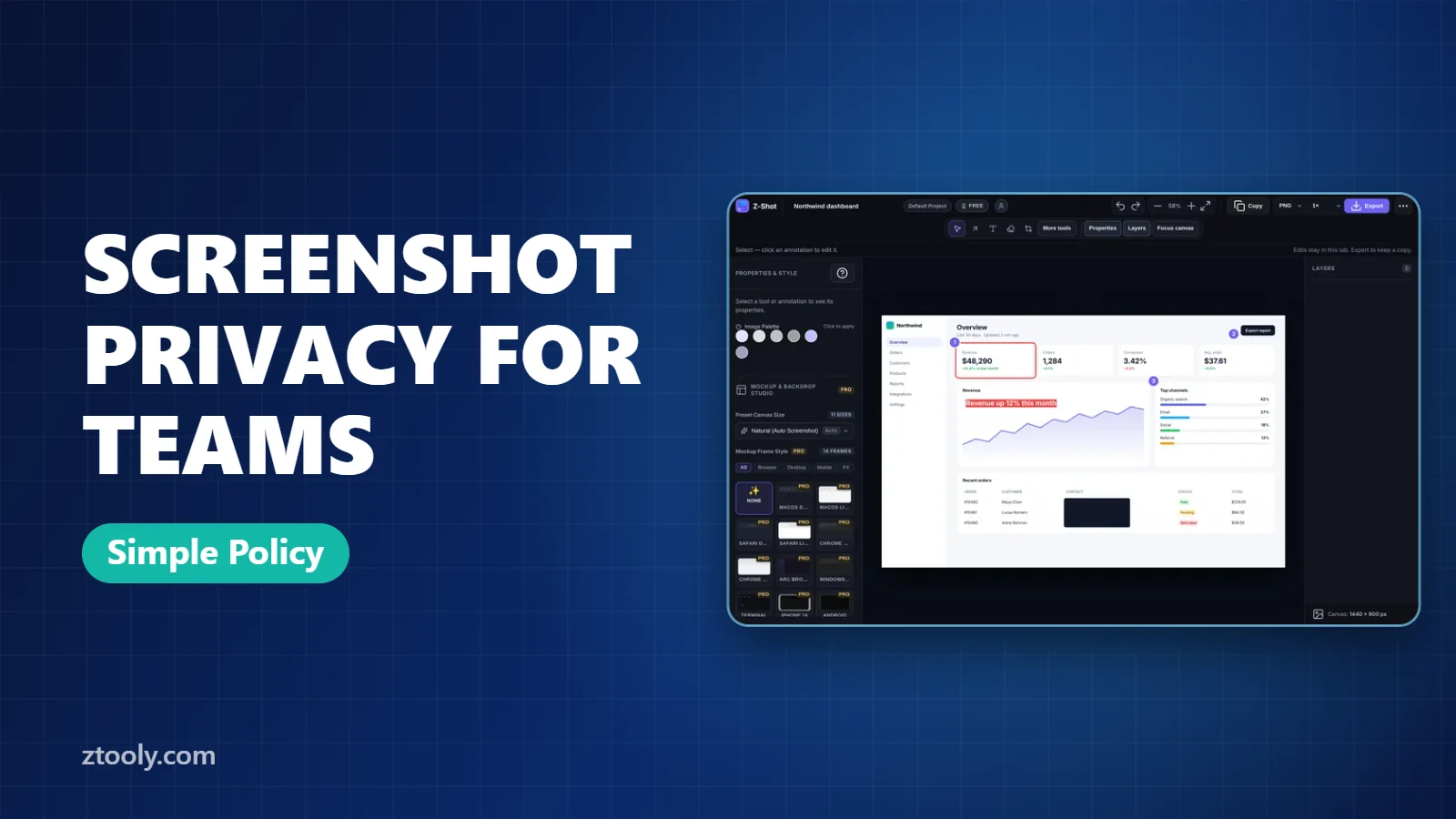
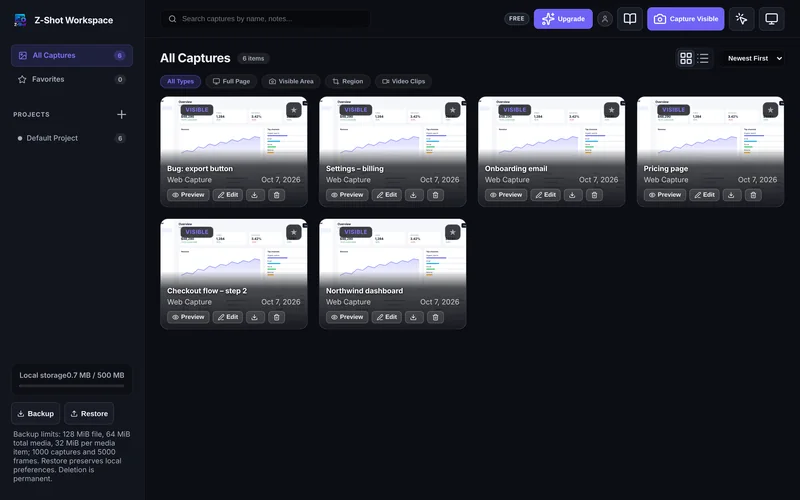
Z-Shot stores captures and recordings in the browser, with blur and solid redaction in the free editor. Pro adds on-device auto-redaction that finds emails, phone numbers, card numbers, API keys and IP addresses, and lets you send images only to destinations you set up, such as your own S3 or R2 bucket or a webhook. It works in Chrome, Edge, Brave, Opera and Arc.
Whatever tool you choose, check its privacy policy for where images are stored, who can access share links, and how long files are kept.
Team checklist
- One approved screenshot tool, local-first for customer data
- Redaction before every external share
- No public links for anything with personal data
- Screenshot rules in onboarding
- Exposed secrets rotated immediately
Frequently Asked Questions
Are cloud screenshot tools safe for customer data?
They can be, but every capture is stored on a third party’s servers and often shared by link. For customer data, a local-first tool with redaction is the safer default.
What should support agents redact in screenshots?
Names, emails, phone numbers, addresses, account and order IDs, payment details, tokens, API keys and internal URLs. Keep only what is needed to understand the issue.
What is a local-first screenshot tool?
A tool that captures, edits and stores screenshots on your own device and does not upload them unless you choose to share.
How can a team enforce screenshot privacy?
Choose one approved tool, write a short policy, include it in onboarding, and make redaction quick with built-in blur or auto-redaction.
What should I do if a screenshot with a password was shared?
Change the password or rotate the key immediately, remove the screenshot where possible, and tell your security contact.
Try it free: Z-Shot captures full pages, records your screen, and blurs or redacts sensitive data right in Chrome. Free plan, no account needed, and nothing is uploaded.