Quick answer: On a Chromebook, press Ctrl + Show windows to capture the whole screen. Press Ctrl + Shift + Show windows to open the screen capture toolbar, where you can capture part of the screen, a single window or record video. The Show windows key looks like a rectangle with two lines and is usually where F5 would be. Screenshots save to your Downloads folder and are copied to the clipboard.
Here is how to screenshot on Chromebook with every method, whether you have a keyboard, a tablet or a school-managed device.
ChromeOS has a single, well-designed screen capture tool, but the key you need doesn’t say “screenshot” on most keyboards. Here’s every way to take a screenshot on a Chromebook, including with an external keyboard, in tablet mode and with a stylus.
Find the Show windows key
On most Chromebook keyboards, the top row has a key with a rectangle and two vertical lines next to it. That’s Show windows (also called Overview). It sits where F5 would be on a normal keyboard. Some newer Chromebooks also have a dedicated screenshot key on the top row with a camera-style icon; if yours does, you can press it on its own.
How to screenshot on Chromebook: keyboard shortcuts
| Shortcut | What it does |
|---|---|
| Ctrl + Show windows | Captures the full screen instantly |
| Ctrl + Shift + Show windows | Opens the screen capture toolbar (partial, window, full, or record) |
| Ctrl + Alt + Show windows | Captures a window (on many versions) |
| Ctrl + F5 / Ctrl + Shift + F5 | Same as above on an external keyboard |
| Power + Volume down | Full screenshot in tablet mode |
Use the screen capture toolbar
The toolbar gives you every option in one place.
- Press Ctrl + Shift + Show windows, or open Quick Settings (click the time in the bottom-right corner) and select Screen capture.
- Make sure the camera icon (screenshot) is selected, not the video icon.
- Choose Full screen, Partial screen or Window.
- For partial, drag over the area and click Capture. For window, click the window you want.
A preview appears in the corner. Click it to open the image, or click the clipboard icon to copy it again.
Where Chromebook screenshots are saved
By default, screenshots go to My files > Downloads, and each one is also copied to the clipboard. You can also find recent captures in Tote (the shelf icon in the bottom-right) on newer versions of ChromeOS.
To change the folder:
- Open the screen capture toolbar.
- Click the gear icon (Settings).
- Choose Select folder and pick a new location, such as a folder in Google Drive so captures sync across devices.
Take a screenshot in tablet mode
When the keyboard is folded back or detached, press Power + Volume down at the same time. That captures the full screen. For more options, open Quick Settings and tap Screen capture.
Take a screenshot with a stylus
On Chromebooks with a stylus, tap the stylus icon on the shelf and choose Capture screen or Capture region. You can then write on the screenshot with the stylus.
Record your screen on a Chromebook
The same toolbar records video. Click the video icon, choose full screen, partial or window, and click to start. To include your voice, open the toolbar’s settings and turn on the microphone before you start. Click the red stop button on the shelf to finish. Recordings save to Downloads as WebM files.
Screenshot a whole webpage on a Chromebook
The Chromebook tool only captures what’s visible on screen. For a long page, open Chrome DevTools with Ctrl + Shift + I, press Ctrl + Shift + P, type screenshot and choose Capture full size screenshot. Full details are in how to screenshot an entire webpage without an extension.
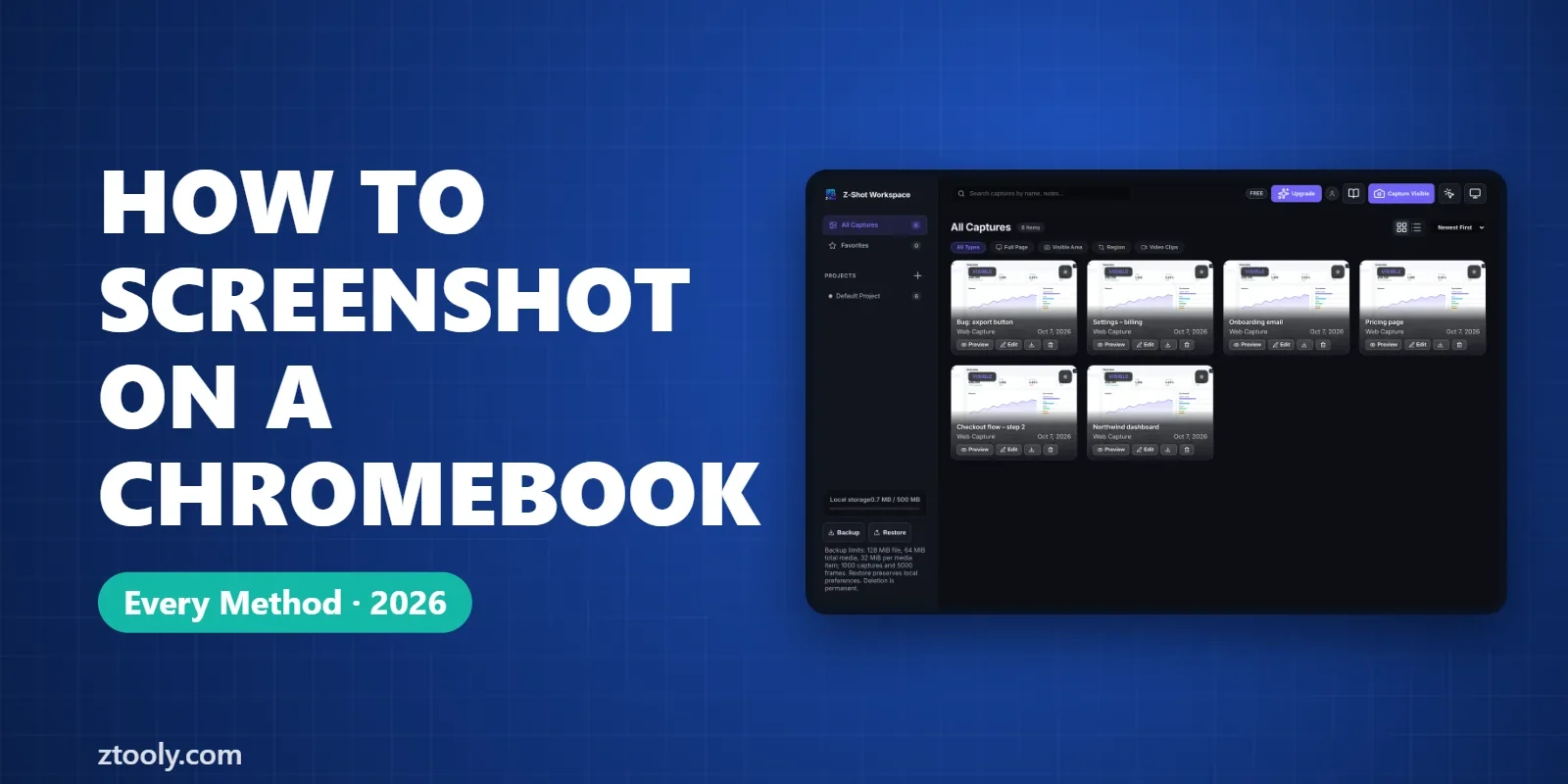
Because Chromebooks run Chrome, browser extensions work well here too. Z-Shot, which we make, adds full-page and element capture, annotation, blur and redaction, and stores everything locally in the browser. That’s useful on school or shared Chromebooks where you don’t want captures uploaded.
Screenshots not working on a Chromebook?
- School or work Chromebook: administrators can disable screenshots through policy. If nothing happens and you see a message about your organisation, only the admin can change it.
- External keyboard: use Ctrl + F5 instead of Show windows.
- Protected content: some streaming video and secure apps show black in screenshots on purpose.
- Can’t find the file: open the screen capture settings and check which folder is selected.
Once you learn these shortcuts, how to screenshot on Chromebook becomes second nature.
FAQ
How do you screenshot on a Chromebook?
Press Ctrl + Show windows for the full screen, or Ctrl + Shift + Show windows to open the capture toolbar for a partial screen, window or recording.
Where do screenshots go on a Chromebook?
To My files > Downloads by default, and they’re copied to the clipboard. You can change the folder from the gear icon in the screen capture toolbar.
How do I screenshot on a Chromebook without the Show windows key?
On an external keyboard press Ctrl + F5. In tablet mode press Power + Volume down. You can also open Quick Settings and select Screen capture.
Can I take a partial screenshot on a Chromebook?
Yes. Press Ctrl + Shift + Show windows, choose Partial screen, drag over the area and click Capture.
Why can’t I take a screenshot on my school Chromebook?
Your school may have disabled screenshots through device policy. Only the administrator can turn it back on.
Try it free: Z-Shot captures full pages, records your screen, and blurs or redacts sensitive data right in Chrome. Free plan, no account needed, and nothing is uploaded.