Quick answer: A clear screenshot bug report has a specific title, numbered steps to reproduce, expected vs actual result, environment details (URL, browser, OS, screen size), and one annotated screenshot that marks exactly what’s wrong, with private data redacted. Add a short recording or GIF when the bug involves movement or timing.
A bug report with screenshots gets fixed faster, as long as the screenshots point at the problem and hide anything private.
Developers fix bugs faster when they can see them. A vague “the page is broken” ticket leads to back-and-forth questions; a good report with one well-marked screenshot often gets fixed the same day. Here’s a format that works for QA testers, support teams, product managers and clients.
The anatomy of a good bug report
- Title: what’s wrong and where. “Save button does nothing on Billing settings (Chrome)”, not “Bug in settings”.
- Steps to reproduce: numbered, starting from a URL.
- Expected result: what should happen.
- Actual result: what happens instead, including any error text.
- Environment: page URL, browser and version, operating system, screen size, account type.
- Evidence: an annotated screenshot, and a recording if the bug moves.
How to take the screenshot
Capture the right amount
Use two images when needed: one tight capture of the broken element, and one wider view for context. An element capture gives a clean close-up, and a full-page screenshot shows layout bugs that span the page.
Mark the problem
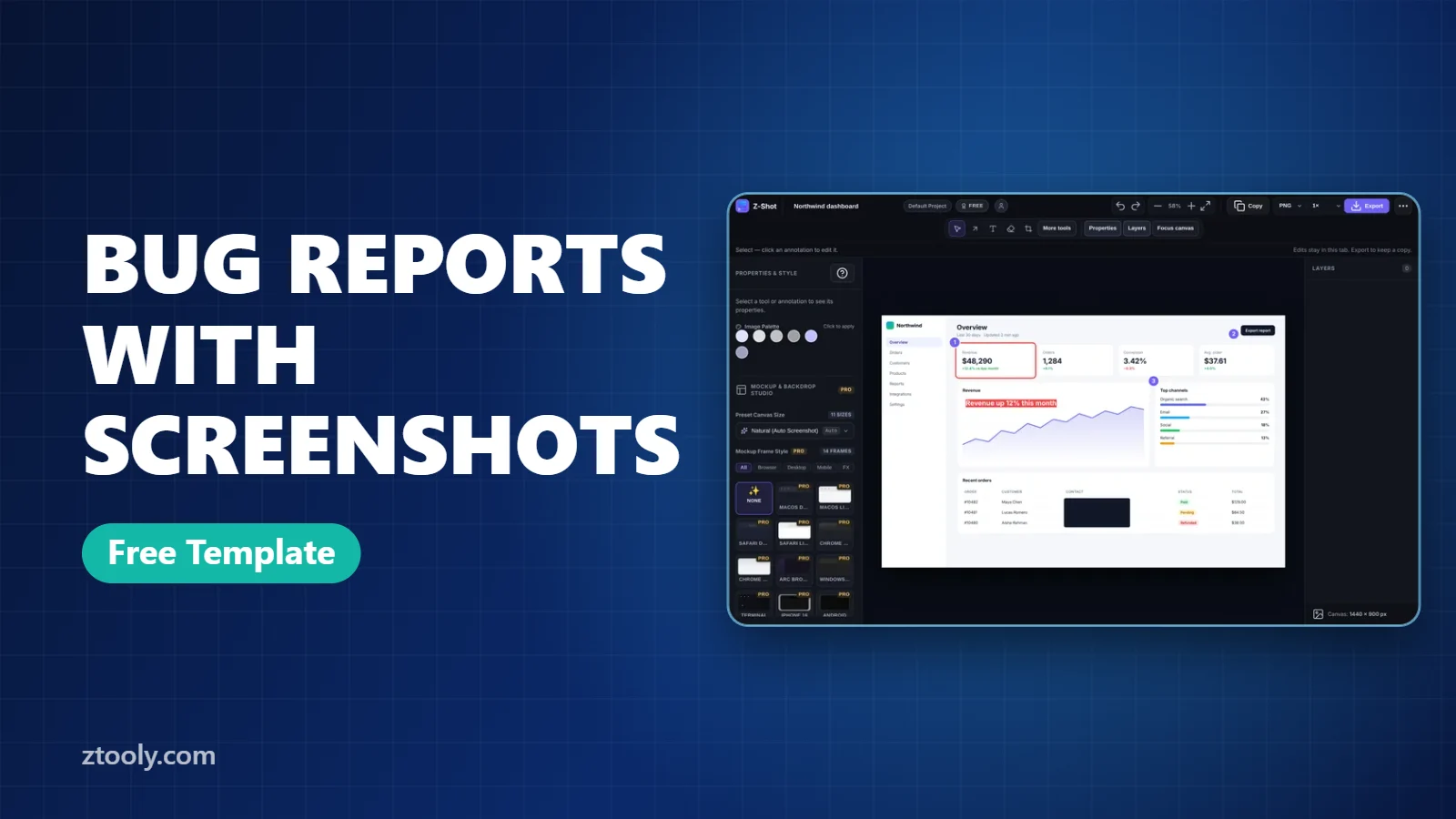
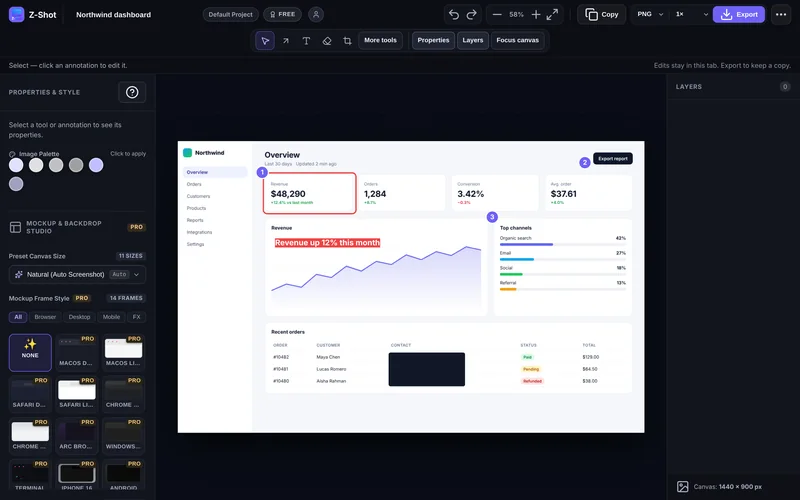
- One box or arrow on the broken part.
- Numbered step markers if the report shows a sequence.
- A short text note on the image: “Expected: total = $40”.
Redact private data
Bug screenshots often include customer names, emails, tokens and internal URLs. Cover them with solid boxes, but keep the bug itself visible. Our guide on redacting screenshots for bug reports covers this in detail.
Capture console errors
For web apps, open DevTools (F12), check the Console tab, and include any red errors as text in the report. Text is searchable; a screenshot of text is not.
Add environment details automatically
Typing the browser version and screen size every time is tedious and easy to get wrong. Z-Shot Pro’s bug report feature adds the page URL, browser, OS and screen size to your capture in one click, formatted for GitHub or Jira. On the free plan, copy the URL from the address bar and find your browser version at chrome://version.
When to add a recording
| Bug type | Screenshot | Recording or GIF |
|---|---|---|
| Wrong text, layout or color | Enough | Not needed |
| Button doesn’t respond | Helpful | Better |
| Animation, flicker, timing | Not enough | Needed |
| Multi-step flow fails | Numbered set | Short video |
A 10-second GIF plays inline in GitHub and Jira, so developers don’t even have to click.
Copy-and-paste template
**Title:** [What is wrong] on [page] ([browser])
**Steps to reproduce**
1. Go to [URL]
2. Click [label]
3. ...
**Expected:** [what should happen]
**Actual:** [what happens, including error text]
**Environment:** [browser + version], [OS], [screen size], [account type]
**Screenshot/recording:** attached (private data redacted)
**Console errors:** [paste text]
Mistakes that slow fixes down
- Cropping out the URL without writing it in the report.
- Full-screen screenshots with no markings. The developer has to hunt for the problem.
- Several bugs in one ticket. One bug, one report.
- Forgetting whether it happens every time. Say “always” or “about 1 in 5 tries”.
- Leaving customer data visible. Tickets get shared widely.
Frequently Asked Questions
What should a bug report screenshot include?
The broken element clearly marked with a box or arrow, enough surrounding context to locate it, and no visible private data. Include the URL and environment in the report text.
How do I make a bug report with screenshots faster?
Use a screenshot tool that captures, annotates and redacts in one place, and one that adds the URL, browser, OS and screen size automatically, such as Z-Shot Pro.
Should I use a screenshot or a video for a bug report?
Screenshots work for static problems like wrong text or layout. Use a short recording or GIF for anything involving movement, timing or a multi-step flow.
How do I find my Chrome version for a bug report?
Open chrome://version in the address bar, or go to Settings and then About Chrome.
How do I hide customer data in bug report screenshots?
Cover it with solid redaction boxes before exporting, and keep the bug itself visible. Avoid uploading the unredacted image to online tools.
Try it free: Z-Shot captures full pages, records your screen, and blurs or redacts sensitive data right in Chrome. Free plan, no account needed, and nothing is uploaded.