Quick answer: No, pixelating text is not a safe way to hide it. When the font and size are known, which they usually are in a screenshot, tools can try thousands of possible words, pixelate each one the same way, and find the match. For passwords, account numbers, emails and anything else sensitive, use a solid opaque box instead and save the image as a new file.
Is pixelating text safe enough to hide a password or an account number? In most cases, no, and the reason is surprisingly simple.
Pixelation and blur feel secure because the text looks unreadable to you. But your eyes aren’t the attacker. A computer doesn’t need to “read” pixelated text; it only needs to recreate the same blocks of colour. This article explains how that works in plain language, which kinds of obfuscation are risky, and what to use instead.
Is pixelating text safe? How pixelated text gets recovered
Pixelation takes a block of pixels, say 8×8, and replaces them with their average colour. Information is lost, but not randomly. The same word, in the same font, at the same size, always produces the same pattern of blocks. That’s the weakness.
- Guess the setup. Screenshots show the font and size of surrounding text, and the app or website it came from.
- Generate candidates. Render possible characters or words in that font.
- Pixelate each candidate with the same block size.
- Compare. The candidate whose blocks match the redacted area is the likely original text.
This isn’t theoretical. In 2020 a security researcher released an open-source tool called Depix that recovered passwords from pixelated screenshots under these conditions. Security firm Bishop Fox later published a tool called Unredacter showing the same idea works on harder cases. Academic researchers have also shown that machine learning can identify faces and text from pixelated and blurred images far better than people can.
Which kinds of text are most at risk?
| Text | Risk with pixelation or light blur | Why |
|---|---|---|
| Short numbers (PINs, last 4 digits, codes) | Very high | Only a few possibilities to test |
| Passwords and API keys in a known UI | High | Font, size and colours are predictable |
| Email addresses | High | Format is known; domains are often guessable |
| Names | Medium to high | Can be matched against lists of common names |
| Long paragraphs | Lower, but not zero | Too many possibilities for brute force, but parts can still leak |
| Faces | Medium | Recognition models can match low-resolution faces |
Is blur any safer than pixelation?
A light Gaussian blur has the same problem. It’s a predictable mathematical process, so a candidate rendered and blurred the same way will match. A heavy blur that smears text into a uniform smudge is much harder to reverse, but it’s hard to know when you’ve blurred “enough”. Some effects, like swirls and twirls, can even be undone mathematically. In 2007 police famously reversed a swirl effect on a suspect’s photo to identify him.
The safe rule is simple: if the information would cause harm when revealed, don’t blur or pixelate it at all.
What to use instead
| Method | Safe for sensitive text? | Notes |
|---|---|---|
| Crop it out | Yes | Best when the detail is near an edge |
| Solid opaque box | Yes | Cover with a margin, then save a new image |
| Replace with fake text before capturing | Yes | Use demo data or edit the page temporarily |
| Heavy blur | Sometimes | OK for faces and background clutter |
| Light blur or pixelation | No | Looks hidden, isn’t |
The step-by-step for every device is in how to black out text in a screenshot.
Three mistakes that make any redaction weaker
- Covering exactly to the letter edges. The width of the box can reveal how many characters are underneath. Make boxes a little wider than needed, or use the same width for every redaction.
- Leaving related clues nearby. Hiding an email but leaving the person’s name and company in the signature defeats the purpose.
- Sharing the editable file. A box on top of an image in a slide, document or design file can simply be moved. Export a flattened image.
When blur is fine
Blur still has a place. It’s a good choice when you want an image to look natural and the hidden detail isn’t dangerous: background tabs, other people’s faces in a crowd, unrelated messages, clutter on a desktop. For screenshots of real work, a practical habit is: solid boxes for secrets, blur for everything else.
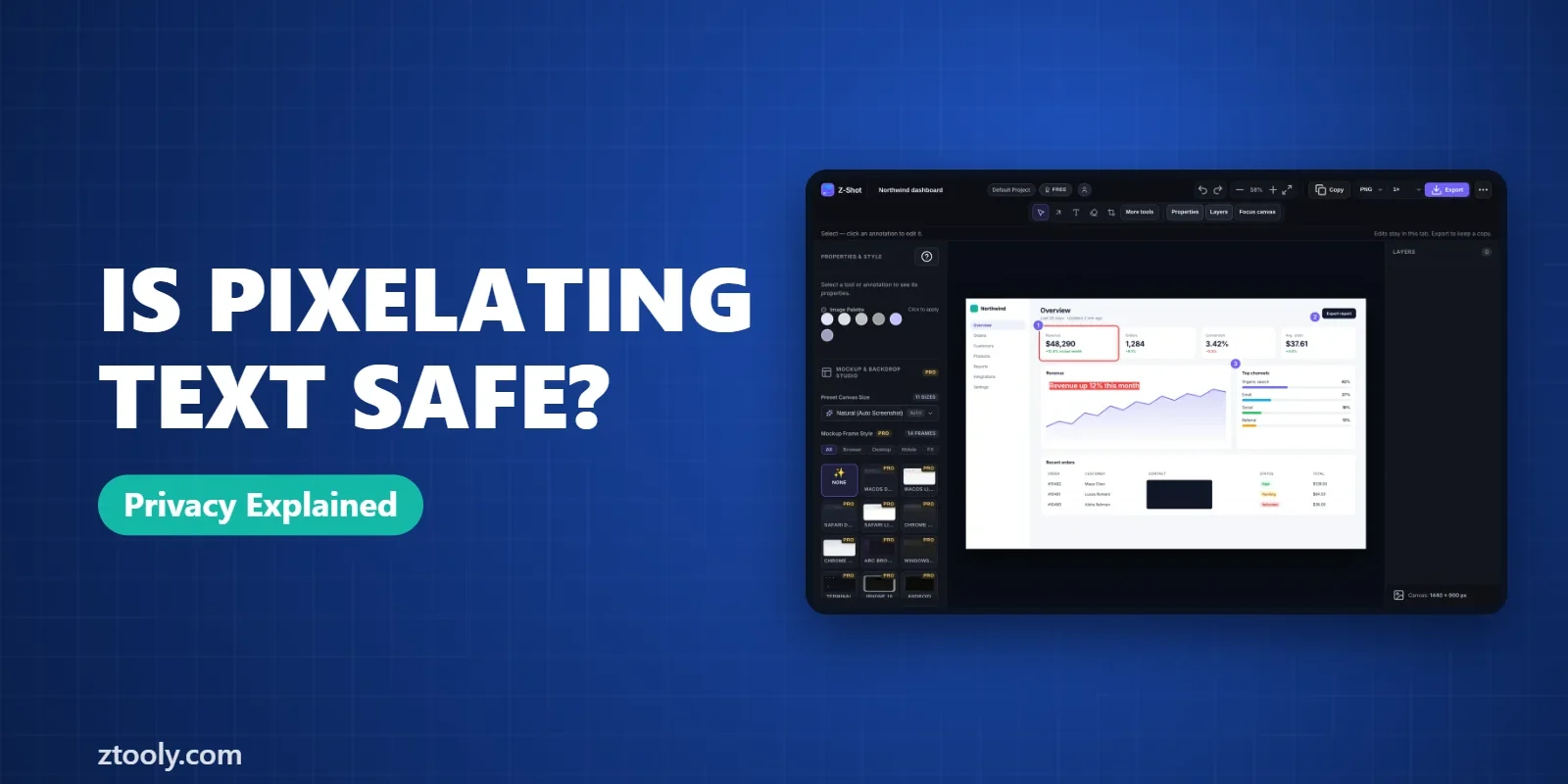
That’s also how we designed the editor in Z-Shot, our Chrome extension: a solid redaction tool for sensitive text and a blur tool for the rest, both applied in your browser so the original never leaves your computer.
So, is pixelating text safe? Not for anything sensitive: use a solid box instead.
FAQ
Can pixelated text be unpixelated?
Often, yes. If the font and size are known, a computer can pixelate many candidate words the same way and find the one that matches. Short text like PINs, passwords and emails is the most at risk.
Is blurring text safe?
Light blur isn’t safe for sensitive text because it can be matched the same way as pixelation. Heavy blur is harder to reverse, but a solid box is the only reliable option.
What is the safest way to hide text in a screenshot?
Crop it out or cover it with a solid, opaque box, then save the image as a new PNG or JPEG so the box can’t be removed.
What is Depix?
Depix is an open-source research tool released in 2020 that showed passwords could be recovered from pixelated screenshots when the font and pixelation settings were predictable.
When is it OK to use blur?
For faces in the background, unrelated tabs and general clutter, where a natural look matters and the hidden detail isn’t sensitive.
Try it free: Z-Shot captures full pages, records your screen, and blurs or redacts sensitive data right in Chrome. Free plan, no account needed, and nothing is uploaded.