Quick answer: Snagit is the most polished option and works on Windows and Mac, but it’s paid. ShareX is free, open source and the most powerful on Windows, with scrolling capture, recording and OCR, but has a steep learning curve. Greenshot is free and the simplest of the three for quick annotated screenshots, but it’s updated less often and has no recording. Choose Snagit for documentation work, ShareX for power and price, and Greenshot for simplicity.
In this Snagit vs ShareX vs Greenshot comparison, we look at price, platforms, capture modes and editing.
These three are the desktop screenshot tools people compare most often. They overlap a lot, but each is built for a different kind of user. This comparison focuses on what matters in daily use: how fast you can capture and mark up, what each can and can’t capture, and what you’ll pay.
Snagit vs ShareX vs Greenshot: side-by-side comparison
| Feature | Snagit | ShareX | Greenshot |
|---|---|---|---|
| Price | Paid | Free, open source | Free on Windows, open source |
| Platforms | Windows, Mac | Windows | Windows (paid Mac version in the App Store) |
| Region, window, full screen | Yes | Yes | Yes |
| Scrolling capture | Yes, reliable | Yes | No |
| Screen recording | Yes, with webcam | Yes, MP4 and GIF | No |
| Editor | Advanced: steps, templates, text editing | Capable, less polished | Simple and fast |
| Blur or pixelate | Yes | Yes | Yes (obfuscate) |
| OCR (copy text from image) | Yes | Yes | No |
| Upload destinations | Several, plus TechSmith’s cloud | Dozens, fully configurable | Several via plugins |
| Learning curve | Low | High | Very low |
| Update frequency | Regular | Frequent | Infrequent |
Snagit: best for documentation and training
Snagit from TechSmith is the tool technical writers, trainers and support teams tend to standardise on. Its strengths are the editor and the finishing touches: numbered step tools, templates that lay out several screenshots into a guide, the ability to edit text inside a screenshot, simplifying busy interfaces into clean shapes, and reliable scrolling capture.
Pick it if you create how-to guides or training material weekly and want them to look consistent. Skip it if you want something free or only take a few screenshots a day.
ShareX: best free option for power users
ShareX does almost everything: every capture mode, scrolling capture, screen recording to MP4 or GIF, OCR, a colour picker, a ruler, and automated “after capture” workflows (for example, capture, add a border, copy to clipboard and save to a folder, all automatically). It can upload to dozens of services, or nowhere.
Pick it if you’re on Windows, like to configure tools and want maximum capability for free. Skip it if you want something simple, or you’re on a Mac.
Tip: after installing, check After capture tasks and After upload tasks so screenshots aren’t uploaded unless you want them to be.
Greenshot: best for quick, simple screenshots
Greenshot replaces the Print Screen key with a capture menu and opens a lightweight editor with arrows, text, highlights and an obfuscate tool. It’s fast and easy to learn.
Pick it if you want a small, free upgrade to Snipping Tool. Skip it if you need scrolling capture, video or OCR, or prefer actively developed software; major releases have been infrequent.
What about browser-based work?
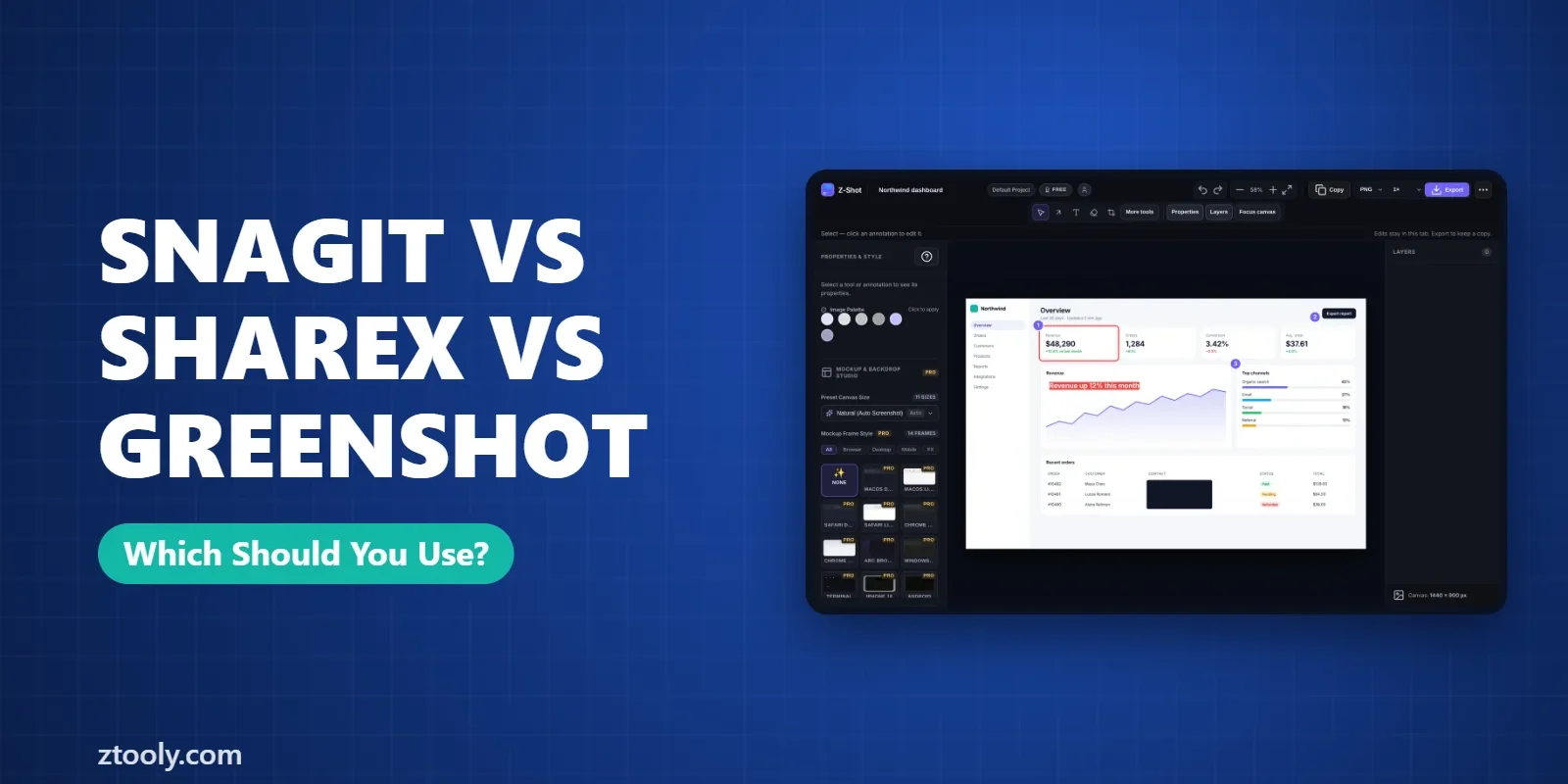
All three are desktop apps. If most of what you capture is in Chrome, a browser extension can do things desktop tools struggle with, like capturing a full web page in one pass or a single element. Z-Shot, our extension, adds full-page and element capture, annotation, blur and solid redaction, and screen recording with an editor, all stored in your browser. Many people use a desktop tool and a browser extension side by side.
Which should you choose?
- Writing guides or training material: Snagit.
- Power user on Windows, zero budget: ShareX.
- Just want better than Snipping Tool, quickly: Greenshot.
- Mostly capturing web pages: a browser extension or your browser’s built-in tools (guide).
- On a Mac: Snagit, or Mac-native options covered in scrolling screenshots on Mac.
Privacy considerations
All three can save locally. Snagit and ShareX can also upload to cloud services, which is handy but means a copy of your screenshot lives elsewhere. For work screenshots, set up local saving by default and redact sensitive details before sharing. See how to share screenshots securely at work.
In short, the Snagit vs ShareX vs Greenshot choice comes down to budget, platform and how much power you need.
FAQ
Is ShareX better than Snagit?
ShareX has more features for free, including scrolling capture, recording and OCR, but it’s Windows-only and harder to learn. Snagit is more polished, easier to use and works on Mac.
Is Greenshot still updated?
Greenshot is still available and works, but major releases have been infrequent compared with ShareX and Snagit.
What is the best free alternative to Snagit?
On Windows, ShareX is the most capable free alternative. Greenshot is simpler. For web pages, browser tools and extensions also work well.
Can Greenshot take scrolling screenshots?
No. Use ShareX or Snagit for scrolling capture, or your browser’s full-page screenshot for web pages.
Does Snagit work on Mac?
Yes, Snagit is available for both Windows and Mac. ShareX is Windows-only, and Greenshot’s Mac version is a separate paid app.
Try it free: Z-Shot captures full pages, records your screen, and blurs or redacts sensitive data right in Chrome. Free plan, no account needed, and nothing is uploaded.