Quick answer: Pick GoFullPage if you just want a one-click full-page screenshot of a long web page and you’re happy with PNG or JPG. Pick FireShot if your work ends in a PDF — multi-page PDFs, searchable text, clickable links, or capturing a batch of URLs. If you also need to annotate, blur private details or record your screen, a third option like Z-Shot covers that in one extension.
GoFullPage and FireShot are the two names that come up most when people search for a full-page screenshot extension for Chrome. Both scroll down a page and stitch it into one image, so on the surface they look the same. The real differences are in what happens after the capture: editing, PDF export, and what you have to pay for.
GoFullPage vs FireShot at a glance
| GoFullPage | FireShot | |
|---|---|---|
| Best for | Fast one-click full-page images | PDF-heavy work, archiving, batch captures |
| Capture modes | Full page (one click or Alt+Shift+P) | Full page, visible area, selection |
| Export | PNG, JPG, PDF | PNG, JPG, PDF; advanced PDF (multi-page, searchable, links) in Pro |
| Editor / annotations | Premium only | Pro only (full editor is Windows-focused) |
| Batch / all-tabs capture | No | Yes, in Pro |
| Paid plan | Premium, about $1/month ($12/year) | Pro monthly, yearly or lifetime license |
| Browsers | Chrome, Edge, Firefox | Chrome, Firefox, Edge, Opera and more |
| Ads in free version | No | Yes (Lite) |
GoFullPage: the simplest full-page capture
GoFullPage does one thing and does it well. Click the icon (or press Alt+Shift+P), watch it scroll the page, and a new tab opens with the full screenshot ready to download. There’s no account and no setup, which is why it’s one of the highest-rated screenshot extensions in the Chrome Web Store.
The trade-off is editing. Cropping, annotations and the full editor sit behind GoFullPage Premium. Premium is cheap (roughly a dollar a month), but if you need to blur an email address or point an arrow at a bug, the free version won’t do it.
- Good: one click, very reliable on long pages, no ads, no sign-up.
- Not so good: no region or element capture on Chrome, editor is paid, no batch capture.
If GoFullPage stops capturing a page correctly, our guide to fixing GoFullPage when it’s not working covers the usual causes (sticky headers, lazy-loaded images and protected pages).
FireShot: built for PDFs and bulk work
FireShot has been around for years and it shows in the feature list. Beyond full-page capture, it can grab just the visible area or a selection, and its Pro version can save a page as a multi-page PDF with searchable text and working links, capture all open tabs into one file, or work through a list of URLs automatically.
That makes FireShot the better fit for researchers, compliance and legal teams, SEO audits, or anyone archiving web pages as documents. The downsides: the free Lite version shows ads, the most useful features are in Pro, and the full editor and some PDF options depend on a Windows helper.
- Good: excellent PDF export, batch and all-tabs capture, several capture modes, one-time lifetime option.
- Not so good: ads in the free version, more complex interface, best features need Pro and work best on Windows.
Which one should you choose?
- You want a quick image of a long page: GoFullPage.
- You need a clean, searchable PDF of a page: FireShot Pro. (For an occasional PDF you can also use Chrome’s own print dialog — see how to save a web page as a PDF in Chrome.)
- You capture many pages or tabs at once: FireShot Pro.
- You need to blur or redact before sharing: neither does it for free. Use a tool with a free editor, or follow our guide on blurring sensitive information in screenshots.
- You don’t want to install anything: Chrome DevTools can capture a full page natively — see full-page screenshots without an extension.
A third option: Z-Shot (free editor, screen recording, stays on your device)
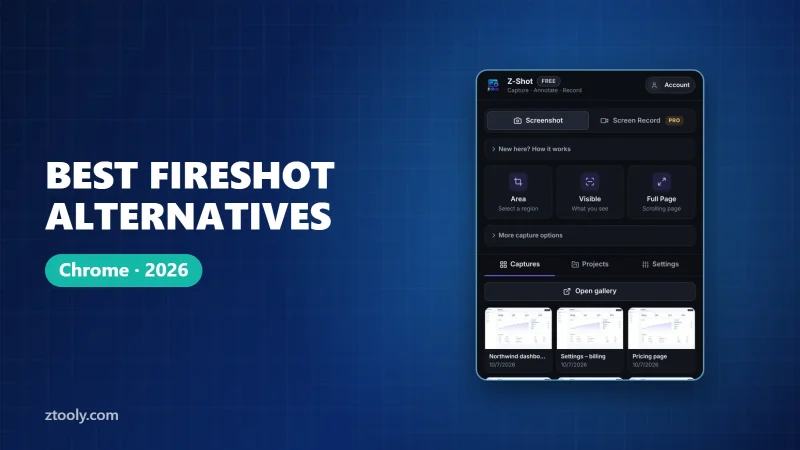
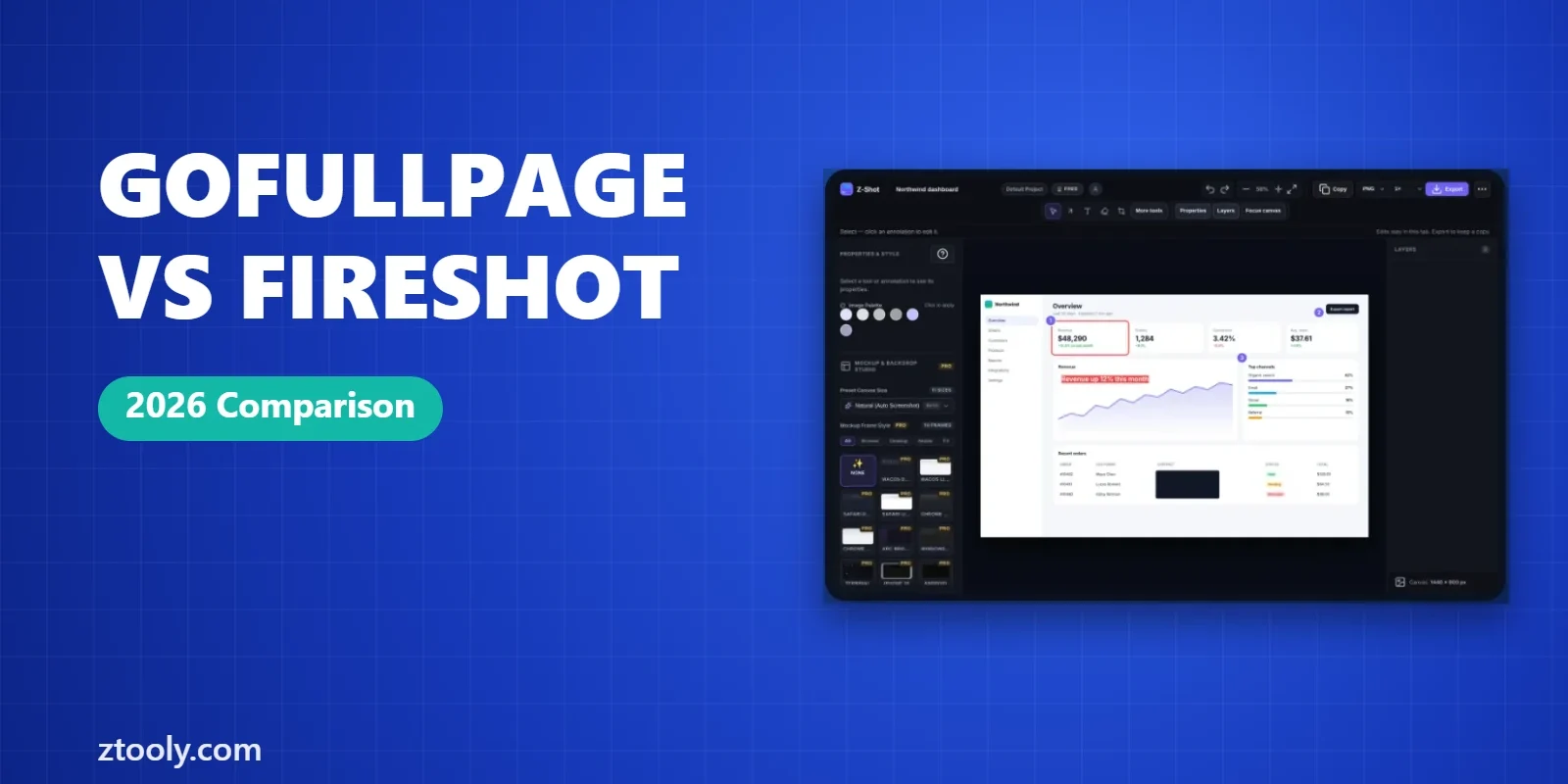
Full disclosure: Z-Shot is our own extension, so weigh this section accordingly. We built it for people who keep switching between a screenshot extension, an image editor and a screen recorder. Z-Shot captures a region, the visible area, a full scrolling page or a single element, and the editor — arrows, text, blur and redaction — is included on the free plan. It also records your screen with a built-in video editor. Captures stay in your browser unless you choose to share them, and it works in Chrome, Edge, Brave, Opera and Arc.
It isn’t a replacement for FireShot’s batch PDF archiving. But if your screenshots end up in bug reports, docs or support replies, it saves you a paid upgrade. See what Z-Shot can do.
The GoFullPage vs FireShot choice mostly comes down to whether you need PDFs and bulk work, or simple one-click captures.
Frequently asked questions
Is GoFullPage better than FireShot?
For simple full-page images, yes — it’s faster and has no ads. For PDF export, batch capture or several capture modes, FireShot is the stronger tool.
Are GoFullPage and FireShot free?
Both have free versions that take full-page screenshots. Editing tools are paid in both, and FireShot’s advanced PDF features, batch capture and ad-free use need FireShot Pro.
Which is better for saving a web page as PDF?
FireShot. Its Pro version creates multi-page PDFs with selectable text and clickable links, which GoFullPage doesn’t focus on.
Do these extensions upload my screenshots?
Both process captures in the browser, and FireShot describes its screenshot creation as on-device. Still, check each extension’s permissions and privacy policy — our article on whether your screenshot tool is uploading your images explains what to look for.
Related: Best GoFullPage alternatives · Best FireShot alternatives · Best screenshot extensions for Chrome in 2026