Quick answer: Good Nimbus Screenshot alternatives depend on which half of Nimbus you use. For screenshots plus screen recording in one Chrome extension without a cloud account, try Z-Shot. For free open-source screen recording in Chrome, Screenity. For desktop captures, Snagit (paid) or ShareX (free, Windows). For full-page PDFs, FireShot. For link-based video sharing, Loom.
Nimbus Screenshot & Screen Video Recorder is really two tools in one extension: a screenshot editor and a screen recorder, both tied into the Nimbus Note workspace. People usually switch because they don’t use Nimbus Note, they keep hitting premium prompts, or they want a simpler interface. Rather than one long list, this guide matches alternatives to what you actually do with Nimbus.
Which of these Nimbus Screenshot alternatives fits you?
| You mainly use Nimbus to | Try | Why |
|---|---|---|
| Capture and annotate web pages | Z-Shot, FireShot | Full-page capture with an editor, saved locally |
| Record tutorials or bug videos | Z-Shot, Screenity | Record in Chrome and edit without uploading |
| Send quick video messages | Loom | Built around share links and viewer stats |
| Capture desktop apps, not just the browser | Snagit, ShareX | System-wide capture and scrolling windows |
| Save pages as PDF | FireShot, browser print | Searchable text and clickable links |
| Grab a quick screenshot now and then | Built-in browser tools | Nothing to install |
1. Z-Shot: screenshots and recording without the cloud
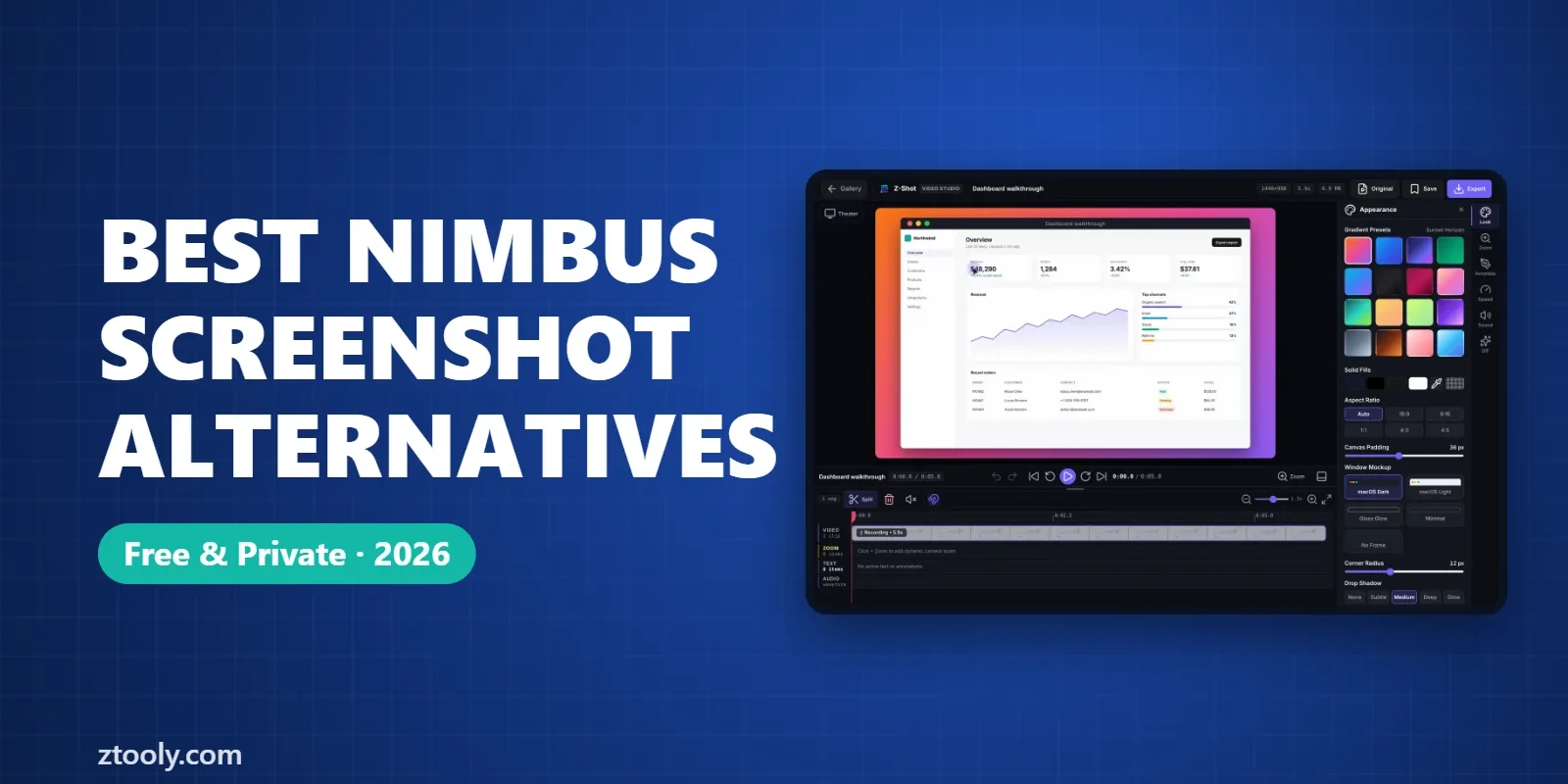
Z-Shot is the extension we build, so take this with that in mind. It’s the closest match to Nimbus’s combination of features: full-page, area, visible and element capture; an editor with arrows, numbered steps, blur and solid redaction; and screen recording with microphone and webcam, followed by a Video Studio for trimming, zooms and MP4, WebM or GIF export.
The main difference from Nimbus is that there’s no workspace to sign in to. Captures stay in a searchable gallery in your browser, which you can back up to a file.
Skip it if: you want your captures to land in a notes app automatically, or you use Firefox.
2. Screenity: free, open-source screen recorder
Screenity is a free, open-source Chrome extension focused on screen recording. It records a tab, window or screen with webcam and microphone, lets you draw and highlight clicks while recording, and includes a basic editor. It doesn’t require an account for local recording.
Skip it if: you also need a screenshot editor; Screenity is mainly for video.
3. FireShot: full-page captures and PDFs
FireShot has been capturing full pages for years. According to its website, the Pro version saves pages as PDF with searchable text and working links, and can capture all open tabs at once. It also has an editor with blur and annotations.
Skip it if: you need screen recording, or a modern, minimal interface.
4. Loom: video messages with share links
If you used Nimbus’s recorder to send walkthroughs to colleagues, Loom is purpose-built for that: record, get a link instantly, and see who watched. Videos are stored in Loom’s cloud, which is how the sharing works. Free alternatives are covered in our Loom alternatives guide.
Skip it if: your recordings show confidential information and must stay on your device.
5. Snagit: polished desktop captures
Snagit is a paid app for Windows and Mac aimed at documentation and training. It captures anything on screen, including scrolling windows, and has a powerful editor with templates, step tools and video recording.
Skip it if: you only capture in the browser or want a free tool.
6. ShareX: free desktop power tool (Windows)
ShareX is free and open source, with region, window and scrolling capture, recording, GIFs, OCR and an editor. It’s extremely flexible but has a learning curve.
Skip it if: you’re on a Mac or want something simple.
7. Built-in browser tools
For an occasional full-page screenshot, Edge and Firefox (Ctrl+Shift+S) and Chrome DevTools can do it without an extension. Steps are in how to screenshot an entire webpage without an extension.
Switching from Nimbus: a quick checklist
- Export what you want to keep from Nimbus Note or the extension’s history before uninstalling.
- Delete shared captures that contain private information, rather than leaving the links live.
- Remove the extension from
chrome://extensionsso two tools don’t fight over the same shortcuts. - Set up shortcuts in your new tool. In Chrome you can change any extension’s shortcuts at
chrome://extensions/shortcuts.
A note on privacy
Any screenshot or recording extension can see the pages you capture. Prefer established publishers, check where files are stored, and limit site access to “On click” in the extension’s Details page if you only capture occasionally. Our guide Is your screenshot tool uploading your images? explains what to look for.
Try two of these Nimbus Screenshot alternatives side by side for a week before you uninstall Nimbus.
FAQ
What is the best free alternative to Nimbus Screenshot?
For screenshots and recording in Chrome without an account, Z-Shot’s free plan covers both. For free screen recording only, Screenity is open source. On Windows, ShareX is free and very capable.
Is there a Nimbus alternative that doesn’t need an account?
Yes. Z-Shot, Screenity, FireShot, ShareX and the built-in browser tools all work without signing in.
What replaces Nimbus for screen recording?
Loom if you want share links, or Z-Shot and Screenity if you want recordings saved and edited locally in Chrome.
Which alternative can save web pages as PDF?
FireShot Pro saves pages as PDF with searchable text and links, and every browser can print a page to PDF with Ctrl+P.
How do I remove Nimbus from Chrome?
Export anything you want to keep, then open chrome://extensions and click Remove under Nimbus.
Try it free: Z-Shot captures full pages, records your screen, and blurs or redacts sensitive data right in Chrome. Free plan, no account needed, and nothing is uploaded.