Quick answer: To take a full-page screenshot in Microsoft Edge, press Ctrl+Shift+S (Cmd+Shift+S on Mac), click Capture full page, then click Save or Copy. Edge scrolls and captures the whole page as one image, and you can draw on it before saving. It’s built into Edge, so there’s nothing to install.
An Edge full page screenshot takes two clicks with the built-in Web Capture tool, so you don’t need an extension.
Edge has the best built-in full-page screenshot tool of any major browser on Windows. Microsoft used to call it Web Capture; in recent versions it appears simply as Screenshot in the menu. Here’s how to use it, where the files go, and what to do when it’s missing or doesn’t capture everything.
Step by step: Edge full page screenshot with Web Capture
- Open the page and let it load completely. Scroll to the bottom once if the page loads images as you scroll.
- Press Ctrl+Shift+S. You can also click the three-dot menu and choose Screenshot, or right-click the page and choose Screenshot.
- A small bar appears at the top. Click Capture full page.
- A preview opens. Use Draw to circle or underline something, or Erase to undo it.
- Click Save to download a PNG, or Copy to paste it somewhere else.
Saved screenshots go to your Downloads folder, or wherever Edge is set to save downloads (Settings > Downloads).
Capture only part of the page
Choose Capture area instead of full page. Drag a box over what you want. If you drag down to the bottom edge of the window, Edge scrolls so you can select an area taller than the screen. When you let go, you can copy the selection right away or open it in the preview to draw on it.
Add a shortcut button to the toolbar
- Open Settings > Appearance (it may be under Toolbar in newer versions).
- Find Screenshot (or Web capture) in the list of toolbar buttons.
- Turn it on. A camera-like icon appears next to the address bar.
Edge Web Capture vs other methods
| Method | Full page | Markup | Blur or redact | Format |
|---|---|---|---|---|
| Edge Ctrl+Shift+S | Yes | Pen | No | PNG |
| Edge DevTools | Yes | No | No | PNG |
| Print to PDF (Ctrl+P) | Yes, as print layout | No | No | |
| Windows Snipping Tool | No, screen only | Pen, highlighter | No | PNG, JPG |
| Extension (e.g. Z-Shot) | Yes | Full editor | Yes | PNG, JPG, WebP |
Use DevTools for a pixel-perfect capture
Edge is built on the same engine as Chrome, so the DevTools method works too, and it’s handy when Web Capture struggles with a page:
- Press F12 or Ctrl+Shift+I.
- Press Ctrl+Shift+P and type screenshot.
- Choose Capture full size screenshot.
To capture the mobile layout of a site, press Ctrl+Shift+M in DevTools first and pick a phone size.
Troubleshooting
The Screenshot option is missing or greyed out
- You’re on a page Edge doesn’t allow, such as
edge://settings pages or some built-in viewers. Try a normal website. - Your organisation turned it off. On a work computer, IT can disable the feature with a policy. Check
edge://policy; if you see a Web Capture or screenshot policy set to disabled, only IT can change it. - Edge needs an update. Open
edge://settings/helpand restart after it updates.
Parts of the page are blank
The site loads content as you scroll. Scroll to the bottom and back up, wait a second, then capture again. Close cookie banners and chat widgets, which can repeat down a long capture.
Only part of a web app was captured
Apps like Outlook on the web, Teams or dashboards scroll inside a panel instead of the whole page. Web Capture only sees the window, so it captures the visible part. Capture the panel in sections, or use an extension that can capture a specific scrolling element.
The image is blurry
Reset zoom to 100% with Ctrl+0 before capturing. Zoomed-out pages produce smaller, softer text.
Hide private details before you share
Edge’s pen isn’t a safe way to hide information. Thin strokes leave gaps and letters peek through. Before you share a capture of an inbox, account page or dashboard, cover sensitive text with a solid box in an image editor. Our guide on hiding your email and name in a screenshot shows how on every device.
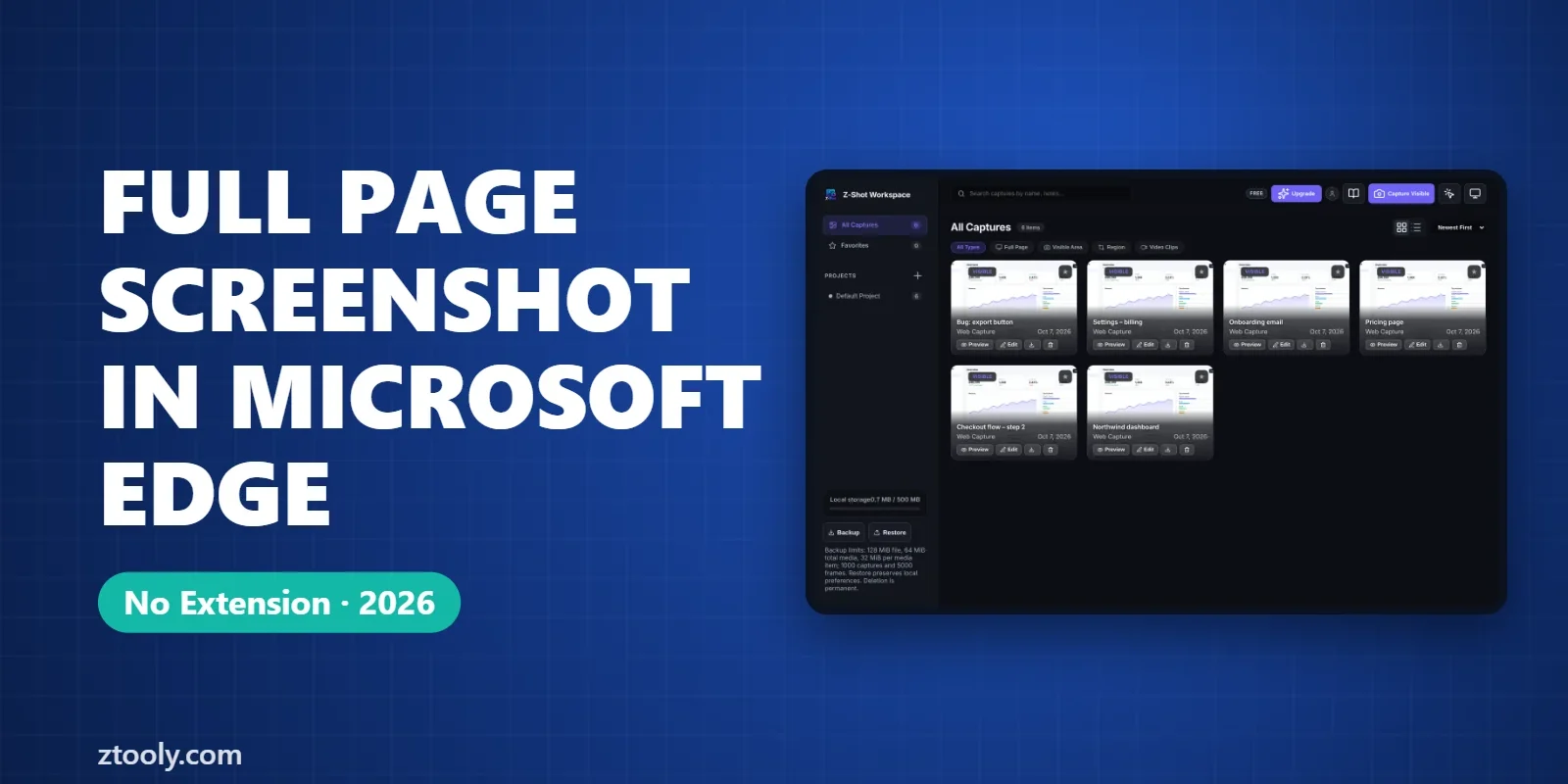
Z-Shot, our extension, also works in Edge. It captures full pages with Alt+Shift+F and has blur and solid redaction in its free editor, without uploading anything.
For most pages, an Edge full page screenshot with Web Capture takes only a few seconds.
FAQ
How do I take a full-page screenshot in Edge?
Press Ctrl+Shift+S, click Capture full page, then Save or Copy. It’s built into Edge, so no extension is needed.
Where does Edge save screenshots?
In your Downloads folder, or wherever Edge saves downloads. Check Settings > Downloads to see or change the location.
Why is Edge’s screenshot option missing?
You may be on a page Edge doesn’t allow, like edge:// settings, your version may be out of date, or your organisation may have disabled it by policy.
Can Edge blur parts of a screenshot?
No. Edge only has a pen and eraser. Use an image editor or a screenshot extension with blur or solid redaction for private details.
Does Ctrl+Shift+S work on Mac in Edge?
On Mac the shortcut is Cmd+Shift+S. You can also open the menu and choose Screenshot.
Try it free: Z-Shot captures full pages, records your screen, and blurs or redacts sensitive data right in Chrome. Free plan, no account needed, and nothing is uploaded.