Quick answer: The best Loom alternative depends on why you are switching. If you want recordings that stay on your computer and a built-in editor, try Z-Shot. If you need cloud share links and team viewing, Awesome Screenshot and Screencastify are closest to Loom. For long, high-quality recordings, use OBS Studio for free.
We compared Loom alternatives on recording limits, webcam support, editing, sharing and privacy.
Loom made async video normal: record your screen and face, get a link, send it. But not everyone wants every recording in the cloud, and free-plan limits push many people to look elsewhere. Here are the best alternatives for Chrome users in 2026, and who each one suits.
Disclosure: Z-Shot is made by our team. We’ve tried to be fair about where Loom and others are the better choice.
Why people look for a Loom alternative
- Privacy. Loom uploads every recording to its servers. That’s convenient, but not ideal for client dashboards, internal tools or regulated data.
- Free-plan limits. Loom’s free plan caps recording length and the number of videos you can keep. Check Loom’s pricing page for the current limits.
- Editing. Many people want zooms, text and backdrops for polished demos, not just trimming.
- Screenshots too. Teams often need one tool for both screenshots and recordings.
1. Z-Shot — best for private recordings with built-in editing
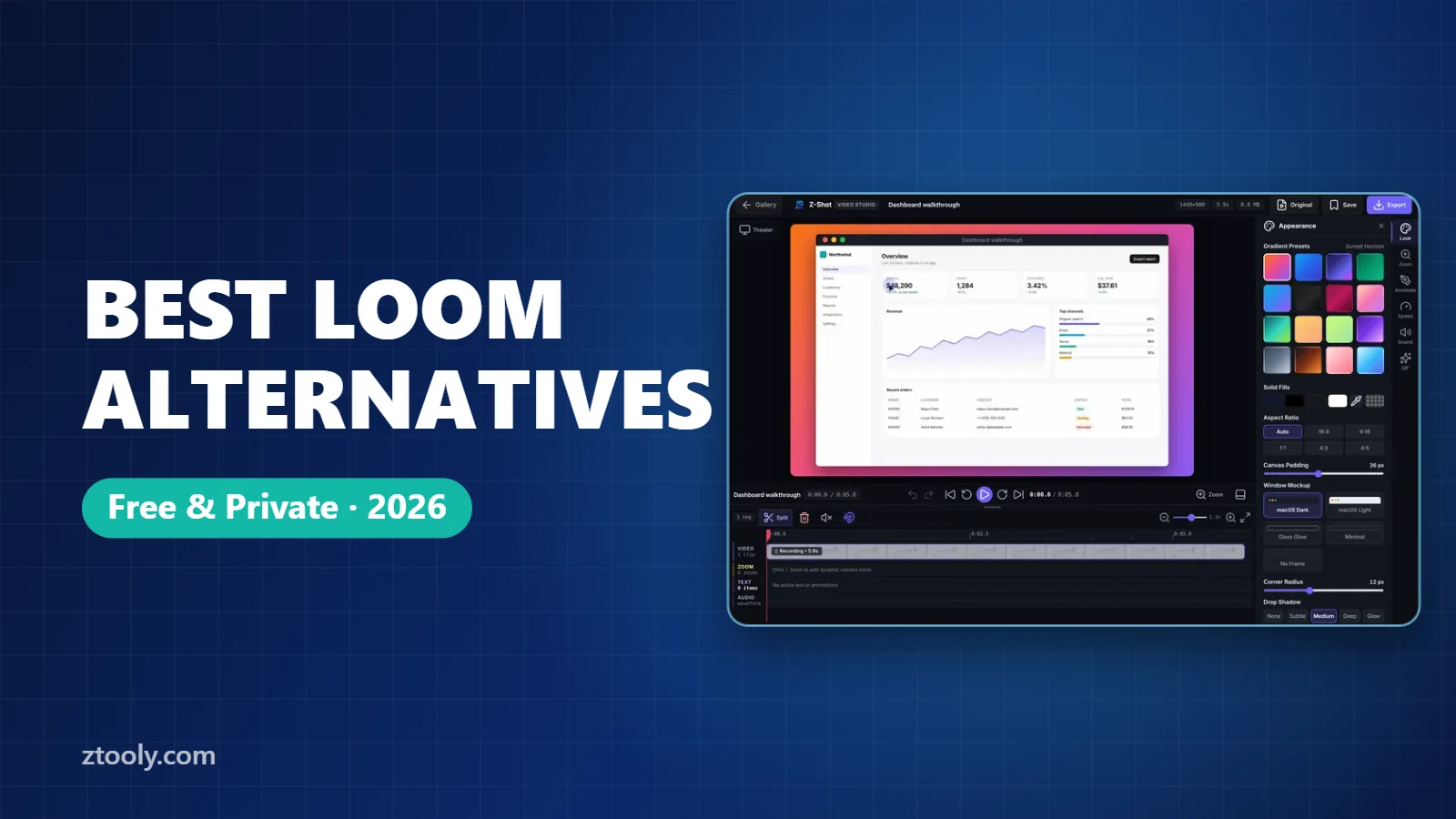
Z-Shot is a Chrome extension that records a tab, window or your whole screen with microphone audio and an optional webcam bubble. When you stop, the clip opens in Video Studio, where you can split and delete parts, mute sections, add zooms and text, put the video on a gradient backdrop with a window frame, change speed, and export MP4 or WebM up to 1440p, or a GIF.
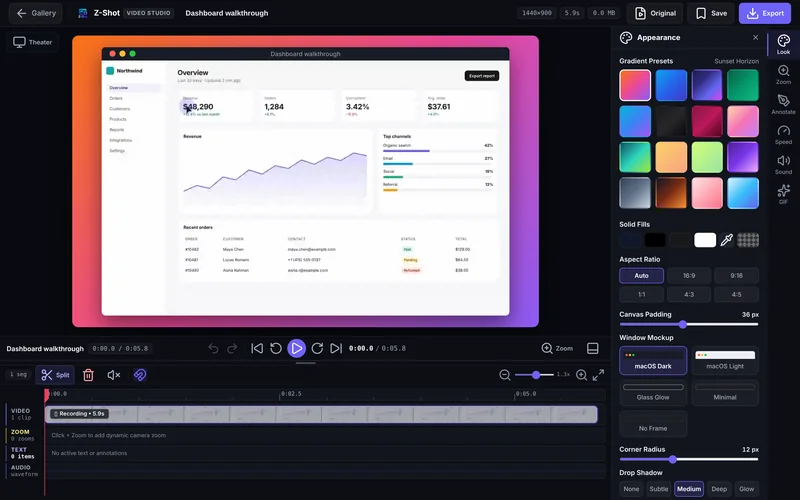
Recordings are stored in your browser, not on a server. You share by downloading the file, or on Pro by uploading to a destination you choose (Imgur, your own S3/R2 bucket or a webhook). It also does full-page screenshots, annotation and redaction.
Pick it if: you record sensitive screens, want polished demos, or want screenshots and recordings in one tool. Skip it if: you need instant hosted links with viewer analytics.
2. Awesome Screenshot — closest all-in-one cloud option
Awesome Screenshot combines screenshots and screen recording with cloud storage and share links, so it works much like Loom for teams. Recordings are uploaded to its service. See our Z-Shot vs Awesome Screenshot comparison.
Pick it if: you want Loom-style links plus screenshots.
3. Screencastify — popular in schools
Screencastify is a Chrome screen recorder widely used by teachers, with Google Drive and Google Classroom integration and simple editing.
Pick it if: you work in Google Workspace for Education.
4. OBS Studio — best free option for long, high-quality recordings
OBS Studio is free, open-source desktop software for Windows, Mac and Linux. It has no time limits and supports scenes, multiple sources and streaming. It isn’t a Chrome extension and takes time to set up, but nothing beats it for long tutorials or courses.
Pick it if: you record long videos and don’t mind a learning curve.
5. Built-in recorders — free, nothing to install
Windows 11’s Snipping Tool, macOS’s Cmd+Shift+5 and ChromeOS’s Screen capture can all record your screen with a microphone. They’re fine for quick clips but have little or no editing. Our guide to recording your screen in Chrome with audio walks through each.
Loom alternatives comparison table
| Loom | Z-Shot | Awesome Screenshot | Screencastify | OBS Studio | |
|---|---|---|---|---|---|
| Runs in Chrome | Yes | Yes | Yes | Yes | No (desktop app) |
| Webcam overlay | Yes | Yes | Yes | Yes | Yes |
| Where recordings live | Cloud | Your browser | Cloud | Google Drive | Your computer |
| Instant share link | Yes | Pro: your own destination | Yes | Yes | No |
| Zooms, text, backdrops | Limited | Yes | Limited | Basic | Via scenes |
| Screenshots too | No | Yes | Yes | No | No |
| Free plan | Yes, limited | Yes | Yes, limited | Yes, limited | Fully free |
Features and limits change often, so check each tool’s pricing page before committing.
Which Loom alternative should you choose?
- “I don’t want my recordings in someone’s cloud.” Z-Shot or OBS Studio.
- “I need a link my team can watch instantly.” Awesome Screenshot, Screencastify, or stay on Loom.
- “I make product demos and want them to look polished.” Z-Shot’s Video Studio.
- “I teach with Google Classroom.” Screencastify.
- “I record hour-long tutorials.” OBS Studio.
Most of these Loom alternatives have a free plan, so record the same short video in two of them before you decide.
Frequently Asked Questions
What is the best free Loom alternative?
For private recordings with editing, Z-Shot has a free plan in Chrome. For unlimited long recordings, OBS Studio is completely free. For cloud links, Awesome Screenshot and Screencastify have free plans with limits.
Is there a Loom alternative that doesn’t upload videos?
Yes. Z-Shot saves recordings in your browser, and OBS Studio saves them to your computer. Nothing is uploaded unless you choose to share the file.
Can I record my webcam and screen together without Loom?
Yes. Z-Shot, Awesome Screenshot, Screencastify and OBS Studio all support a webcam overlay on top of your screen recording.
Which Loom alternative works best for product demos?
Pick a tool with zooms, text and backdrops so demos look polished without a separate video editor. Z-Shot’s Video Studio is built for this.
Is Loom free?
Loom has a free plan with limits on recording length and the number of videos. Check Loom’s pricing page for the current details.
Try it free: Z-Shot captures full pages, records your screen, and blurs or redacts sensitive data right in Chrome. Free plan, no account needed, and nothing is uploaded.