Quick answer: To make a website screenshot look professional, clean the page first (close banners, use sample data), capture at 2× resolution, crop to one clear focus, place it in a browser frame on a simple gradient or solid backdrop with a soft shadow, and export at the exact size of where it will be used. Keep colors and framing consistent across every image.
The difference between an amateur screenshot and a polished one is rarely the tool. It’s preparation and restraint. These steps work for landing pages, social posts, case studies, portfolios and pitch decks.
1. Prepare the page
- Dismiss cookie banners, chat widgets and pop-ups.
- Use sample data, not real customers. Realistic names and numbers look better than “Test test”.
- Hide the bookmarks bar and other extensions or use a clean browser profile.
- Wait for everything to load, including lazy images and fonts.
- Pick light or dark mode deliberately and stick with it.
2. Capture sharp
Low resolution is the most common giveaway. Export at 2× or 3× so text stays crisp on high-density screens. Use element capture for components and full-page capture for long pages.
3. Crop to one idea
A professional screenshot shows one thing: a feature, a result, a section. Crop out empty space and unrelated navigation. If you need to show three features, make three images.
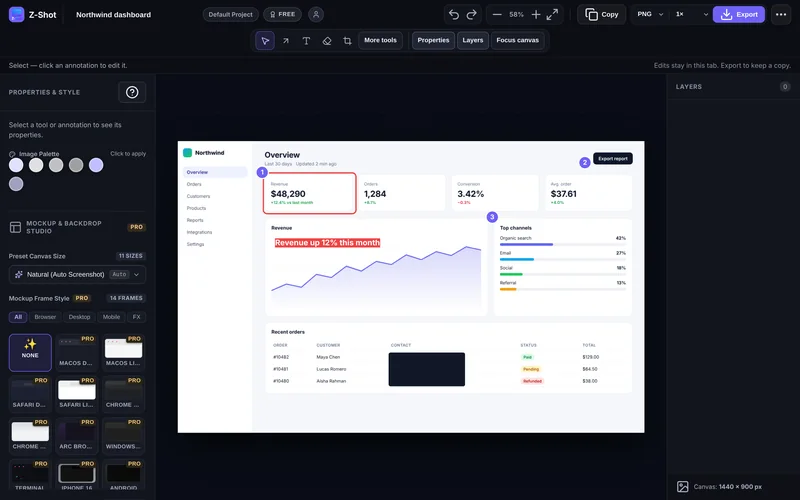
4. Plain screenshot or browser mockup?
| Use a plain screenshot when… | Use a browser mockup when… |
|---|---|
| Documentation, bug reports, support replies | Landing pages, social posts, Product Hunt |
| The reader needs exact UI details | You want it to feel like a real product |
| It sits next to other UI screenshots | It sits on a marketing page with lots of whitespace |
A browser frame adds context (“this is a website”) and makes cropped content look intentional. See our guide to making website mockups from screenshots.
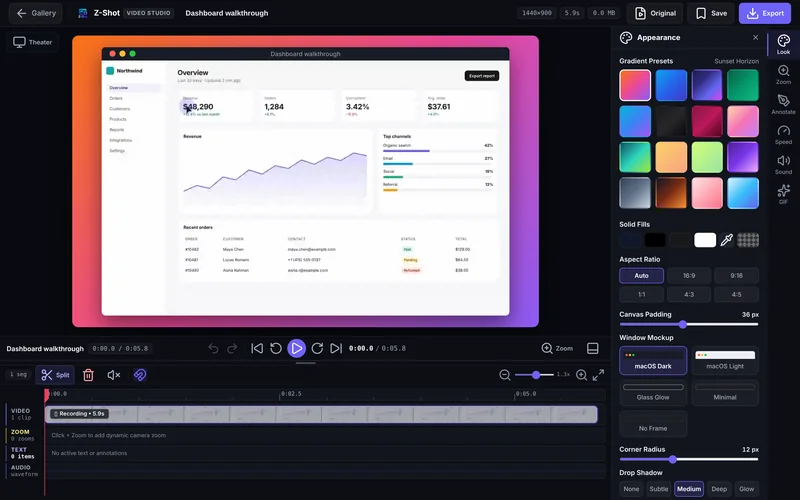
5. Choose a backdrop
- Soft gradient in your brand colors for marketing images.
- Solid light gray or off-white for clean product docs.
- Avoid busy photos that compete with the UI.
- Add padding. Leave space around the screenshot so it doesn’t touch the edges.
- Use a soft shadow and rounded corners to lift it off the background.
6. Highlight sparingly
One spotlight or a subtle zoom on the key element is enough. Heavy arrows look like a support ticket, not a product shot. Our annotation best practices cover when to use what.
7. Export for the destination
| Destination | Size or ratio |
|---|---|
| Landing page hero | Wide, around 16:10 or 16:9 |
| LinkedIn / X feed | 1:1 or 16:9 |
| Instagram / Stories | 1:1 or 9:16 |
| Chrome Web Store | 1280×800 (see our guide) |
| Docs | Actual width of the content column, at 2× |
Use PNG for UI with text and sharp edges. Use WebP for smaller files on websites.
8. Stay consistent
Same frame style, backdrop, padding and shadow on every image in a set. Consistency is what makes a page of screenshots look designed rather than collected.
How to make a website screenshot look professional quickly
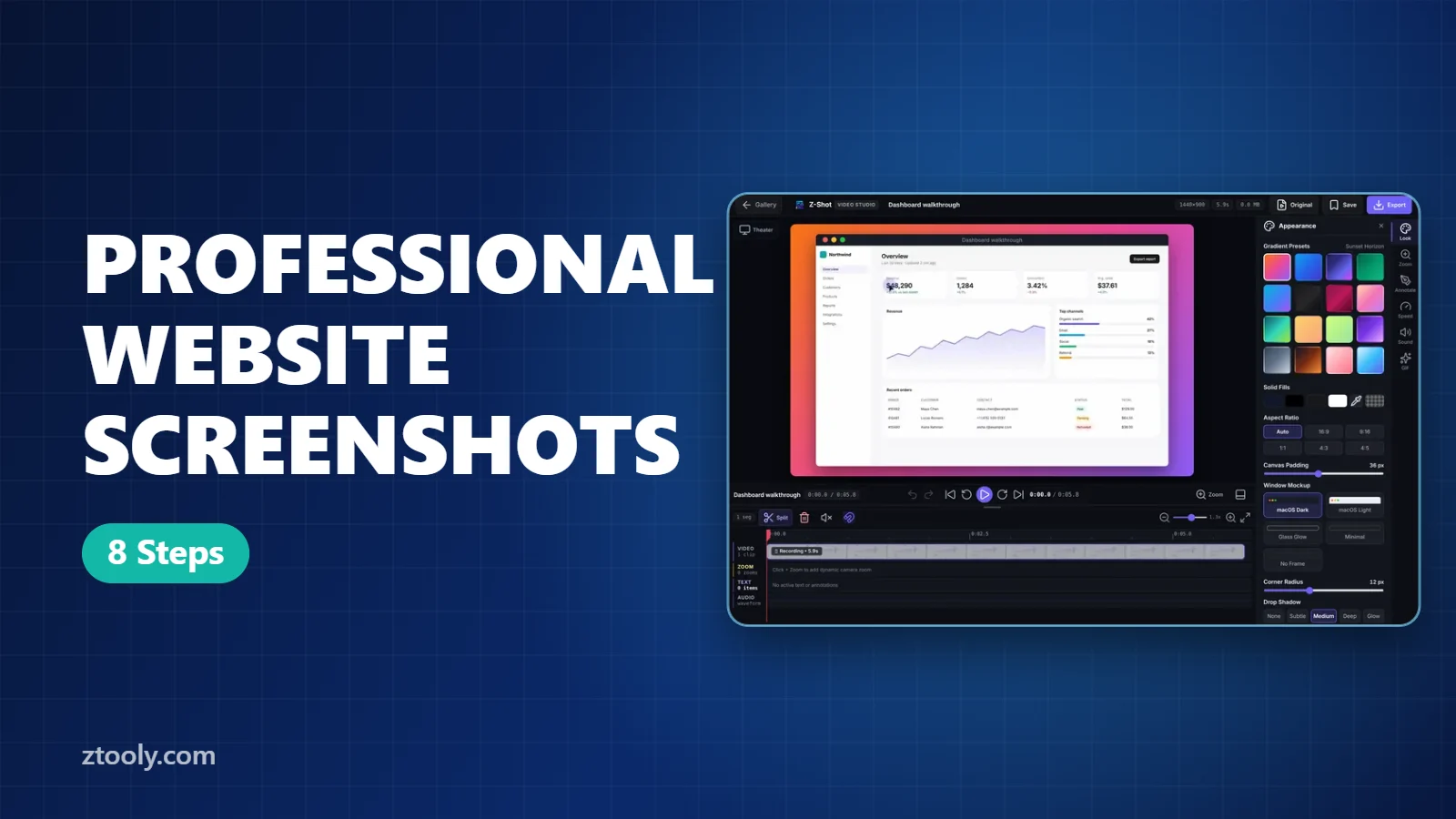
You can build frames and backdrops in Figma or Canva, but it takes several minutes per image. Z-Shot Pro puts any capture into a browser or device frame on a gradient, adds 3D tilt if you want it, and exports at social sizes in a few clicks, straight from the capture, without uploading anything.
Follow these eight steps every time and you will make a website screenshot look professional in a few minutes.
Frequently Asked Questions
How do I make a screenshot look professional?
Clean the page, capture at 2× resolution, crop to one focus, place it in a browser frame on a simple backdrop with padding and a soft shadow, and keep the style consistent.
What background should I use for product screenshots?
A soft gradient in brand colors for marketing, or a plain light background for documentation. Avoid busy photos.
Should I use a browser mockup or a plain screenshot?
Use plain screenshots for docs and support, and browser mockups for marketing pages and social posts where context and polish matter.
What resolution should product screenshots be?
Capture and export at 2× the display size so text stays sharp on high-density screens.
What file format is best for website screenshots?
PNG for crisp UI and text, WebP for smaller files on websites, and JPEG only when the image is mostly photos.
Try it free: Z-Shot captures full pages, records your screen, and blurs or redacts sensitive data right in Chrome. Free plan, no account needed, and nothing is uploaded.