Quick answer: If your Google account includes Meet recording (many paid Google Workspace plans and some Google One plans do), join the call, click Meeting tools (or Activities), choose Recording, and click Start recording. The video saves to the organiser’s Google Drive in a Meet Recordings folder. On a free account, use a screen recorder instead, and always tell participants and get their consent first.
Here is how to record a Google Meet call whether or not your plan includes recording.
Recording a meeting is useful for people who couldn’t attend, for training, and for keeping an accurate record. Google Meet makes it simple when your plan supports it, and there are reliable alternatives when it doesn’t. The one rule that applies everywhere: let people know you’re recording.
Can you record in Google Meet?
| Account type | Built-in recording |
|---|---|
| Free personal Gmail account | No |
| Many paid Google Workspace business plans | Yes, if the admin allows it |
| Some Education editions | Yes, usually for teachers and staff |
| Some Google One plans | Yes on eligible plans |
Which plans include recording changes from time to time, so check Google’s current Meet help pages for your plan. If you don’t see a Recording option in the meeting, either your plan doesn’t include it or your administrator has turned it off.
How to record with Google Meet’s built-in recorder
- Join the meeting from a computer. Recording can only be started from the desktop version.
- Click Meeting tools (or the Activities icon) in the bottom-right.
- Choose Recording.
- Optionally turn on captions or a transcript, if offered.
- Click Start recording, then confirm. Everyone in the call is notified that recording has started.
- To stop, open the same panel and click Stop recording. Recording also stops when everyone leaves.
Where Google Meet recordings are saved
- In the meeting organiser’s Google Drive, inside a folder called Meet Recordings.
- A link is emailed to the organiser and the person who started the recording.
- If the meeting was on a Calendar event, the recording is usually attached to that event.
Processing can take a while for long meetings. Share the recording from Drive with the same access controls as any other file.
Recording on a free account: screen recorders
If Meet’s recorder isn’t available, a screen recorder can capture the meeting window and audio. Tell everyone first.
In Chrome (records the Meet tab with its audio)
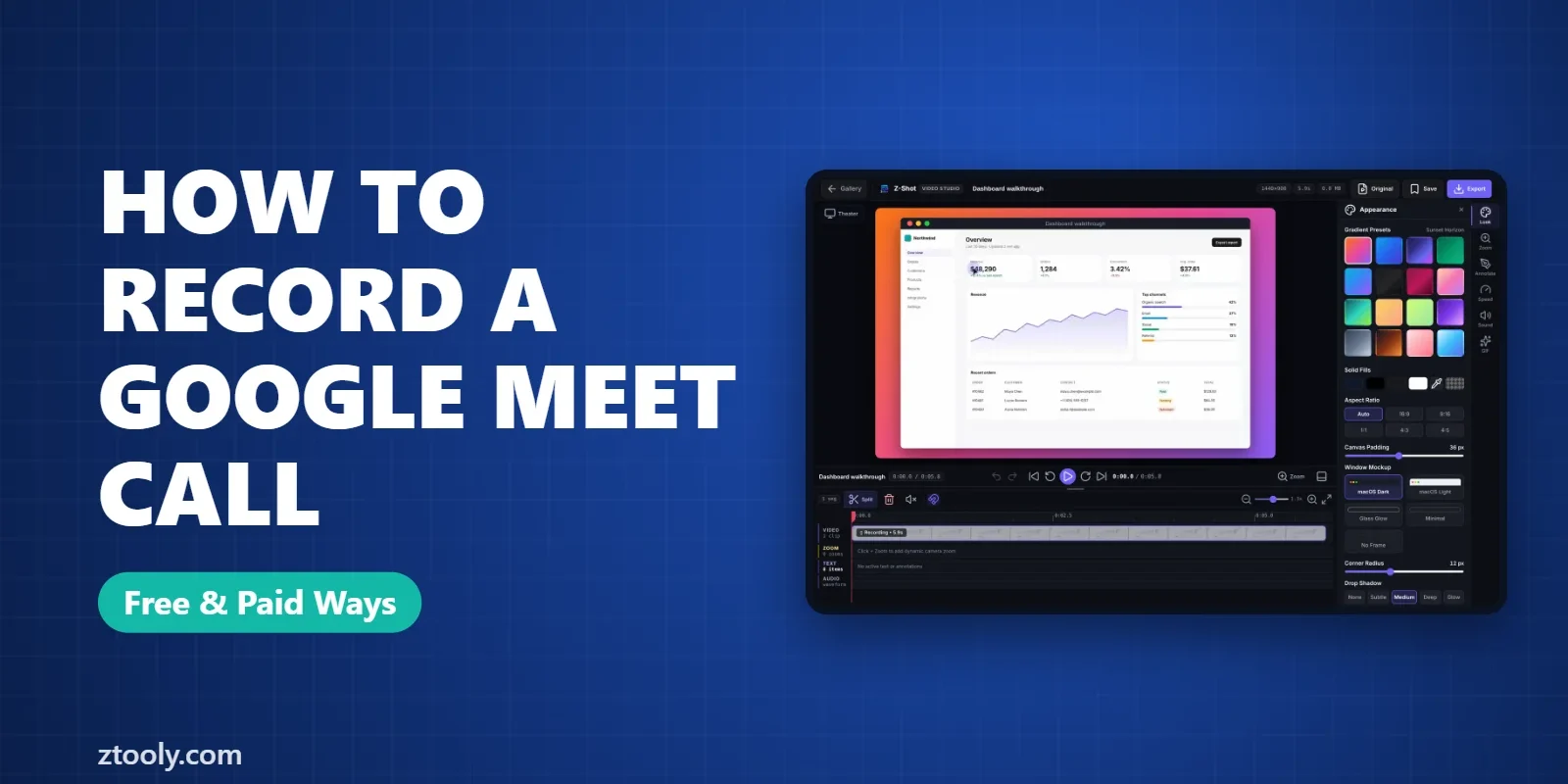
A tab recorder extension captures the meeting tab, including other participants’ voices, plus your microphone. Z-Shot, our Chrome extension, records a tab with microphone audio and saves the recording in your browser, with an editor to trim it afterwards. Other options are in free screen recorders for Chrome.
On Windows
Snipping Tool’s recorder (Win+Shift+R) can record the screen with system audio and your mic on recent versions. OBS Studio works for long meetings. See record your screen on Windows 11.
On Mac
The built-in recorder (Cmd+Shift+5) records your mic but not other people’s audio. Use OBS Studio or a browser tab recorder instead. Details in record your screen on a Mac with audio.
Consent and the law
Recording laws differ by country and, in the US, by state. Some places require everyone’s consent to record a conversation, not just one person’s. Workplaces and schools often have their own policies too. Google Meet’s built-in recorder notifies everyone automatically. A screen recorder doesn’t, so:
- Say at the start of the call that you’d like to record, and why.
- Give people a chance to object or turn off their cameras.
- Store the recording securely and share it only with people who need it.
- Delete it when it’s no longer needed.
This isn’t legal advice; check the rules that apply to you.
Tips for better meeting recordings
- Pin or spotlight the presenter so the recording shows the right person.
- Close notifications if you’re screen recording, so private messages don’t appear.
- Use the transcript (where available) to make the recording searchable.
- Trim the waiting time at the start before sharing.
Troubleshooting
- No Recording option: your plan doesn’t include it, your admin disabled it, or you joined from a phone.
- Recording not in Drive yet: long meetings take time to process; check your email for the link.
- Screen recording has no voices: you recorded the screen without system or tab audio. Record the Meet tab with tab audio, or enable system sound.
FAQ
Can I record a Google Meet call for free?
Not with Meet’s built-in recorder on a free personal account. You can use a screen recorder instead, as long as you tell participants and have their consent.
Where do Google Meet recordings go?
To the meeting organiser’s Google Drive, in a folder called Meet Recordings. A link is also emailed to the organiser.
Does Google Meet notify people when you record?
Yes. When you use Meet’s built-in recorder, everyone in the call is notified that recording has started.
Why don’t I see the Record button in Google Meet?
Your plan may not include recording, your administrator may have disabled it, or you joined from a mobile device instead of a computer.
Is it legal to record a Google Meet call?
It depends on where you and the participants are. Some places require everyone’s consent. Always ask before recording.
Try it free: Z-Shot captures full pages, records your screen, and blurs or redacts sensitive data right in Chrome. Free plan, no account needed, and nothing is uploaded.