Quick answer: The best free screen recorders for Chrome are Screenity (open source, no account, unlimited local recording), Z-Shot (recording plus a built-in video editor and screenshots, files stay in your browser), Loom (instant share links, with limits on the free plan), and Awesome Screenshot (recording and screenshots with cloud sharing). Chrome itself has no built-in screen recorder, except on Chromebooks.
Chrome extensions are often the easiest way to record a tutorial, a bug or a product demo: one click, record a tab with its audio, and you’re done. But “free” means very different things. Some recorders cap video length or the number of videos, some add watermarks, and some upload everything to their servers. This comparison focuses on what the free versions actually give you.
Free screen recorders for Chrome compared
| Recorder | Account needed | Where videos go | Editing | Free plan limits | Best for |
|---|---|---|---|---|---|
| Screenity | No (for local) | Your computer | Basic editor | Very few | Free, unlimited local recording |
| Z-Shot | No | Your browser | Video Studio: trim, split, zoom, text | Some export options are Pro | Demos and bug videos with privacy |
| Loom | Yes | Loom’s cloud | Trim, captions | Caps on video count and length | Async video messages |
| Awesome Screenshot | For cloud features | Local or cloud | Basic | Limits on cloud features | Recording plus screenshots |
| Clipchamp (web app) | Yes | Your project | Full editor | Clip length limit for recordings | Short edited videos |
Free plans change often. Check each tool’s current pricing page before you commit, especially for team use.
1. Screenity: best fully free option
Screenity is an open-source Chrome extension for screen recording. It records a tab, a window, your whole screen or just your camera, with microphone audio. While recording you can draw on the screen, highlight clicks and blur sensitive areas. Afterwards, a simple editor lets you trim and crop, and you can export the video locally without signing in.
Downsides: no screenshot tools, and fewer polish features (zooms, backgrounds) than paid tools.
2. Z-Shot: recording with a real editor, and screenshots too
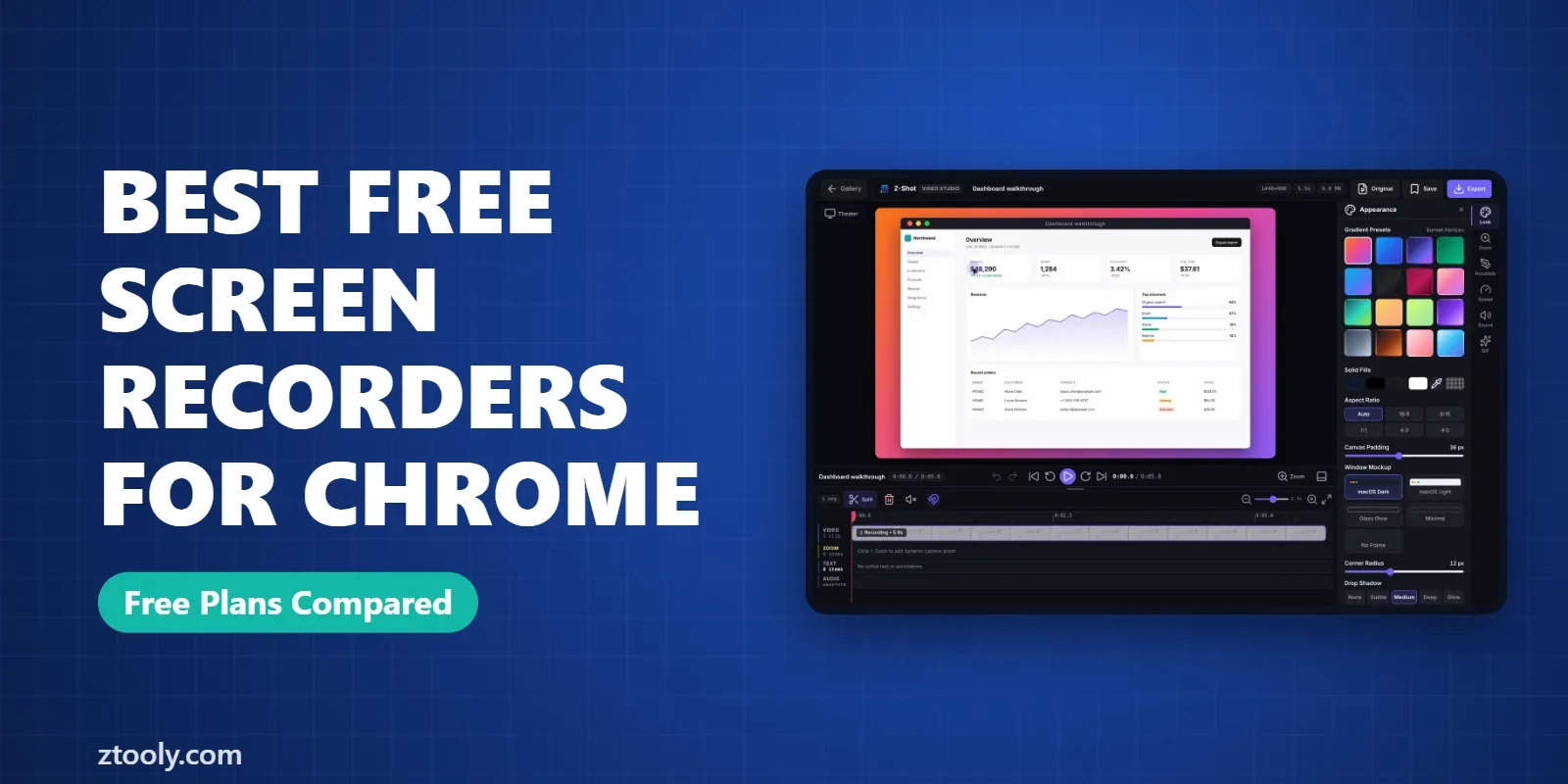
Z-Shot is our own extension, so weigh this accordingly. It records a tab, window or screen with your microphone and an optional webcam bubble, with pause and resume. When you stop, the clip opens in Video Studio, where you can split, delete or mute parts of the timeline, add camera zooms and text, set a gradient backdrop and window frame, change speed, and export MP4, WebM or a GIF. It also does full-page screenshots, annotation and redaction.
Recordings are saved in your browser rather than on a server, which matters when you’re recording internal tools or customer data.
Downsides: Chromium browsers only, no share links out of the box, and some extras are Pro.
3. Loom: best for share links
Loom is built for video messages: record, and a shareable link is ready the moment you stop. Viewers can comment and react, and you can see who watched. The free plan limits how many videos you can keep and how long they can be.
Downsides: everything lives in Loom’s cloud, and the free limits push regular users toward a paid plan. Alternatives are in Loom alternatives for Chrome.
4. Awesome Screenshot
Awesome Screenshot combines screenshots and screen recording, with options to save locally or upload for a share link. It’s a reasonable all-rounder if you also use its screenshot editor. We review its privacy in Is Awesome Screenshot safe?
Downsides: many conveniences depend on its cloud and account.
5. Clipchamp (web)
Microsoft’s Clipchamp runs in the browser and can record your screen and camera directly into a project, ready to edit with captions, music and transitions. Recordings have a per-clip time limit, so it’s best for short videos.
What about Chrome’s built-in tools?
Chrome on Windows and Mac doesn’t include a screen recorder. Your operating system does: Snipping Tool on Windows (guide) and Cmd+Shift+5 on Mac (guide). On a Chromebook, the screen capture toolbar records video too.
How to choose
- Want free with no limits or account: Screenity.
- Need to edit and keep recordings private: Z-Shot.
- Need a link to send right away: Loom.
- Need screenshots and recording in one extension: Z-Shot or Awesome Screenshot.
- Making a polished short video: Clipchamp.
Tips for recording in Chrome
- Record a single tab when possible. It’s cleaner than full screen and can include the tab’s audio.
- Close tabs and turn off notifications you don’t want in the video.
- Allow microphone access when Chrome asks, or check the site permissions if your voice is missing.
- Keep it under three minutes for explanations; split longer topics into several videos.
All of these free screen recorders for Chrome are worth a short test before you commit to one.
FAQ
Does Chrome have a built-in screen recorder?
Not on Windows or Mac. Use an extension, or your operating system’s recorder (Snipping Tool on Windows, Cmd+Shift+5 on Mac). Chromebooks have one in the screen capture toolbar.
What is the best free screen recorder extension for Chrome?
Screenity is fully free and open source. Z-Shot is free with a built-in video editor and keeps recordings in your browser. Loom is best for instant share links but has free plan limits.
Which Chrome screen recorder has no watermark?
Screenity and Z-Shot export without a watermark on their free plans. Check current terms for other tools.
Can I record a Chrome tab with audio?
Yes. Most recorder extensions can capture a tab’s audio along with your microphone when you choose to record a single tab.
Do Chrome screen recorders upload my videos?
Some do. Loom and cloud-sharing features in tools like Awesome Screenshot store videos online. Screenity and Z-Shot keep recordings local by default.
Try it free: Z-Shot captures full pages, records your screen, and blurs or redacts sensitive data right in Chrome. Free plan, no account needed, and nothing is uploaded.