Quick answer: Before sharing a screenshot of a bank app, statement or payment, cover the full card number, CVV, expiry date, account number, routing or sort code, IBAN, balance and your address with solid, opaque boxes. Showing only the last 4 digits is generally fine. Don’t blur or pixelate numbers: short digit strings are among the easiest things to recover.
If you need to hide card details in a screenshot before you send it to support, a friend or a forum, the method matters: some blur styles can be reversed.
People share banking screenshots all the time: proof of payment for a seller, a refund dispute with a shop, a split bill with friends, a question to support. Each one can leak enough for fraud or social engineering. This guide shows exactly what to hide, what’s safe to leave, and how to do it on your phone or computer.
What to hide and what’s usually safe
| Detail | Hide? | Why |
|---|---|---|
| Full card number | Always | Can be used for fraud, especially with expiry and CVV |
| CVV / security code | Always | Never needed by anyone but the payment system |
| Expiry date | Yes | Completes card details for fraud |
| Account number, routing number, sort code, IBAN | Yes, unless the recipient needs it to pay you | Can be used for fraudulent debits or impersonation |
| Account balance and other transactions | Yes | Private, and useful for targeted scams |
| Home address, phone, email, date of birth | Yes | Used for identity theft and to pass security questions |
| Customer or login ID | Yes | Half of what’s needed to sign in |
| Last 4 digits of a card or account | Usually fine | Commonly printed on receipts; helps identify the account |
| Amount, date and merchant of the payment you’re proving | Keep | That’s the point of the screenshot |
| Transaction reference | Keep for the recipient | Lets them trace the payment |
Step by step: hide card details in a screenshot
- Crop first. Keep only the single transaction or confirmation you need to show. Crop away the balance and other transactions.
- Cover numbers with solid boxes. Leave the last 4 digits visible if they help identify the account.
- Make boxes wider than the digits. The width of a box can hint at how many digits are hidden.
- Save as a new image so the boxes are permanently part of it.
- Zoom in and check that no digit edges are visible.
On iPhone use Markup with a filled shape; on Android use the editor’s shape or a thick, opaque pen; on Windows use Paint’s filled rectangle; on Mac use Preview’s filled rectangle. Detailed steps for each are in how to black out text in a screenshot.
Why you shouldn’t blur card numbers
A card number is only digits, and the last few are often already known. That leaves a small number of possibilities, which is exactly the situation where blurred and pixelated text can be reconstructed by testing candidates. A solid box removes the information entirely. We explain the technique in Is pixelating text safe?
“My bank app won’t let me take a screenshot”
Many banking apps, especially on Android, block screenshots on purpose so that malware and screen-recording apps can’t capture your details. You’ll see a black image or a message. Instead of trying to bypass it:
- Use the app’s Share receipt or Download statement option, which creates a document intended for sharing.
- Log in to online banking in a browser on a computer, where you can take a screenshot and redact it.
Sharing proof of payment safely
When a seller, landlord or friend asks for proof that you paid, they need:
- The amount
- The date and time
- Their name or the last digits of their account
- The transaction reference or ID
They don’t need your balance, your full account number, your other transactions or your address. Crop and cover everything else. If the screenshot is going to a business or support team, the official receipt from your bank app is usually better than a screenshot.
Watch out for fake payment screenshots
If you’re the one receiving money, remember that payment screenshots are easy to fake. Scammers send edited “proof of payment” images to sellers before collecting goods. Always confirm the money has arrived in your own banking app before handing anything over.
Screenshots of online banking in a browser
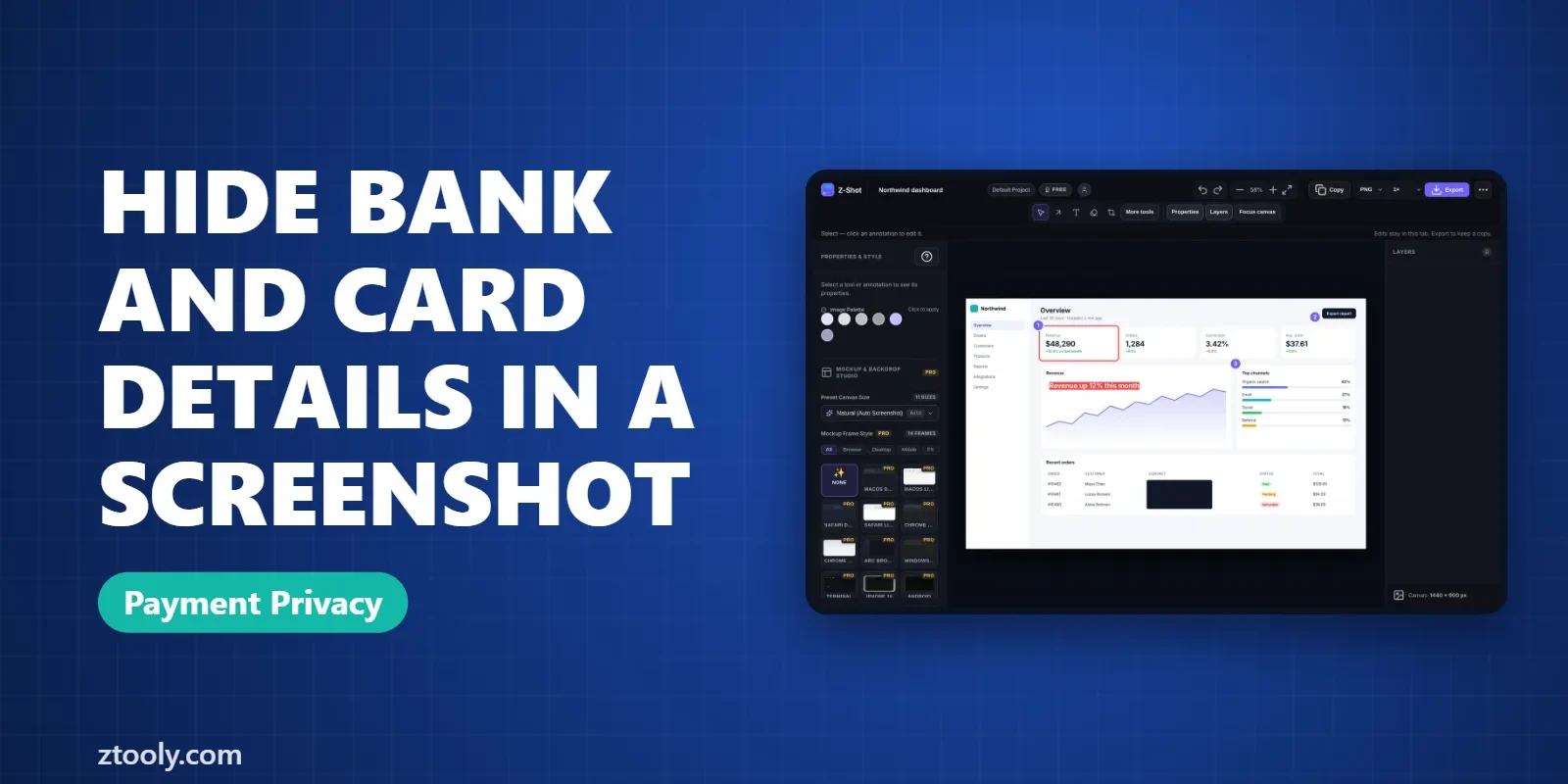
If you capture bank pages or payment dashboards in Chrome, it’s safest to redact in a tool that runs locally rather than one that uploads images to a server for editing. Z-Shot, our Chrome extension, has solid redaction in its free editor, and its Pro plan can detect card numbers, emails and phone numbers automatically so you can hide them in one click. Images stay in your browser.
Checklist before you hit send
- No full card or account numbers visible
- No CVV, expiry, routing code or IBAN
- Balance and unrelated transactions cropped out
- Address, email and phone covered
- Boxes are solid, not blurred or highlighted
- You’re sending the edited copy, not the original
Take ten seconds to hide card details in a screenshot before it leaves your device; it is far easier than replacing a card later.
FAQ
Is it safe to share the last 4 digits of my card?
Generally yes. The last 4 digits are printed on receipts and help identify the card without enough information to use it. Hide the rest of the number, the expiry date and the CVV.
What should I hide in a proof of payment screenshot?
Your full account and card numbers, balance, other transactions, address and contact details. Keep the amount, date, recipient and transaction reference.
Can someone use my bank account number from a screenshot?
An account number together with routing or sort code and your name can be misused for fraudulent debits or impersonation, so hide it unless the recipient needs it to pay you.
Why can’t I screenshot my banking app?
Many banking apps block screenshots to protect you from malware that captures the screen. Use the app’s share receipt or download statement option instead.
Is blurring a card number enough?
No. Digit strings are easy to reconstruct from blur or pixelation. Use a solid, opaque box and save a new copy of the image.
Try it free: Z-Shot captures full pages, records your screen, and blurs or redacts sensitive data right in Chrome. Free plan, no account needed, and nothing is uploaded.