Quick answer: The quickest free way to blur a face on a phone is the image editor in the Signal app, which detects and blurs faces automatically. On a computer, open the image in Photopea (free, in your browser) or GIMP, select the face, and apply a strong Gaussian blur. If the person must not be identified, cover the face completely with a solid shape or sticker instead of a light blur.
To blur a face in a photo properly you need more than a light blur, because weak blurs can sometimes be reversed.
Blurring faces is something people need to do surprisingly often: a photo of a kid’s school event, a screenshot of a video call, a picture from a protest, or a street scene for a blog. The built-in photo apps on most phones and computers don’t have a blur tool, which is why this simple task is so frustrating. Here are the methods that actually work, from quickest to most precise.
Pick the right method
| Situation | Best method | Cost |
|---|---|---|
| Phone, several faces, quick | Signal’s built-in face blur | Free |
| Phone, one face, no new app | Markup with a filled shape or a sticker | Free |
| Computer, natural-looking blur | Photopea or GIMP | Free |
| Screenshot of a web page or video call in Chrome | A screenshot extension with a blur tool | Free options |
| Video | YouTube Studio’s blur tool or a video editor | Free |
| Must be impossible to identify | Solid shape or crop | Free |
On iPhone or Android: Signal’s face blur
Signal is a free messaging app, but its photo editor is one of the easiest face-blurring tools available, and you don’t have to send the photo to anyone.
- Install Signal and open any chat. Your own “Note to Self” chat works.
- Tap the + or camera icon and choose the photo.
- Tap the blur icon (a checkered circle) at the top.
- Turn on Blur faces. Signal finds and blurs faces automatically.
- Draw with your finger to blur anything it missed.
- Save the edited image to your phone instead of sending it, or send it to Note to Self and save it from there.
Face detection happens on your phone. Check every face afterwards, especially side profiles and people in the background.
On iPhone without extra apps
The iPhone Photos app doesn’t have a blur tool. You can still hide a face completely:
- Open the photo and tap Edit, then the Markup (pen) icon.
- Tap +, choose a circle or square shape, and set it to a solid fill.
- Drag it over the face and resize it.
- Tap Done.
A solid shape is less pretty than blur, but it’s more private. You can also tap + > Add Sticker and place an emoji over the face, which looks friendlier on social posts.
On Android without extra apps
Editors differ between Samsung, Pixel and other phones. Look in your gallery’s edit menu for options named blur, mosaic or pixelate; some manufacturers include them under decorations or drawing tools. If you only have a pen, use a thick, fully opaque stroke over the whole face, or add a sticker.
On a computer: Photopea (free, in the browser)
- Go to Photopea and choose Open From Computer.
- Pick the Elliptical Select tool and draw an oval around the face, a little larger than the face itself.
- Go to Filter > Blur > Gaussian Blur and raise the radius until features are unrecognisable. For a typical photo, that’s a radius of 20 pixels or more.
- Repeat for other faces.
- Choose File > Export as > JPG or PNG.
GIMP works the same way and is free to install on Windows, Mac and Linux: select the face, then use Filters > Blur > Gaussian Blur or Pixelize.
On a screenshot in Chrome
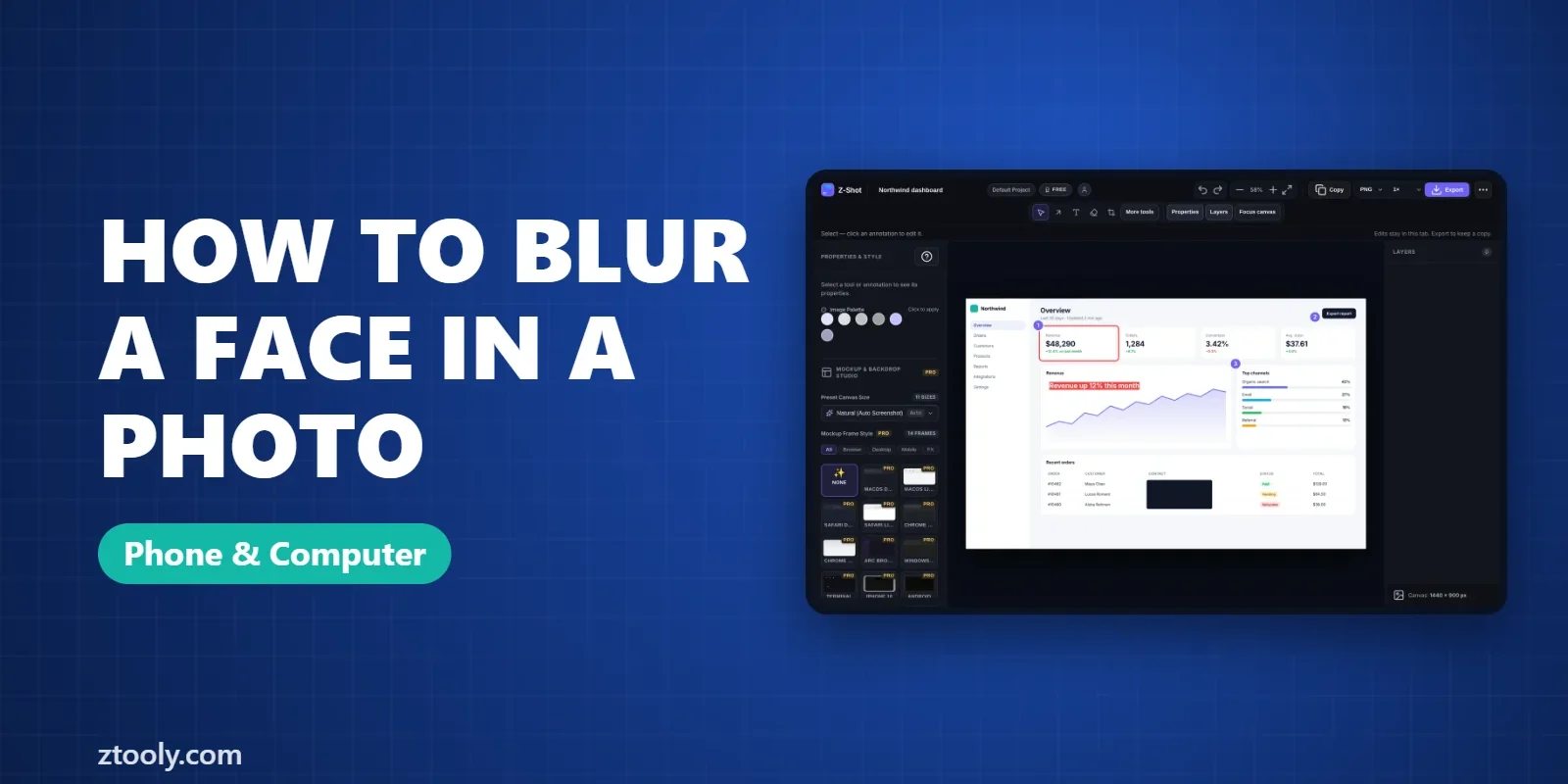
If you’re capturing a web page, social feed or a video call in the browser, it’s quicker to blur in the screenshot tool itself. Z-Shot, our Chrome extension, has a blur brush and a solid redaction tool in its free editor. Capture, drag over each face, and export. The image is processed in your browser and not uploaded. For text details like names and emails, use the solid box instead, as explained in hiding your email and name in a screenshot.
In a video
If you upload to YouTube, YouTube Studio’s editor has a Blur tool with face detection that follows faces as they move. For other platforms, most video editors, including CapCut and DaVinci Resolve, have a mosaic or blur effect you can attach to a moving object.
How much blur is enough?
Light blur is surprisingly easy to see through, especially for someone who knows the person. Research has shown that recognition software can identify many lightly blurred and pixelated faces. As a rule of thumb:
- Background strangers in a casual photo: strong blur is fine.
- Children, protesters, victims or anyone at risk: use a solid shape or crop them out. Also check for other identifying details like name tags, school uniforms, tattoos and car plates.
- Remove location data from photos before posting. Our guide on why pixelation isn’t always safe explains the limits of blur in more detail.
Common mistakes
- Blurring the face but not the reflection in a window or mirror.
- Missing small faces in the background or on screens and posters.
- Sharing the original by accident. Many apps keep both versions; share the edited file.
- Using a blur filter on the whole photo when only one face should be hidden, which makes the picture useless.
FAQ
How do I blur a face in a photo for free?
On a phone, Signal’s photo editor can blur faces automatically. On a computer, select the face in Photopea or GIMP and apply a strong Gaussian blur, then export a new image.
Can I blur a face on iPhone without an app?
The Photos app has no blur tool. Use Markup to place a solid shape or a sticker over the face instead, which hides it completely.
Is blurring a face enough to hide someone’s identity?
Light blur often isn’t. For anyone at risk, cover the face with a solid shape or crop it out, and remove other clues like name tags and location data.
How do I blur faces in a video?
YouTube Studio has a built-in blur tool with face detection for videos you upload. Most video editors also have a mosaic or blur effect that can follow a moving face.
How do I blur a face in a screenshot?
Use an image editor or a screenshot tool with a blur brush. In Chrome, Z-Shot’s free editor has blur and solid redaction tools.
Try it free: Z-Shot captures full pages, records your screen, and blurs or redacts sensitive data right in Chrome. Free plan, no account needed, and nothing is uploaded.