Quick answer: The right Awesome Screenshot alternative depends on why you’re leaving. For a Chrome extension that does screenshots, recording and redaction without uploading your files, try Z-Shot. For polished desktop captures, Snagit. For free and powerful on Windows, ShareX. For quick video messages, Loom. For simple one-click shots, Lightshot.
These Awesome Screenshot alternatives cover the same capture, annotate and record workflow, with more control over where your images go.
Awesome Screenshot is a capable all-in-one tool: full-page capture, annotation, screen recording and share links. People usually look for an alternative for one of four reasons: they don’t want captures stored in someone else’s cloud, they hit the free plan’s limits, they want something lighter, or they need a desktop app rather than a browser extension. This list is organised around those needs.
Awesome Screenshot alternatives: quick comparison
| Tool | Platform | Screenshots | Recording | Redaction | Where files live | Best for |
|---|---|---|---|---|---|---|
| Z-Shot | Chrome and Chromium browsers | Full page, area, element | Yes, with editor | Blur and solid boxes | Your browser | Private work captures |
| Snagit | Windows, Mac | Yes, incl. scrolling | Yes | Yes | Your computer | Documentation and training |
| ShareX | Windows | Yes, incl. scrolling | Yes | Yes | Your computer, optional upload | Free power users |
| Loom | Browser, desktop, mobile | Limited | Yes, core feature | No | Loom’s cloud | Async video messages |
| Nimbus | Browser extension | Yes | Yes | Blur | Local or Nimbus cloud | Nimbus Note users |
| Lightshot | Windows, Mac, extension | Area only | No | Basic | Local or public upload | Fast, simple shots |
| Browser built-ins | Chrome, Edge, Firefox | Full page | No | No | Your computer | Zero installs |
Features and plans change, so confirm the details on each product’s site before you commit.
1. Z-Shot: closest match, without the cloud
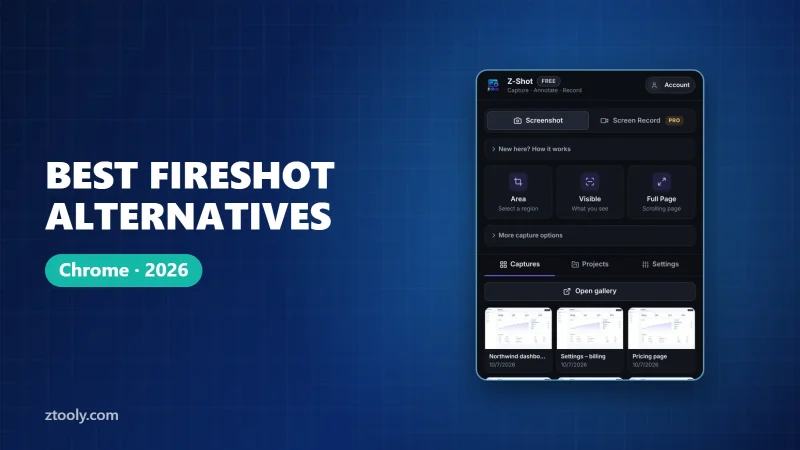
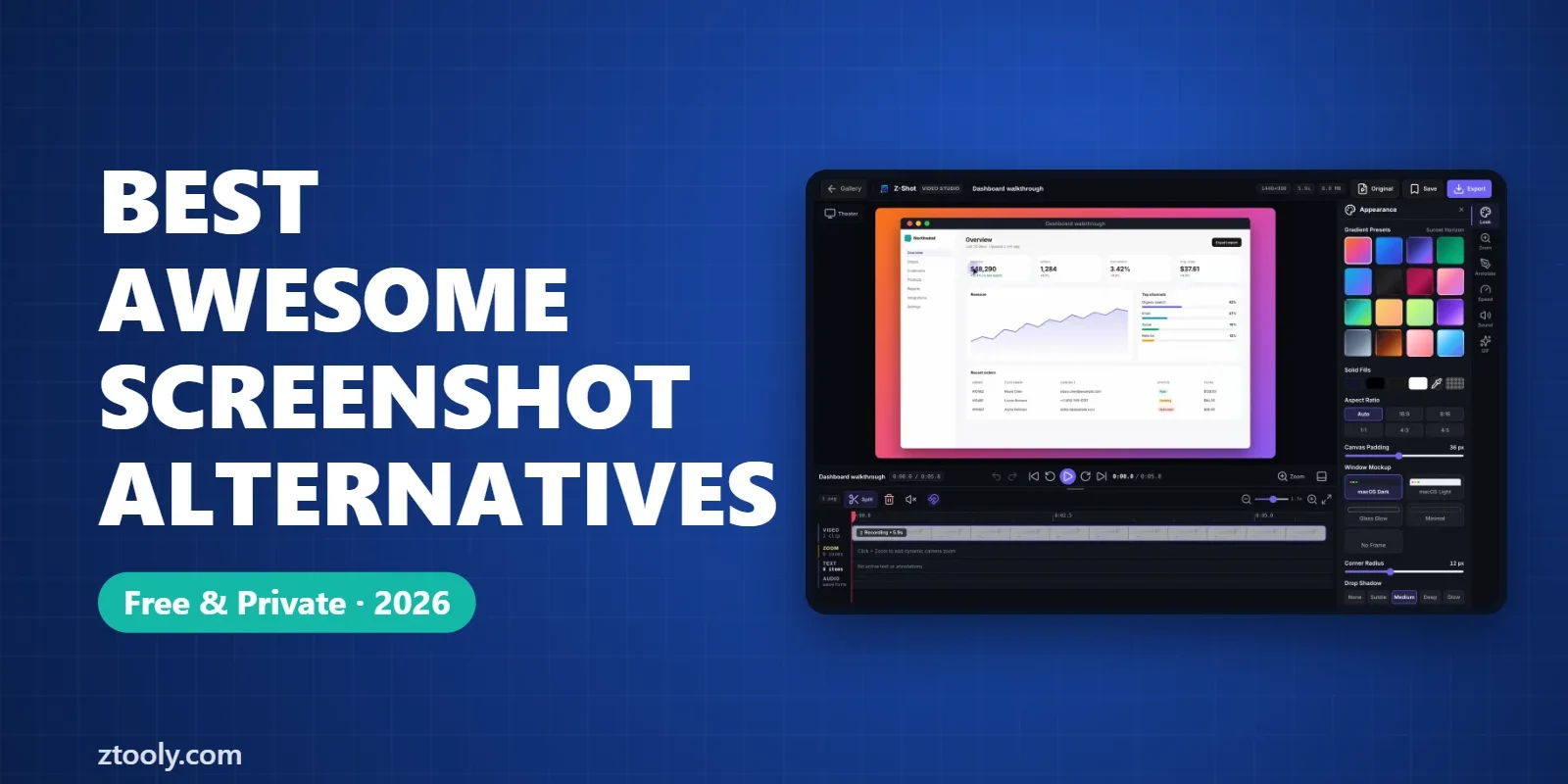
We build Z-Shot, so we’re not neutral, but it’s the most direct swap if you like Awesome Screenshot’s feature set. It captures full pages, areas, the visible screen or a single element, then opens an editor with arrows, text, numbered steps, blur and solid redaction. It records a tab, window or screen with microphone and webcam, and Video Studio lets you trim, zoom and export MP4, WebM or GIF.
The main difference is storage. Captures and recordings stay in your browser unless you choose to upload them. That matters if you screenshot internal dashboards, customer tickets or anything under an NDA.
Not ideal if: you rely on instant share links, or you use Firefox or Safari. We go deeper in Z-Shot vs Awesome Screenshot.
2. Snagit: the professional desktop option
Snagit from TechSmith is a paid Windows and Mac app aimed at people who make documentation, training material and tutorials. It captures any app, not just the browser, including scrolling windows, and its editor has templates, step tools and text replacement. It also records video.
Not ideal if: you want something free, or you only ever capture web pages.
3. ShareX: free and extremely capable (Windows)
ShareX is free and open source. It captures regions, windows, scrolling content and the full screen, records video and GIFs, has an editor, and can upload to dozens of services or nowhere at all. It also has OCR and a colour picker.
Not ideal if: you’re on a Mac, or you want something you can learn in five minutes. ShareX has a lot of settings.
4. Loom: for video, not screenshots
If you mainly used Awesome Screenshot to record your screen and send a link, Loom is built for exactly that: record, share a link, and see who watched. Recordings live in Loom’s cloud, which is the point of the product.
Not ideal if: you need screenshots with annotation, or recordings must stay on your device. Free options are covered in our guide to Loom alternatives for Chrome.
5. Nimbus Screenshot & Screen Video Recorder
Nimbus is the most similar extension in shape: screenshots, annotation, video recording and an optional cloud through Nimbus Note. It’s a reasonable pick if your team already keeps notes in Nimbus.
Not ideal if: you want a clean, uncluttered editor.
6. Lightshot: simple and fast
Lightshot does one thing: select an area, mark it up, and save or copy. It’s quick and light.
Not ideal if: you need full-page capture or recording. Also be careful with its upload button. Uploaded images get a short public link that anyone with the link can open, so don’t upload anything private.
7. Your browser’s built-in tools
If you only need the occasional full-page screenshot, you may not need an extension at all. Edge and Firefox capture full pages with Ctrl+Shift+S, and Chrome can do it through DevTools. Steps are in how to screenshot an entire webpage without an extension.
How to pick the right one
- Privacy is the reason you’re leaving: choose a tool that stores files locally, like Z-Shot, Snagit or ShareX.
- You need desktop apps captured too: Snagit (paid) or ShareX (free, Windows).
- You mostly record video for colleagues: Loom, or a local recorder if videos are sensitive.
- You want minimal and quick: Lightshot or your browser’s built-in tool.
Before you uninstall Awesome Screenshot
- Download anything you want to keep from your Awesome Screenshot account.
- Check old share links. If they contain sensitive data, delete them from your account rather than just uninstalling the extension.
- Remove the extension from
chrome://extensions.
Most of these Awesome Screenshot alternatives are free to try, so test your top two on real work before you switch.
FAQ
What is the best free alternative to Awesome Screenshot?
For a Chrome extension, Z-Shot’s free plan covers full-page capture, annotation, blur and redaction without uploads. On Windows, ShareX is free and very capable.
Is there an Awesome Screenshot alternative that doesn’t upload screenshots?
Yes. Z-Shot stores captures in your browser, and desktop apps like Snagit and ShareX save to your computer unless you choose to upload.
What can replace Awesome Screenshot for screen recording?
Loom is built for recording and sharing links. If you want recordings to stay local with an editor, Z-Shot records and edits in the browser.
Does Lightshot upload my screenshots?
Only if you click its upload button. Uploaded images get a public short link, so use save or copy for anything private.
Do I need an extension to take a full-page screenshot?
No. Edge and Firefox capture full pages with Ctrl+Shift+S, and Chrome can through DevTools. Extensions add editing, blur and recording.
Try it free: Z-Shot captures full pages, records your screen, and blurs or redacts sensitive data right in Chrome. Free plan, no account needed, and nothing is uploaded.