Quick answer: To edit a screen recording in your browser, open it in a web-based video editor, trim the start and end, split and delete mistakes, add zooms on the parts that matter and short text labels, then export MP4 or WebM. Z-Shot’s Video Studio does this inside Chrome right after you stop recording, with no upload and no separate app.
A raw screen recording is rarely ready to share. There’s a pause at the start while you find the right tab, a mistake in the middle, and the button you’re talking about is too small to see. Five minutes of editing turns it into something people actually watch to the end.
The 5 edits that matter most
- Trim the ends. Cut everything before your first action and after your last.
- Cut mistakes and dead time. Split the clip around the mistake and delete it.
- Zoom in. Add a zoom whenever you click something small, so viewers on phones or small windows can follow.
- Add short text. A label like “Step 2: Connect your account” helps people skimming without sound.
- Frame it. A backdrop and window frame make demos look finished, especially for social posts and landing pages.
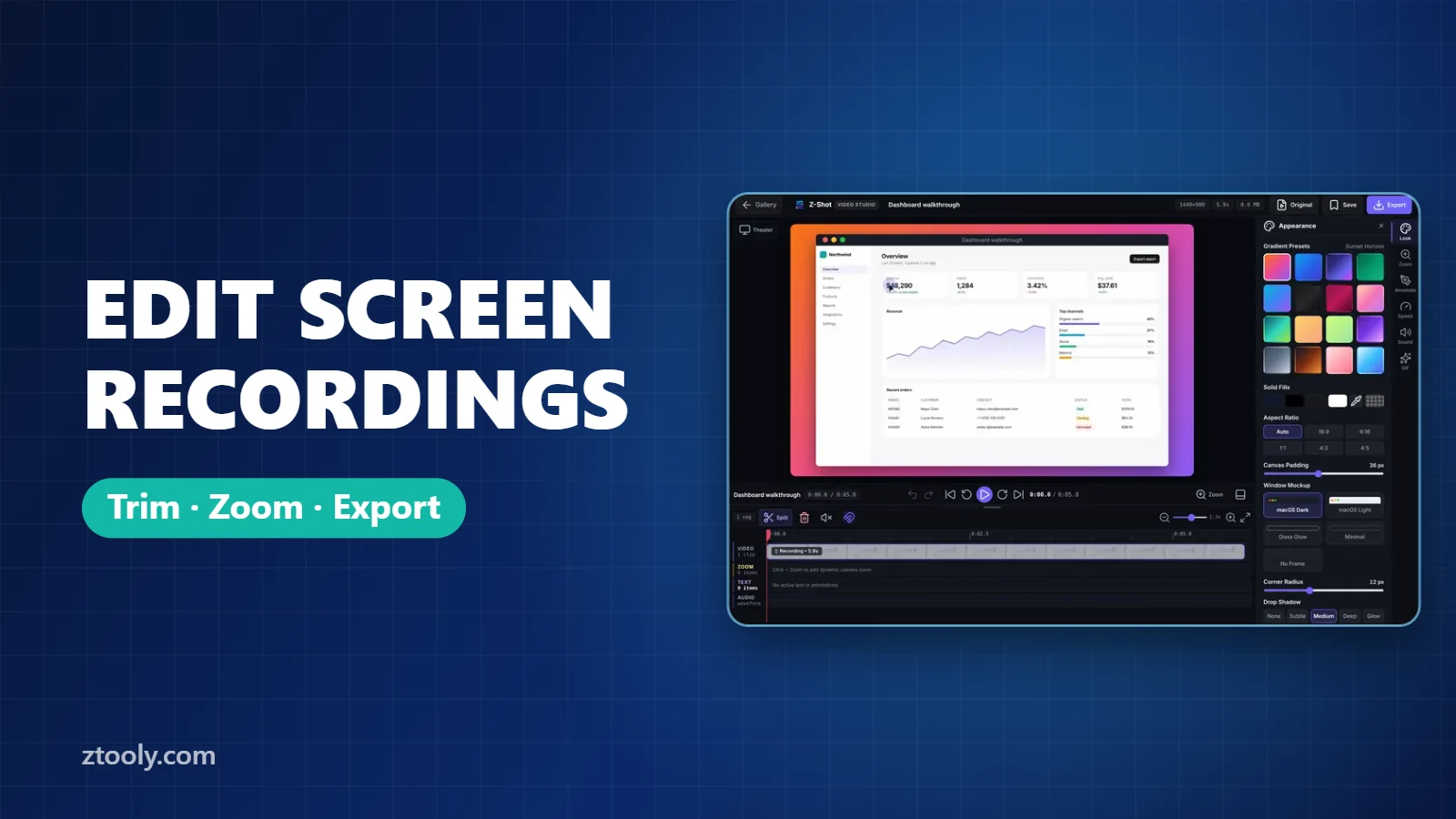
How to edit a screen recording in your browser with Z-Shot’s Video Studio
- Record with Z-Shot (Alt+Shift+R). When you stop, Video Studio opens automatically. You can also open any recording from your gallery.
- Trim and split on the timeline. Place the playhead, split, and delete the part you don’t need. Undo and redo are always there.
- Mute sections where you coughed or a notification sound slipped through.
- Add zooms on their own track. Each zoom moves the camera in on part of the screen and back out.
- Add text on its own track for titles, step labels or callouts.
- Choose a look: gradient backdrop, window frame, rounded corners, shadow, and an aspect ratio of 16:9, 9:16 or 1:1.
- Adjust speed to speed up slow parts like loading or typing.
- Export as MP4 or WebM up to 1440p, or a short GIF.
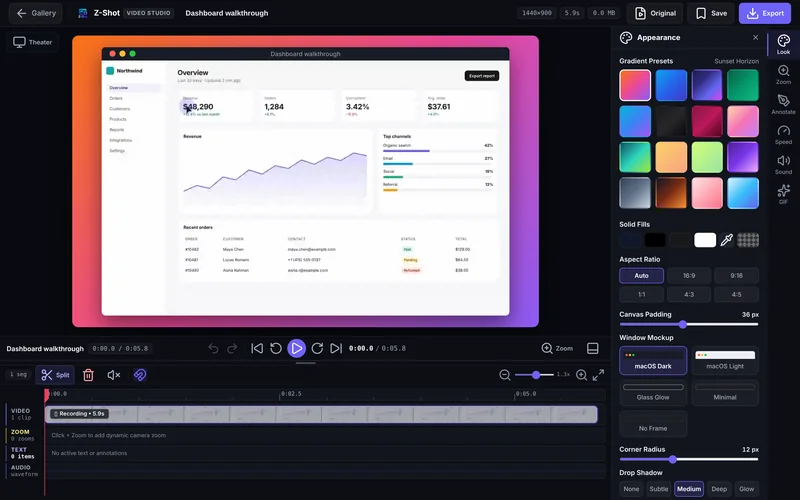
Everything runs in your browser. The recording isn’t uploaded for processing, which keeps internal demos private.
Choose the right aspect ratio
| Ratio | Use for |
|---|---|
| 16:9 | YouTube, docs, websites, presentations |
| 9:16 | Reels, Shorts, TikTok, Stories |
| 1:1 | LinkedIn and X feeds, product listings |
For vertical video, record a narrower window or zoom in heavily on one area so the content fills the frame.
Other free browser-friendly editors
- Clipchamp: Microsoft’s online editor with templates and stock media. Good for general video, but you need an account and files are processed online.
- CapCut online: feature-rich and popular for social video, also account-based and cloud-processed.
- Desktop alternatives: DaVinci Resolve and Shotcut are free and powerful if you’re willing to install software and learn it.
For screen recordings specifically, an editor built around zooms and backdrops saves time compared with a general video editor.
Editing tips for clear demos
- Record in short takes. Several 30-second clips are easier to edit than one long one.
- Move the mouse slowly and deliberately. Zooms look smoother when the cursor isn’t jumping around.
- Use 1.5–2× speed for waiting, never for the important clicks.
- Keep text on screen for at least 2 seconds.
- Watch it once on your phone before sharing. If you can’t read it there, add a zoom.
Export settings
- MP4 at 1080p is the safest choice for sharing almost anywhere.
- 1440p is useful for detailed interfaces and high-resolution screens.
- WebM is smaller and ideal for embedding on websites.
- GIF for short silent loops. See how to make a small, sharp GIF.
Once you edit a screen recording in your browser a few times, trimming and zooming take only a couple of minutes per video.
Frequently Asked Questions
How do I edit a screen recording for free?
Use a free editor such as Z-Shot’s Video Studio in Chrome, Clipchamp online, or DaVinci Resolve or Shotcut on desktop. Trim the ends, cut mistakes, add zooms and export MP4.
Can I edit a screen recording without uploading it?
Yes. Z-Shot’s Video Studio edits recordings inside your browser without uploading them. Desktop editors like Shotcut and DaVinci Resolve also work offline.
How do I zoom in on part of a screen recording?
Add a zoom on the timeline at the moment you want to highlight. In Z-Shot, zooms sit on their own track, so you can set exactly when they start and end.
What resolution should I export a screen recording in?
1080p MP4 works for most uses. Choose 1440p for detailed interfaces, and a smaller size for GIFs.
How do I make a vertical screen recording for Reels or Shorts?
Set the aspect ratio to 9:16 in your editor and zoom in on the part of the screen that matters so it fills the frame.
Try it free: Z-Shot captures full pages, records your screen, and blurs or redacts sensitive data right in Chrome. Free plan, no account needed, and nothing is uploaded.