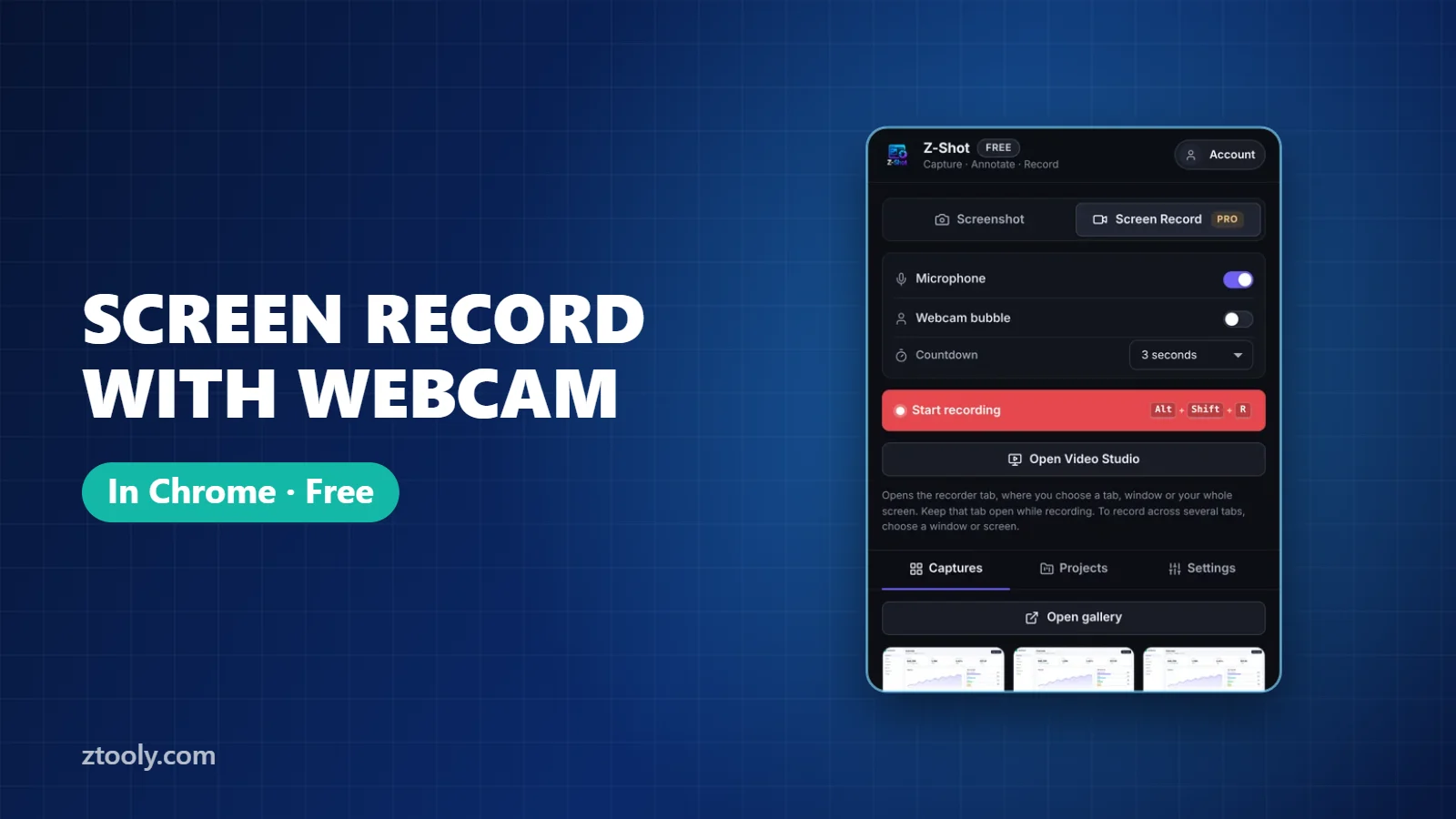
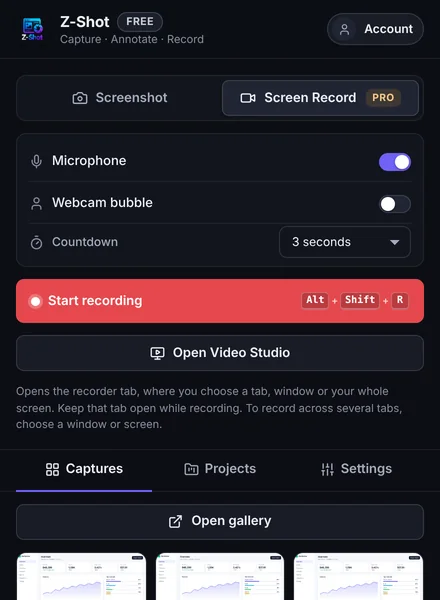
Quick answer: To screen record with your webcam in Chrome, use a recorder extension that supports a camera overlay. In Z-Shot, start recording (Alt+Shift+R), choose a tab, window or screen, switch on the webcam bubble and microphone, and record. Your face appears in a small circle on top of the screen, and you can edit the result in Video Studio afterwards.
Here is how to screen record with webcam in Chrome so your face appears in a bubble over your screen, all without installing desktop software.
Adding your face to a screen recording makes tutorials, sales demos and feedback videos feel personal. Viewers pay more attention when they can see who’s talking. Here’s how to do it in Chrome, plus how to look and sound good without special equipment.
How to screen record with webcam in Chrome
- Install Z-Shot and pin it to the toolbar.
- Press Alt+Shift+R or choose Record from the extension.
- Choose what to share: a tab for web demos, a window for one app, or the entire screen.
- Turn on the webcam bubble and your microphone. Chrome will ask permission to use the camera and mic the first time.
- Record. Pause and resume from the small on-screen control.
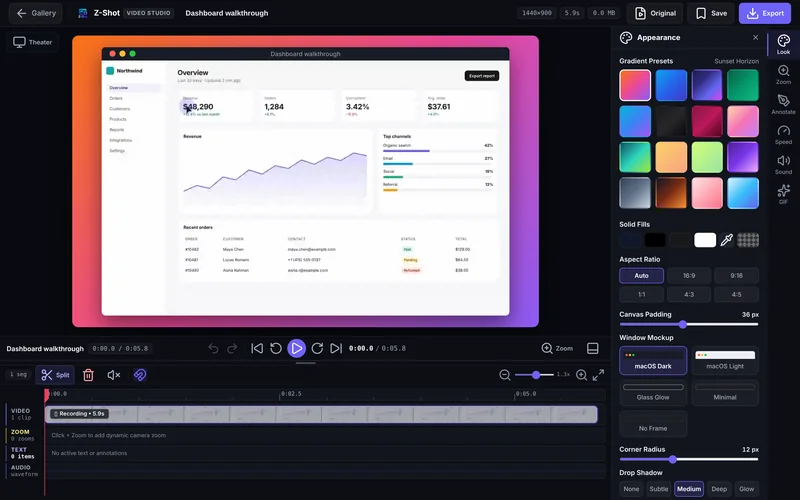
- Stop and edit in Video Studio: cut mistakes, add zooms and text, choose a backdrop, then export MP4, WebM or GIF.
Recordings stay in your browser rather than being uploaded, so you can record internal tools and client work without worrying where the file ends up.
Other ways to record screen and webcam
- Loom, Awesome Screenshot, Screencastify: Chrome extensions with a camera bubble that upload to the cloud and give you a share link. Compare them in our Loom alternatives guide.
- OBS Studio: free desktop software where you add your screen and camera as separate sources and position them freely. Powerful, with a learning curve.
- Mac workaround: open Photo Booth or a QuickTime “New Movie Recording” window, set it to float on top, then record the screen with Cmd+Shift+5.
Look good on camera without new gear
- Light from the front. Sit facing a window or lamp. Light behind you turns your face into a silhouette.
- Camera at eye level. Stack a few books under your laptop so the camera isn’t looking up at you.
- Look at the lens when you introduce yourself, then at the screen while you work.
- Tidy the background or sit in front of a plain wall.
Sound good
- Any wired or Bluetooth headset mic beats a laptop mic.
- Record in a room with soft furnishings. Bare walls echo.
- Do a 10-second test and listen with headphones.
- Mute notifications with Do Not Disturb.
Keep the bubble out of the way
Before recording, check where important parts of the page are. If the camera bubble would cover a button you need to show, scroll or rearrange the window so the action happens elsewhere. In editing, zoom in on the area you’re explaining so the bubble never hides it.
When to use a webcam (and when not to)
| Use the webcam | Skip it |
|---|---|
| Intros, walkthroughs for clients, sales demos | Short bug reproductions |
| Feedback on someone’s work | GIFs for READMEs or tickets |
| Onboarding and training videos | Recordings with lots of small UI text |
Structure for a short webcam video
- 5 seconds: who you are and what you’ll show.
- Main part: do the task, explaining as you go.
- 10 seconds: recap and what the viewer should do next.
Keep most videos under 3 minutes. If it runs longer, split it into parts.
Do a short test before you screen record with webcam in Chrome for a real audience.
Frequently Asked Questions
How do I record my screen and face at the same time?
Use a screen recorder with a webcam overlay, such as Z-Shot, Loom or OBS Studio. Turn on the camera before recording and your face appears in a bubble over the screen.
Can I record my screen and webcam for free?
Yes. Z-Shot has a free plan with a webcam bubble in Chrome, and OBS Studio is completely free desktop software.
Why isn’t my webcam showing in the recording?
Check that Chrome has camera permission (click the lock or tune icon in the address bar), that no other app is using the camera, and that the webcam option is switched on before you start.
Does recording with a webcam make the file bigger?
Slightly. The size mostly depends on length and resolution. Trim dead time and export MP4 to keep files small.
Where should the webcam bubble go?
Usually a bottom corner, where it won’t cover menus or buttons. Check your layout before recording.
Try it free: Z-Shot captures full pages, records your screen, and blurs or redacts sensitive data right in Chrome. Free plan, no account needed, and nothing is uploaded.